import numpy as np
import pandas as pd
import matplotlib.pyplot as plt
from matplotlib.colors import ListedColormap, BoundaryNorm
from matplotlib.patches import Patch
from matplotlib.lines import Line2D
import geopandas as gpd
import rasterio
from rasterio.enums import Resampling
from rasterio.plot import plotting_extent
import contextily as ctx
import mapclassify
from matplotlib_scalebar.scalebar import ScaleBar
from shapely.geometry import LineString8 Making Maps
8.1 Topics Covered
- Adding base maps/raster tile layers
- Visualizing point, line, and polygon features and associated symbology
- Visualizing continuous and categorical raster data
- Defining color ramps and binning
- Editing legends and titles
- Adding map elements/surrounds and labels
- Generating multi-map layouts and facets
- Static vs. interactive maps
- Saving maps
8.2 Introduction
This chapter focuses on the creation of maps using GeoPandas, Rasterio, and matplotlib. In Chapter 5, we used matplotlib to create graphs. A map is created in the same way: a figure and axes are created, and each data layer is drawn onto the axes. GeoDataFrames have a plot() method that draws vector features using matplotlib, and raster grids can be drawn using imshow(). Since every map is a matplotlib figure, all of the customization options discussed in Chapter 5, such as titles, annotations, and multi-panel layouts, are available for maps as well. We tend to use these tools as we are undertaking geospatial analyses in Python to visualize input data or intermediate or final outputs. In such cases, it is generally not necessary to refine the layout. However, they can also be used to generate publication- or presentation-quality map layouts, which will be explored in this chapter.
Other than GeoPandas, Rasterio, and matplotlib, the following libraries are used:
- contextily: download and display base map tiles
- mapclassify: classify, or bin, numeric data and assign colors to polygons so that neighbors differ
- matplotlib-scalebar: add scale bars to maps
-
folium: generate interactive web maps; it is used by the
explore()method of GeoPandas
First, we load in our example data using GeoPandas and Rasterio. The vector data include city point locations, state boundaries, and Amtrak lines for the contiguous United States. A raster-based digital terrain model (DTM) from the National Elevation Dataset (NED) and a categorical raster grid of land cover types from the National Land Cover Database (NLCD) are also provided for Lycoming County, Pennsylvania, USA. Lastly, a DTM and derived hillshade are provided for the extent of Tucker County, West Virginia, USA. Note that the US-level data are re-projected to the WGS84 Web Mercator projection (EPSG:3857) using to_crs(). This is the projection used by web map tiles, so it allows the data to be displayed over a base map.
GeoPandas is discussed in more detail in the next chapter. For now, we are just using it to read in vector geospatial data with read_file(), re-project data layers with to_crs(), and extract the rectangular extent of layers using the total_bounds property.
The DTMs have many more cells than can be displayed on a screen or page. For example, the Lycoming County DTM has more than 70 million cells. To keep the examples fast and memory efficient, we read the DTMs at a reduced resolution using the out_shape parameter, as discussed in Chapter 10. We write a small function to do this. The function returns the array, with NoData cells masked, along with the extent of the grid in map coordinates, which is needed to display the grid in the correct location.
fld = "datasets/gisData/mapping/"

cities = gpd.read_file(fld + "mapping.gpkg", layer="cities2").to_crs(3857)
states = gpd.read_file(fld + "mapping.gpkg", layer="states").to_crs(3857)
tracks = gpd.read_file(fld + "mapping.gpkg", layer="tracks").to_crs(3857)

def read_raster(path, scale=1, resampling=Resampling.bilinear):
    """Read the first band of a raster, optionally at a reduced resolution."""
    with rasterio.open(path) as src:
        arr = src.read(1, out_shape=(src.height // scale, src.width // scale),
                       resampling=resampling, masked=True)
        extent = (src.bounds.left, src.bounds.right, src.bounds.bottom, src.bounds.top)
    return arr, extent

dem, dem_ext = read_raster(fld + "lycomingDTM.tif", scale=8)
lc, lc_ext = read_raster(fld + "lycomingLC2.tif", resampling=Resampling.nearest)
tucker_dem, tucker_ext = read_raster(fld + "tuckerDTM.tif", scale=4)
tucker_hs, _ = read_raster(fld + "tuckerHS.tif", scale=4)
8.3 Base Maps
A map begins with a matplotlib figure and axes created using plt.subplots(). In our first example, we display the Esri World Street Map base map using the add_basemap() function from contextily. Base maps are made up of image tiles that are downloaded from a web service for the extent of the axes. So, we first define the extent of the map using the bounding box of the contiguous United States, which is obtained from the total_bounds property of the states layer. add_basemap() then downloads the tiles that cover this extent and draws them on the axes. The crs parameter defines the coordinate reference system of the axes, and the source parameter defines the tile provider. Many providers are available through ctx.providers. The result is a map of the contiguous United States with only a base map and no operational layers. We also hide the axes, since coordinates in meters are generally not useful on a map.
The tile servers operated by the OpenStreetMap Foundation have a tile usage policy that restricts bulk and automated downloads, and requests from scripts may be blocked. Other providers also have terms of use, and some, such as CARTO, require an API key. You can explore the available providers using ctx.providers. The explore() method, which is demonstrated later in the chapter, displays OpenStreetMap tiles in the web browser, which is permitted.
xmin, ymin, xmax, ymax = states.total_bounds

fig, ax = plt.subplots(figsize=(10, 6))
ax.set_xlim(xmin, xmax)
ax.set_ylim(ymin, ymax)
ctx.add_basemap(ax, crs=states.crs, source=ctx.providers.Esri.WorldStreetMap)
ax.set_axis_off()
plt.show()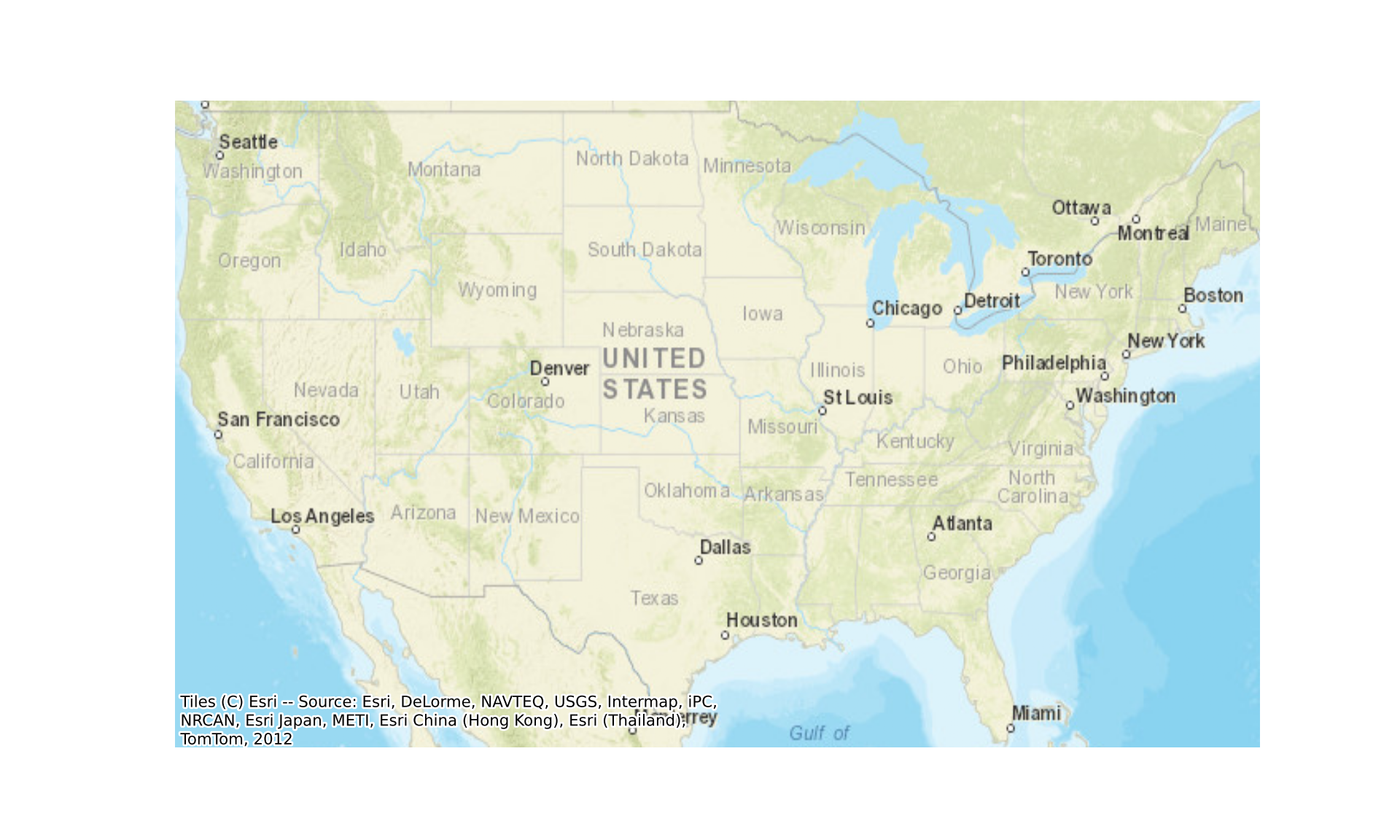
8.4 Operational Layers
We now experiment with adding operational layers to the map. There are a wide variety of means to display geospatial data, and the best choice depends on (1) the type of data being displayed and (2) the optimal graphical parameter for showing the quantity or category of interest. Table 8.1 describes the parameters that control the symbology of point, line, and polygon features when using the plot() method of a GeoDataFrame and of raster grids when using imshow(). Each graphical parameter can be set to a constant, or a column can be mapped to the fill color using the column parameter. Other properties, such as the size of a point, can be mapped to an attribute by providing an array of values.
| Data Type | Method | Fill Color | Transparency | Outline/Line Color | Outline/Line Width | Size | Line Type | Marker Shape |
|---|---|---|---|---|---|---|---|---|
| Point | plot() |
color or column
|
alpha |
edgecolor |
linewidth |
markersize |
marker |
|
| Line | plot() |
color or column
|
alpha |
linewidth |
linestyle |
|||
| Polygon | plot() |
color, facecolor, or column
|
alpha |
edgecolor |
linewidth |
linestyle |
||
| Polygon outline | boundary.plot() |
alpha |
color |
linewidth |
linestyle |
|||
| Single-band raster | imshow() |
cmap and norm
|
alpha |
|||||
| Multiband raster (RGB) | imshow() |
Band values | alpha |
|||||
| Base map tiles | ctx.add_basemap() |
Tile images | alpha |
Displaying multiband raster data, such as multispectral imagery, as a color composite is discussed in Chapter 10.
8.4.1 Vector Operational Layers
8.4.1.1 Points
Below, we demonstrate the visualization of point vector data. In the first example, the size of each city point symbol is mapped to the city’s population, which results in proportional symbols. The markersize parameter accepts an array of values, so we scale the population values to a reasonable range of symbol sizes. GeoPandas does not automatically create a legend for symbol sizes, so we build one manually: a set of example population values is converted to symbol sizes using the same scaling, and an empty scatter plot is created for each to generate a legend entry. We also define a title for the legend and orient it horizontally by setting the number of columns (ncol).
When multiple layers are displayed, each layer is drawn to the same axes, and later layers draw above prior layers. Since the base map is drawn below the operational layers, we set the zorder of the base map to 0.
def pop_size(pop):
    """Convert population to point symbol size."""
    return pop / 10000

def size_legend(ax, values, title, **kwargs):
    """Add a legend for proportional point symbols."""
    handles = [ax.scatter([], [], s=pop_size(v), color="grey", edgecolor="black",
                          label=f"{v:,.0f}") for v in values]
    return ax.legend(handles=handles, title=title, ncol=len(values), frameon=False, **kwargs)

fig, ax = plt.subplots(figsize=(10, 7))
cities.plot(ax=ax, markersize=pop_size(cities["pop2007b"]), color="grey", edgecolor="black")
ax.set_xlim(xmin, xmax)
ax.set_ylim(ymin, ymax)
ctx.add_basemap(ax, crs=cities.crs, source=ctx.providers.Esri.WorldStreetMap, zorder=0)
size_legend(ax, [500000, 2000000, 5000000, 8000000], "Population of City",
            loc="upper center", bbox_to_anchor=(0.5, -0.02))
ax.set_axis_off()
plt.show()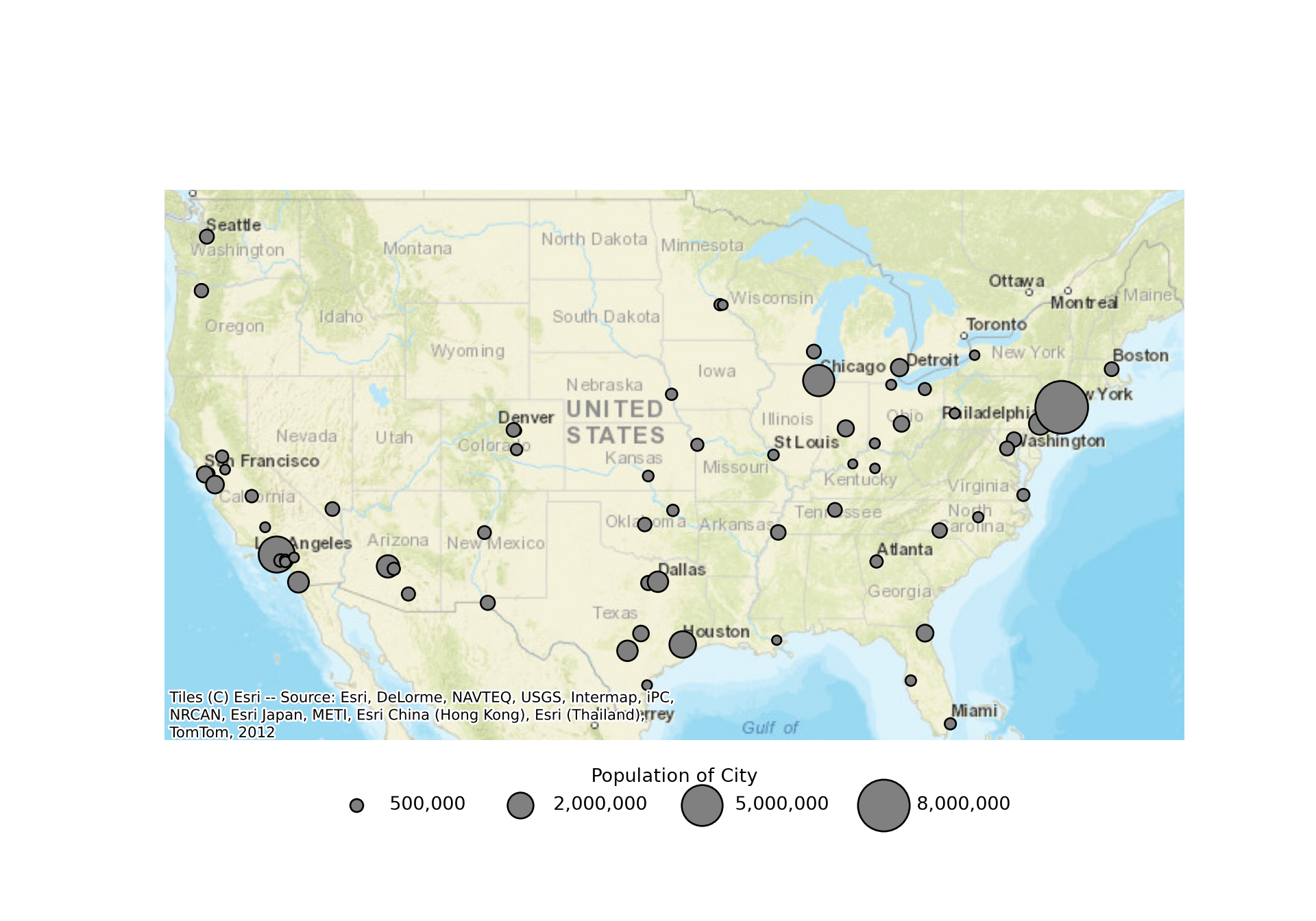
In the second example, all of the cities are drawn using the same size and color.
fig, ax = plt.subplots(figsize=(10, 6))
cities.plot(ax=ax, markersize=40, color="red")
ax.set_xlim(xmin, xmax)
ax.set_ylim(ymin, ymax)
ctx.add_basemap(ax, crs=cities.crs, source=ctx.providers.Esri.WorldStreetMap, zorder=0)
ax.set_axis_off()
plt.show()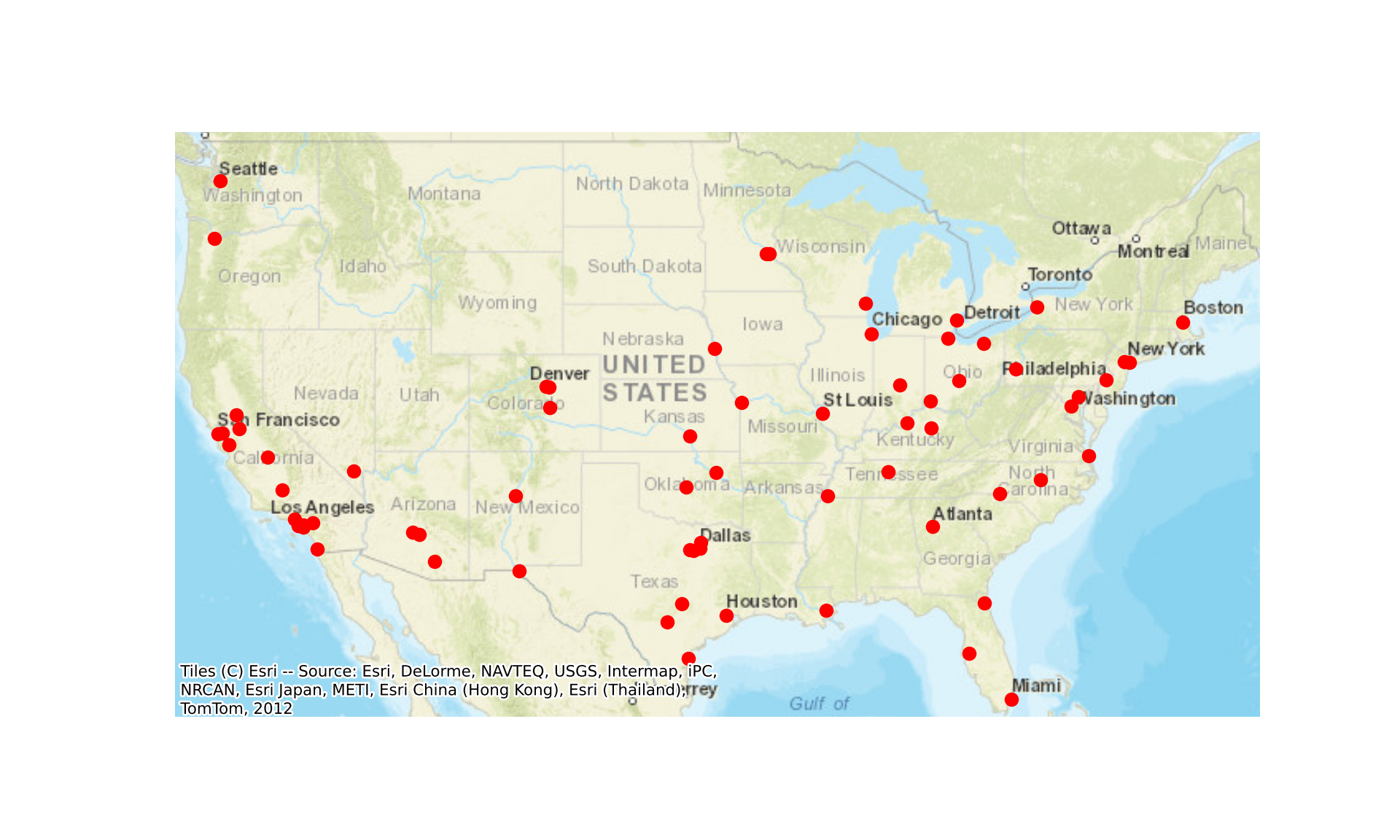
8.4.1.2 Lines
Line features are drawn in the same way. The user can map a continuous variable to the width of the line using an array of values, a categorical or continuous variable to line color using the column parameter, and/or set the line type using the linestyle parameter. In our example, we are only using constants. Common line styles in matplotlib include “solid” (“-”), “dashed” (“–”), “dotted” (“:”), and “dashdot” (“-.”).
fig, ax = plt.subplots(figsize=(10, 6))
tracks.plot(ax=ax, color="black", linewidth=2, linestyle="dotted")
ax.set_xlim(xmin, xmax)
ax.set_ylim(ymin, ymax)
ctx.add_basemap(ax, crs=tracks.crs, source=ctx.providers.Esri.WorldStreetMap, zorder=0)
ax.set_axis_off()
plt.show()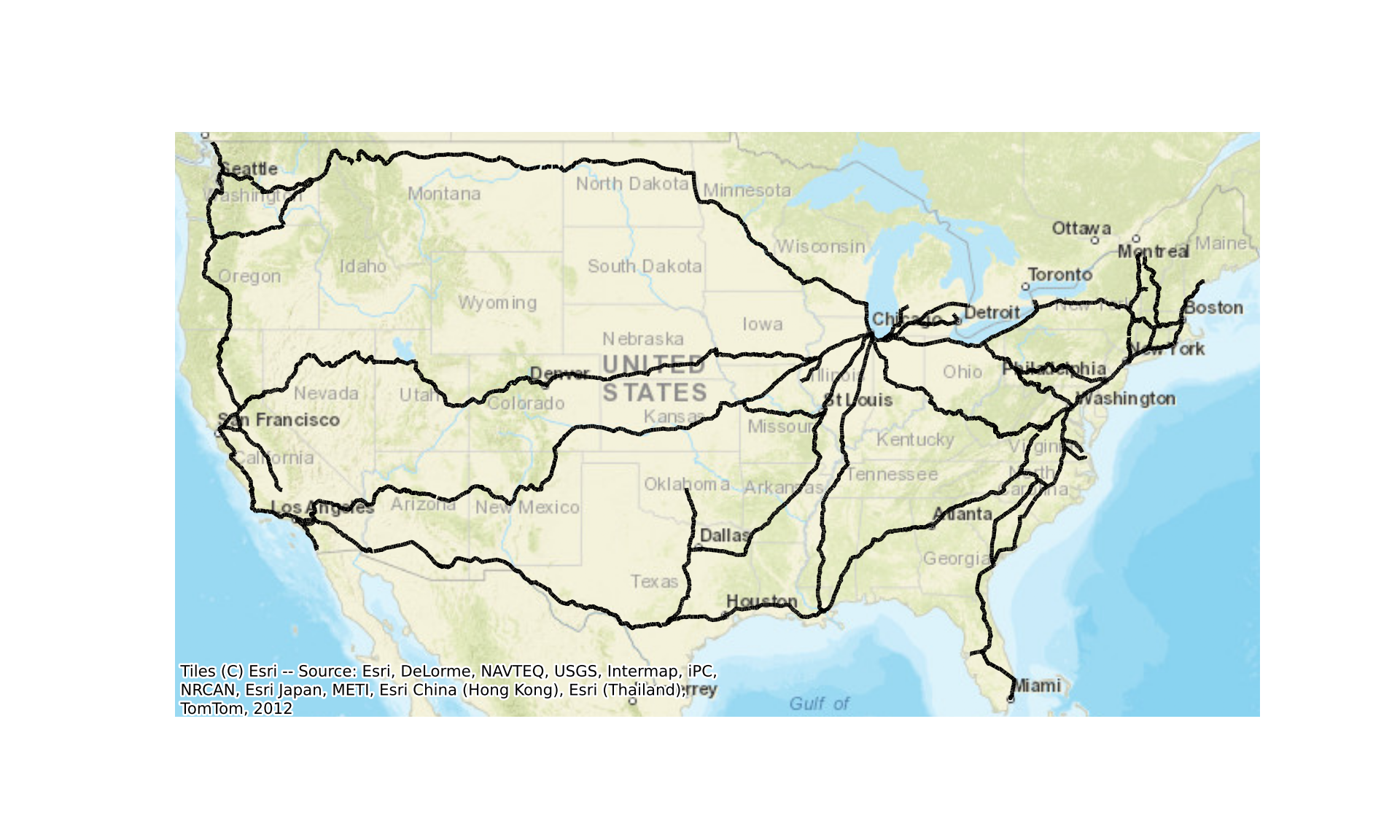
8.4.1.3 Polygons
For polygon features, the fill color is set using color or facecolor, and the outline is defined using edgecolor and linewidth. Setting edgecolor="none" draws only the fill, while setting facecolor="none" draws only the outline (i.e., a hollow symbol). The outline can also be drawn by plotting the boundary property, which converts the polygons to lines. As the last example in this section demonstrates, you can stack an outline over a fill; however, setting both the fill and outline in a single call to plot() makes this unnecessary.
When displaying polygons, variables can be mapped to the fill color and transparency, the outline color, and the outline width. Size is not available for polygon features. However, a proportional or graduated point symbol for each polygon could be used to represent a continuous variable.
def simple_map(*layers):
    """Draw a set of (GeoDataFrame, plot keyword arguments) pairs on one map."""
    fig, ax = plt.subplots(figsize=(10, 6))
    for gdf, kwargs in layers:
        gdf.plot(ax=ax, **kwargs)
    ax.set_axis_off()
    plt.show()

simple_map((states, {"color": "grey", "edgecolor": "black"}))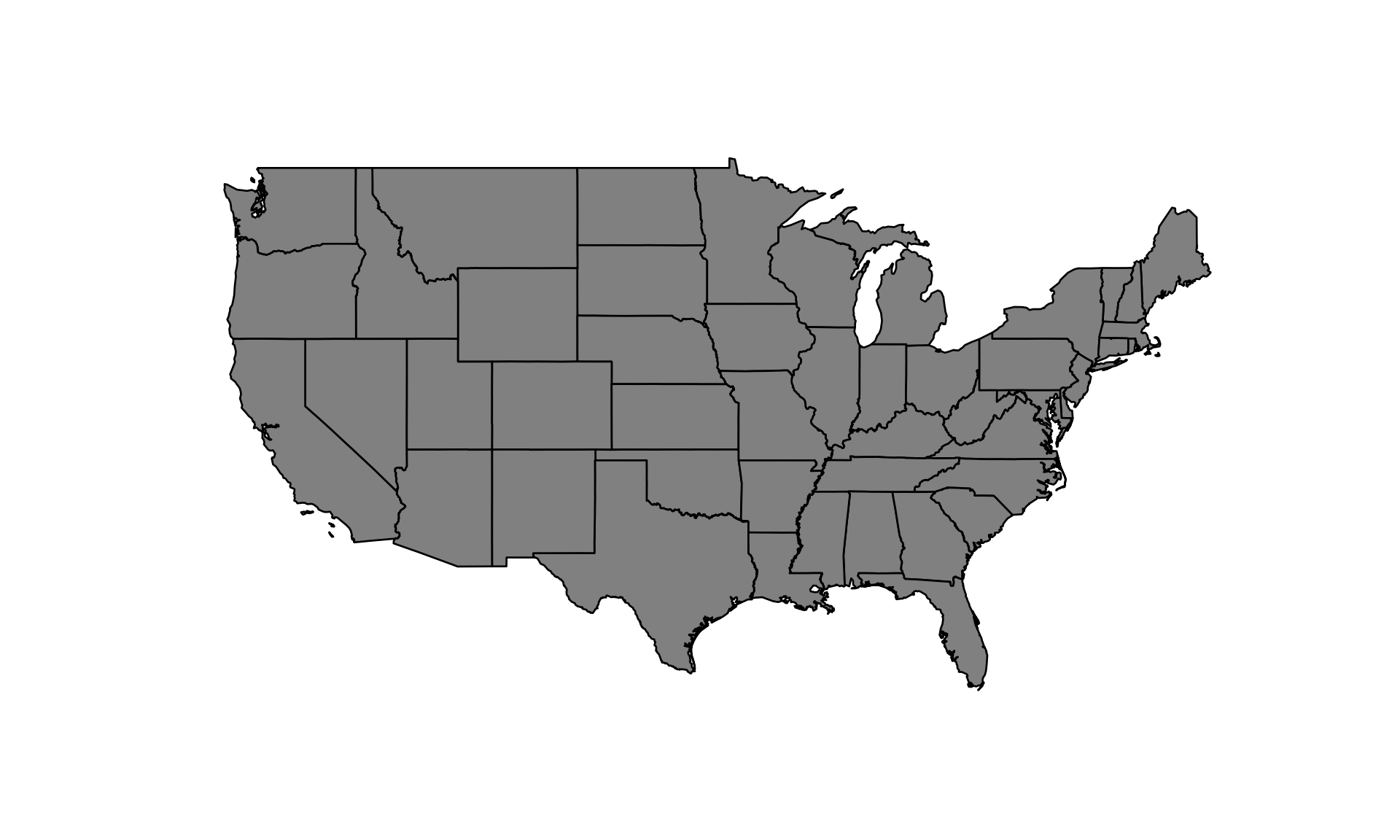
simple_map((states, {"color": "grey", "edgecolor": "none"}))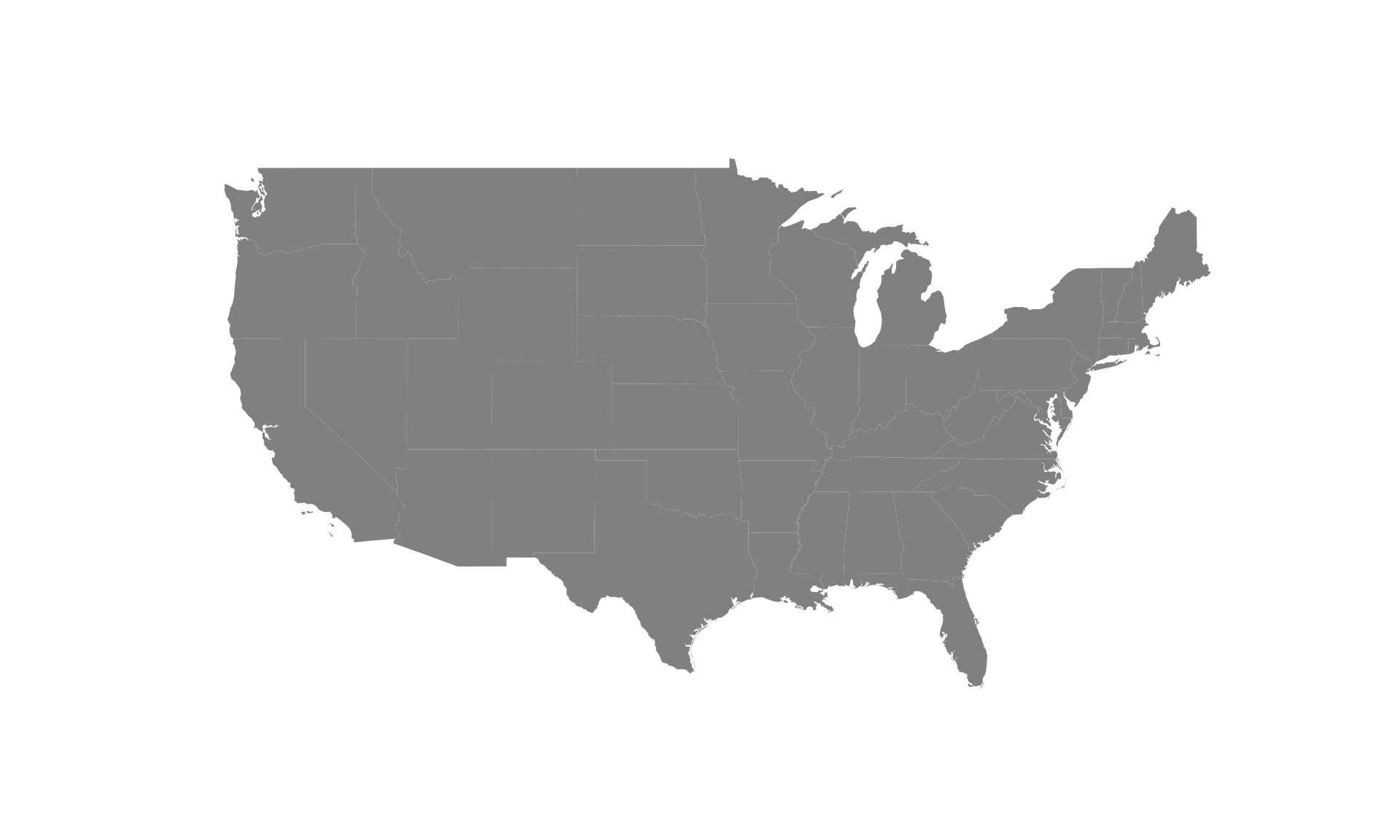
simple_map((states, {"facecolor": "none", "edgecolor": "red", "linewidth": 2}))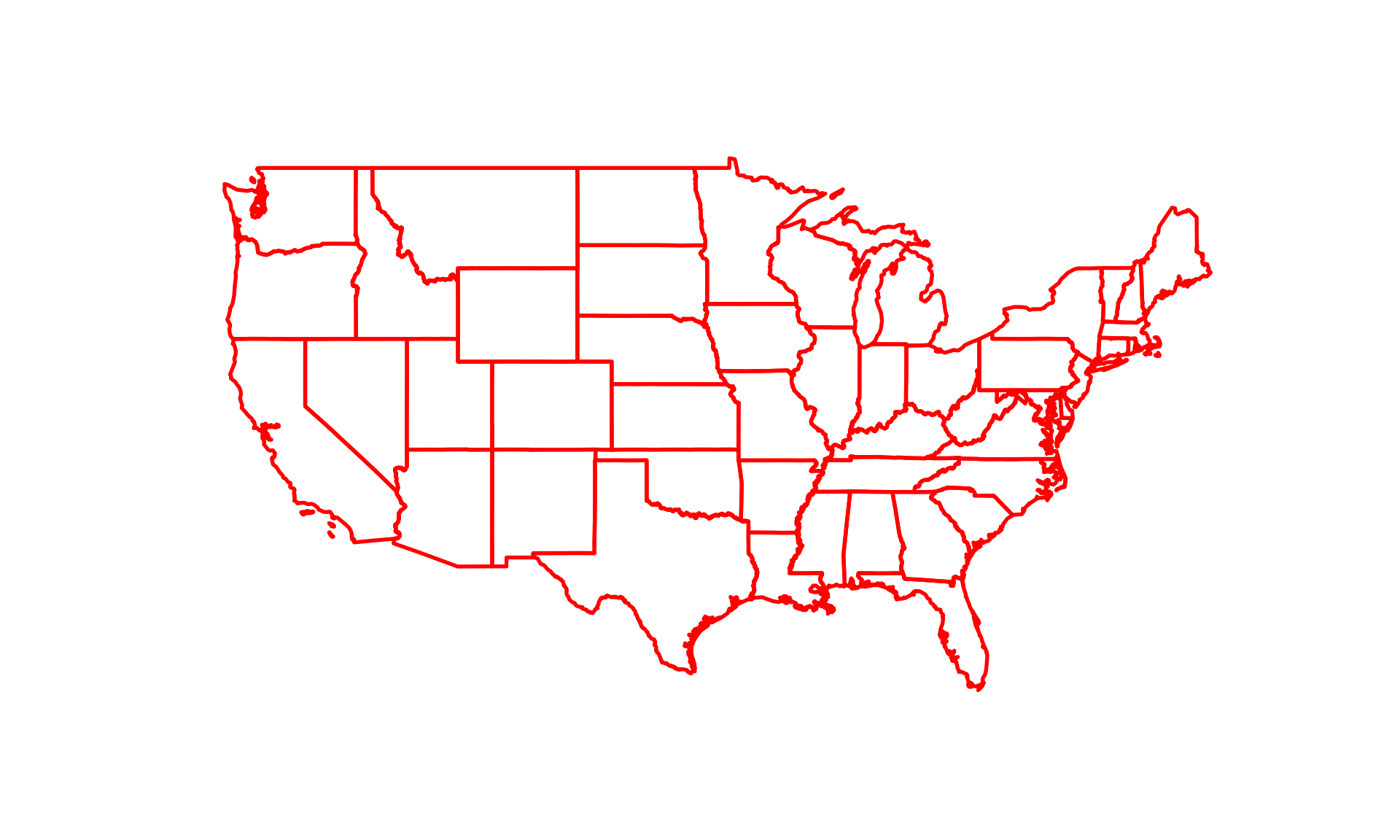
simple_map((states, {"color": "grey", "edgecolor": "none"}),
           (states.boundary, {"color": "red", "linewidth": 2}))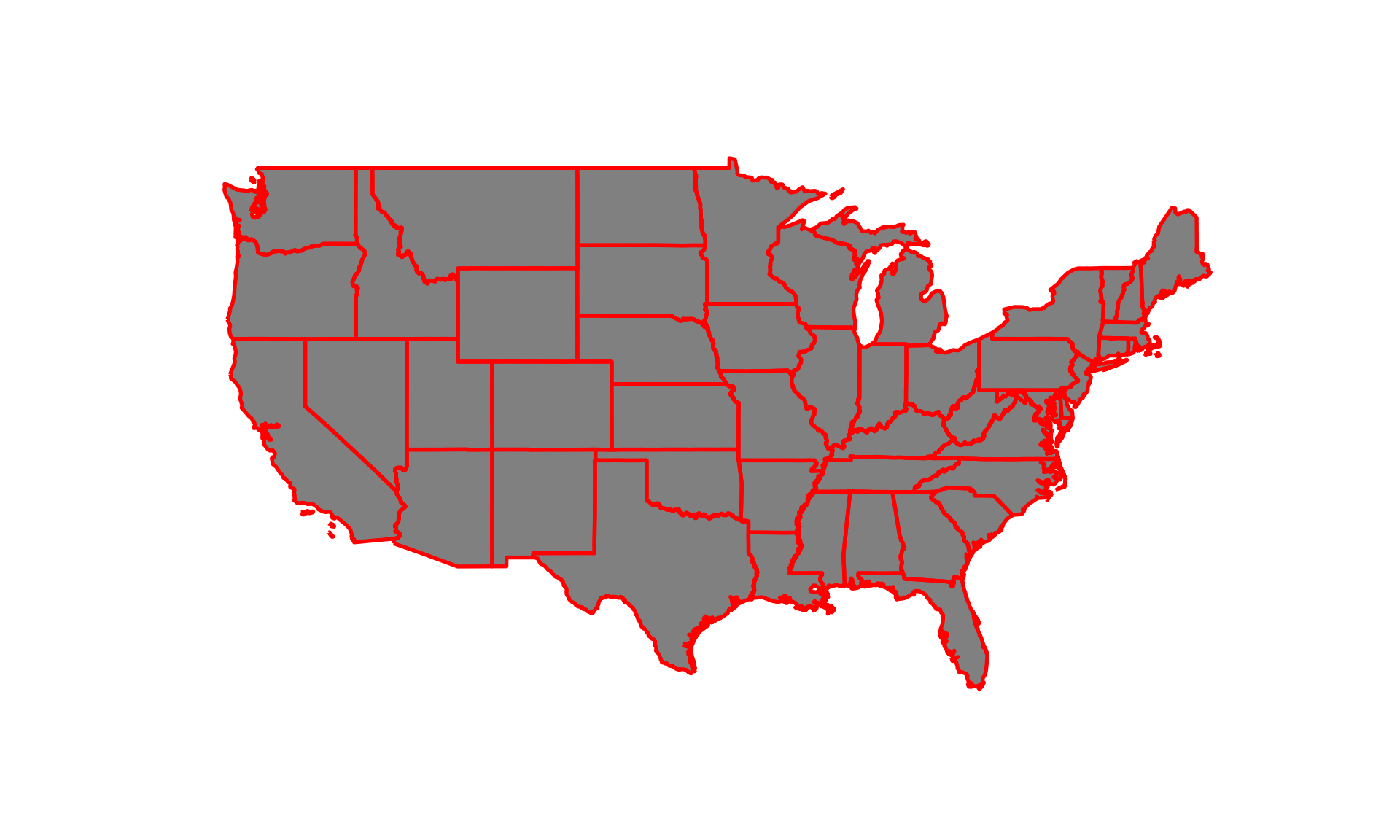
8.4.2 Raster Operational Layers
8.4.2.1 Continuous Raster Data
The code blocks below demonstrate the display of a continuous raster grid, specifically a DTM where each cell holds an elevation measurement. The array is displayed using imshow(). Providing the extent of the grid to the extent parameter displays the grid in map coordinates. The raster values are mapped to color using a colormap (cmap), and the way that values are assigned to colors is defined by a normalization (norm). A color bar serves as a legend. Table 8.2 lists common options for mapping numeric data to colors.
| Option | Use |
|---|---|
Normalize() (default) |
Continuous linear scaling for numeric data |
LogNorm() |
Continuous scaling for numeric data with a log transform |
PowerNorm(gamma=0.5) |
Continuous scaling for numeric data with a square root transform |
BoundaryNorm() |
Binned numeric data using a set of class breaks |
ListedColormap() + BoundaryNorm()
|
Categorical data with a specific color for each code |
mapclassify classifiers (e.g., EqualInterval(), Quantiles(), NaturalBreaks()) |
Calculate class breaks for binned numeric data |
scheme parameter of the GeoPandas plot() method |
Bin a column of a GeoDataFrame using a mapclassify classifier |
In the first example, we use the default colormap and a continuous scale. In the next two examples, we display the data in bins, which requires defining a binning method. We demonstrate equal interval, where there is an equal range of values in each bin, and quantile, where there is an equal number of cells in each bin. The class breaks are calculated using mapclassify from the cell values that are not masked, and BoundaryNorm() assigns a color to each bin. The bins property of a classifier holds the upper bound of each class, so we add the minimum value as the first break. We also use a continuous yellow-orange-brown colormap (“YlOrBr”). If you want to use an inverted version of a colormap, simply add “_r” to the end of the name, as demonstrated in the last example for the grayscale colormap.
The available colormaps are listed and displayed in the matplotlib documentation. Many of them, such as “YlOrBr” and “Greys”, are the ColorBrewer palettes, which were designed for maps.
def raster_map(arr, extent, title=None, **kwargs):
    """Display a single-band raster with a color bar."""
    fig, ax = plt.subplots(figsize=(10, 6))
    im = ax.imshow(arr, extent=extent, **kwargs)
    fig.colorbar(im, ax=ax, shrink=0.7, label=title)
    ax.set_axis_off()
    plt.show()

raster_map(dem, dem_ext)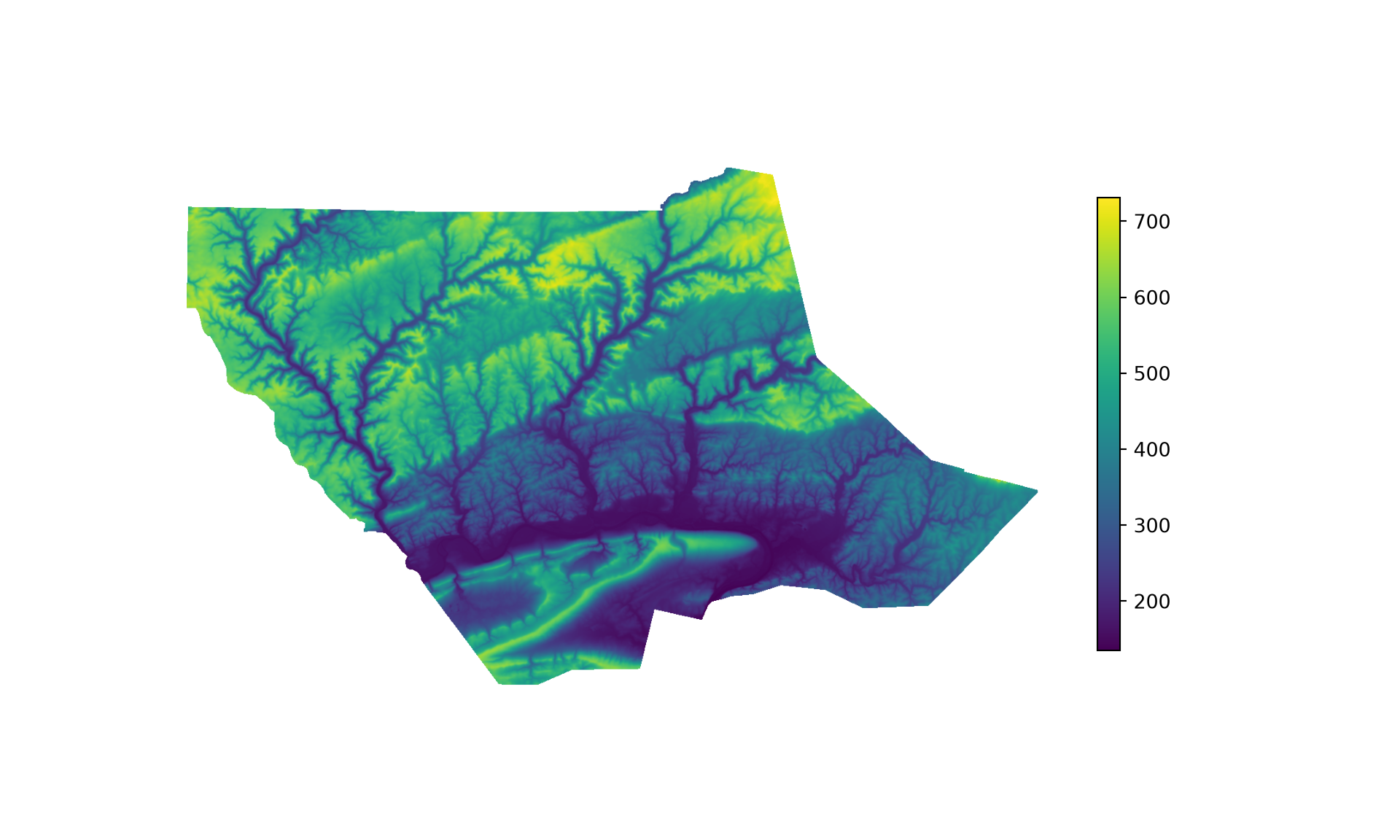
vals = dem.compressed()

ei = mapclassify.EqualInterval(vals, k=7)
ei_breaks = np.concatenate([[vals.min()], ei.bins])
raster_map(dem, dem_ext, "Equal Interval", cmap="YlOrBr",
           norm=BoundaryNorm(ei_breaks, plt.get_cmap("YlOrBr").N))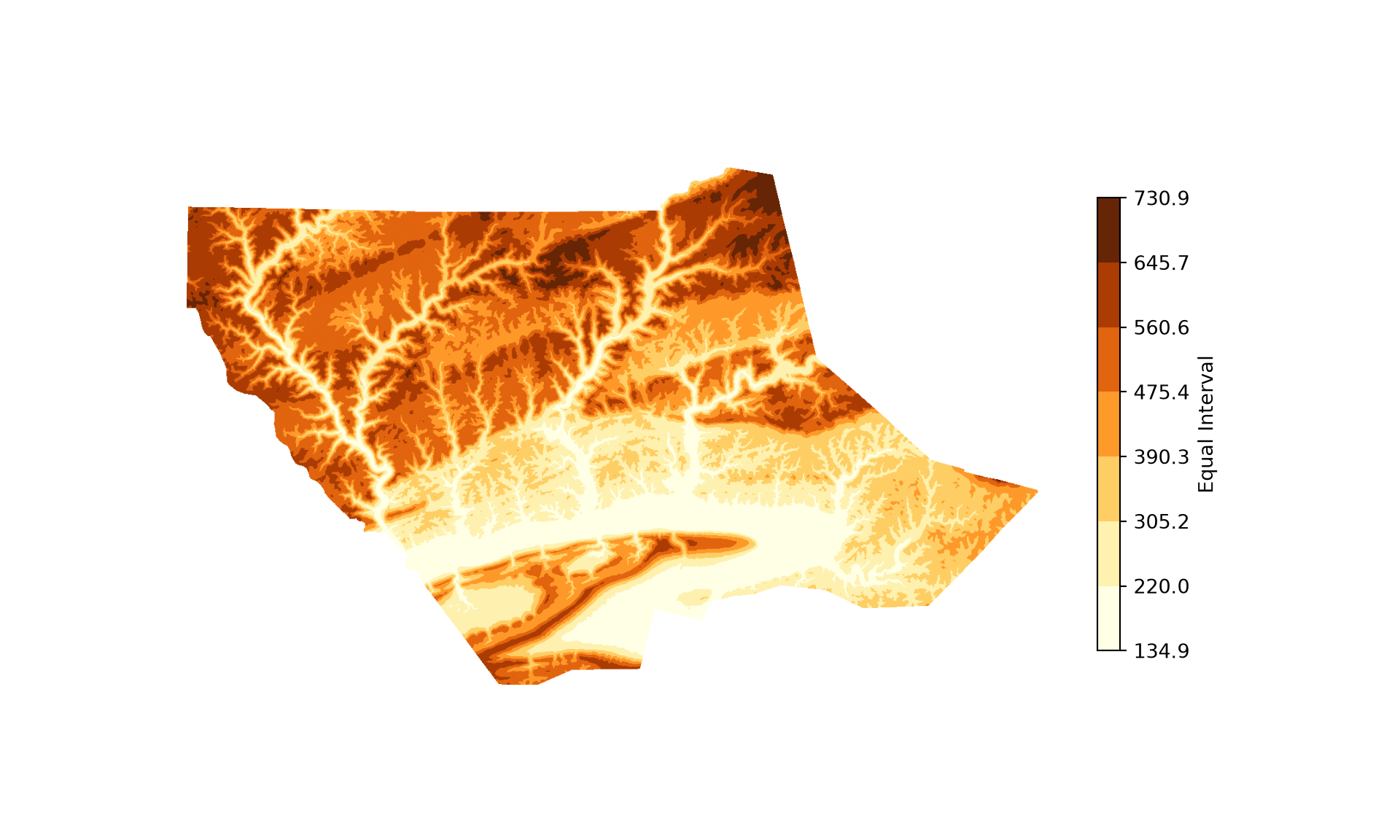
qt = mapclassify.Quantiles(vals, k=7)
qt_breaks = np.concatenate([[vals.min()], qt.bins])
raster_map(dem, dem_ext, "Quantile", cmap="YlOrBr",
           norm=BoundaryNorm(qt_breaks, plt.get_cmap("YlOrBr").N))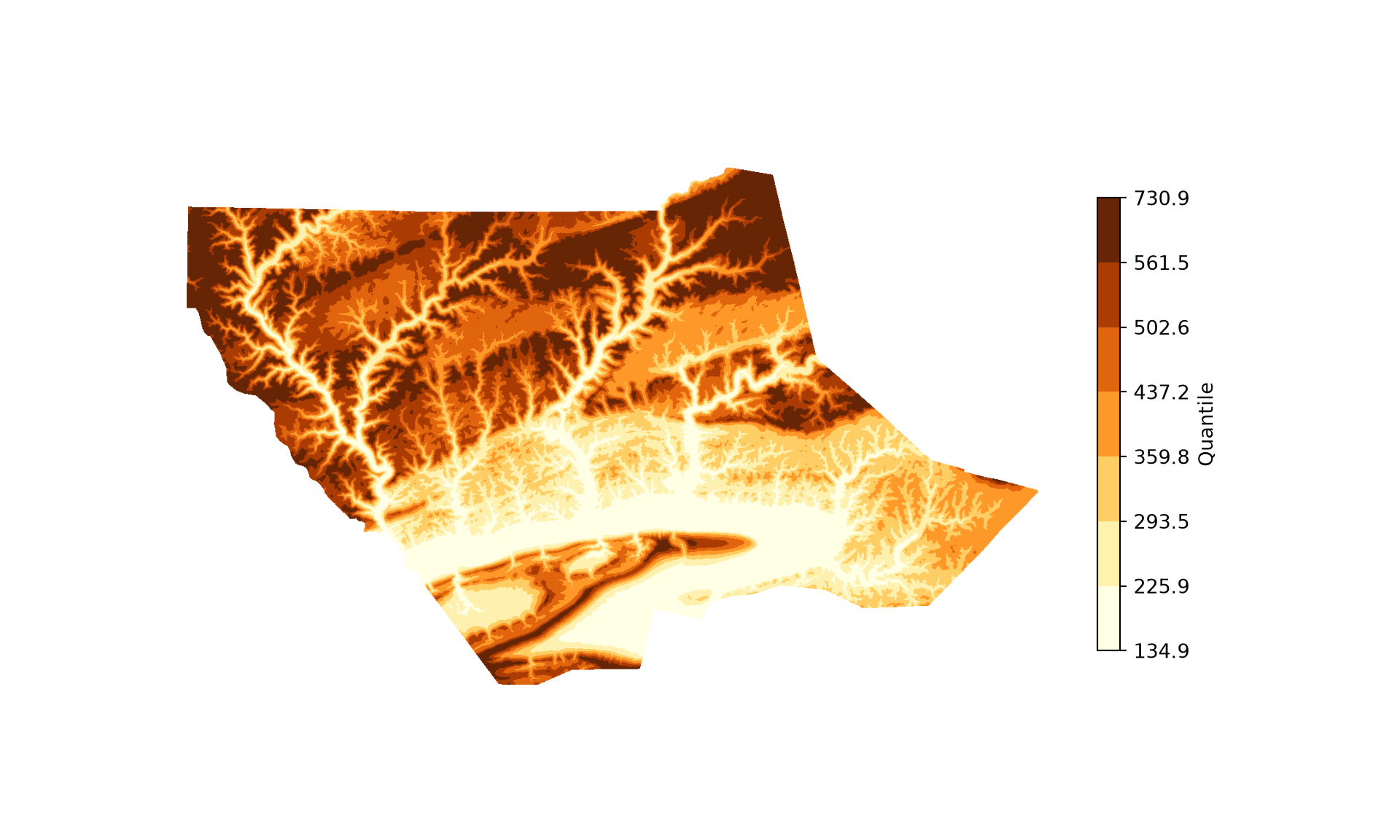
raster_map(dem, dem_ext, "Continuous", cmap="YlOrBr")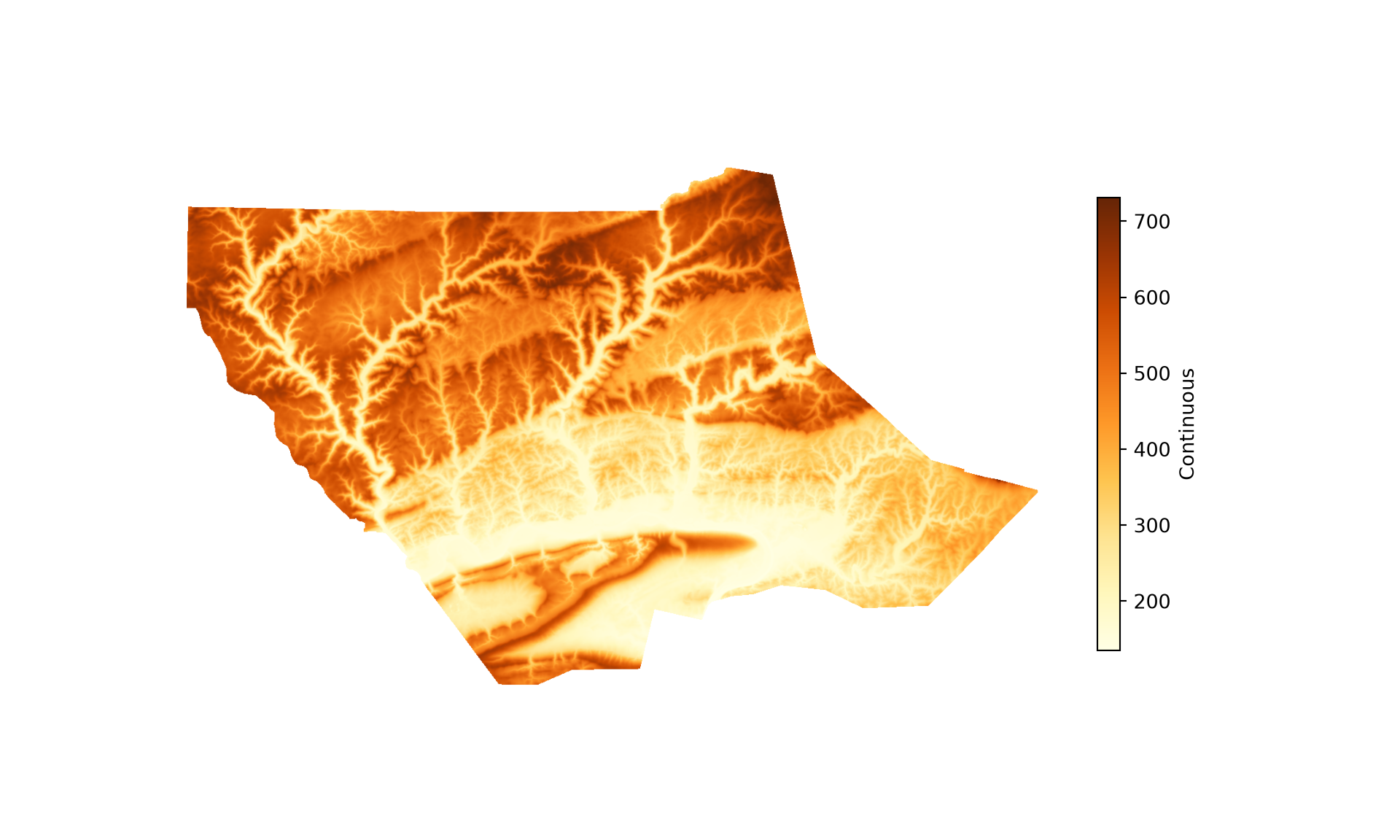
raster_map(dem, dem_ext, "Continuous", cmap="Greys_r")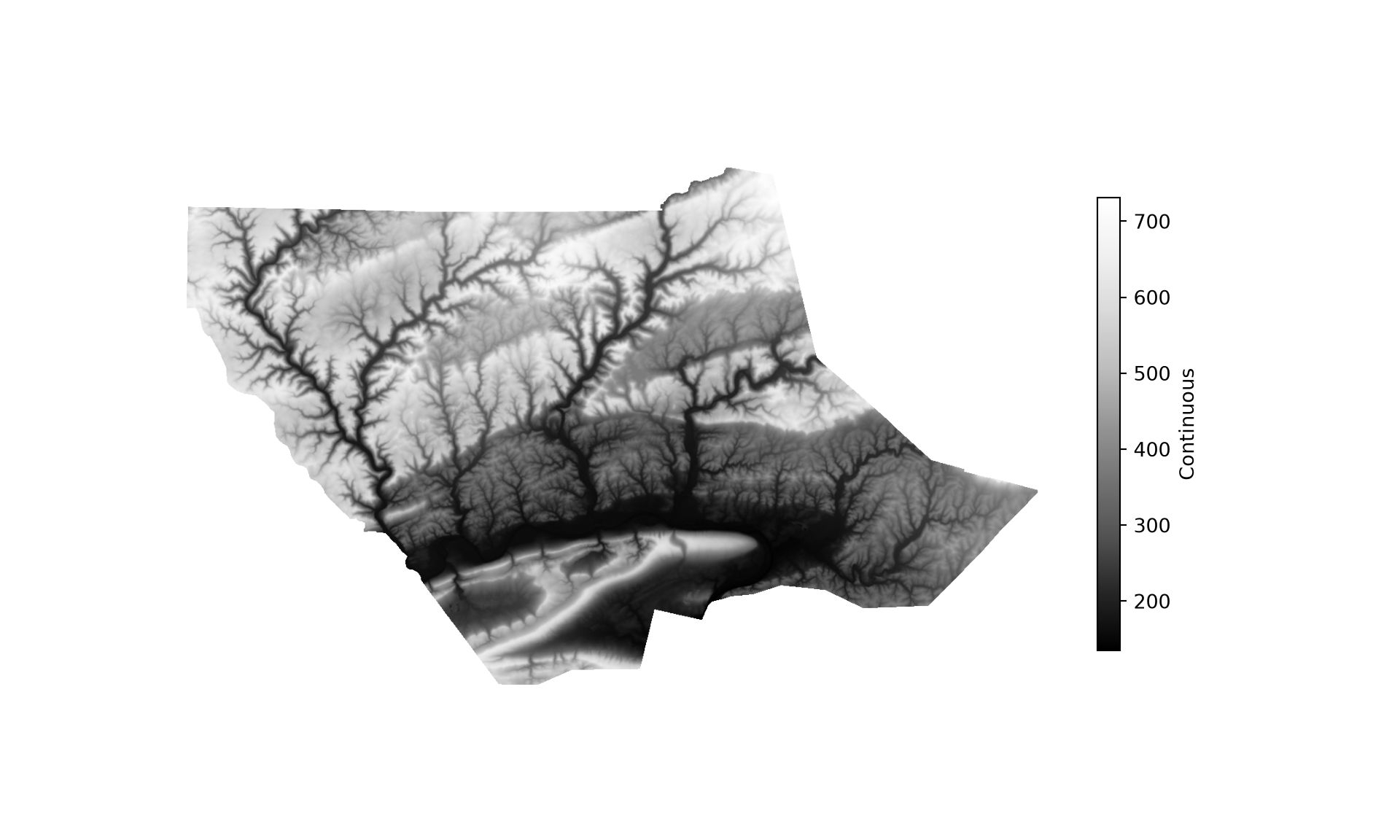
8.4.2.2 Categorical Raster Data
Categorical data can be visualized using different colors or symbols associated with each type. For raster data, colors make the most sense. However, different symbols can be useful for point or line vector features. For the land cover raster grid below, we are using color. The land cover codes are not consecutive (e.g., 11 is open water and 21 is developed open space), so we use np.unique() to obtain the codes present in the grid. A ListedColormap() defines one color for each class, and a BoundaryNorm() with breaks halfway between the codes assigns each code to its color. In the first example, we use colors from the “tab20” colormap and label the legend with the numeric codes. The legend is built from a list of Patch objects, one for each class.
codes = np.unique(lc.compressed())
breaks = np.concatenate([[codes[0] - 0.5], (codes[:-1] + codes[1:]) / 2, [codes[-1] + 0.5]])

def categorical_map(arr, extent, colors, labels, title):
    """Display a categorical raster with a legend of class names."""
    fig, ax = plt.subplots(figsize=(10, 6))
    ax.imshow(arr, extent=extent, cmap=ListedColormap(colors),
              norm=BoundaryNorm(breaks, len(colors)), interpolation="nearest")
    handles = [Patch(facecolor=c, label=l) for c, l in zip(colors, labels)]
    ax.legend(handles=handles, title=title, loc="upper left", bbox_to_anchor=(1, 1))
    ax.set_axis_off()
    plt.show()

default_colors = [plt.get_cmap("tab20")(i) for i in range(len(codes))]
categorical_map(lc, lc_ext, default_colors, codes, "Land Cover")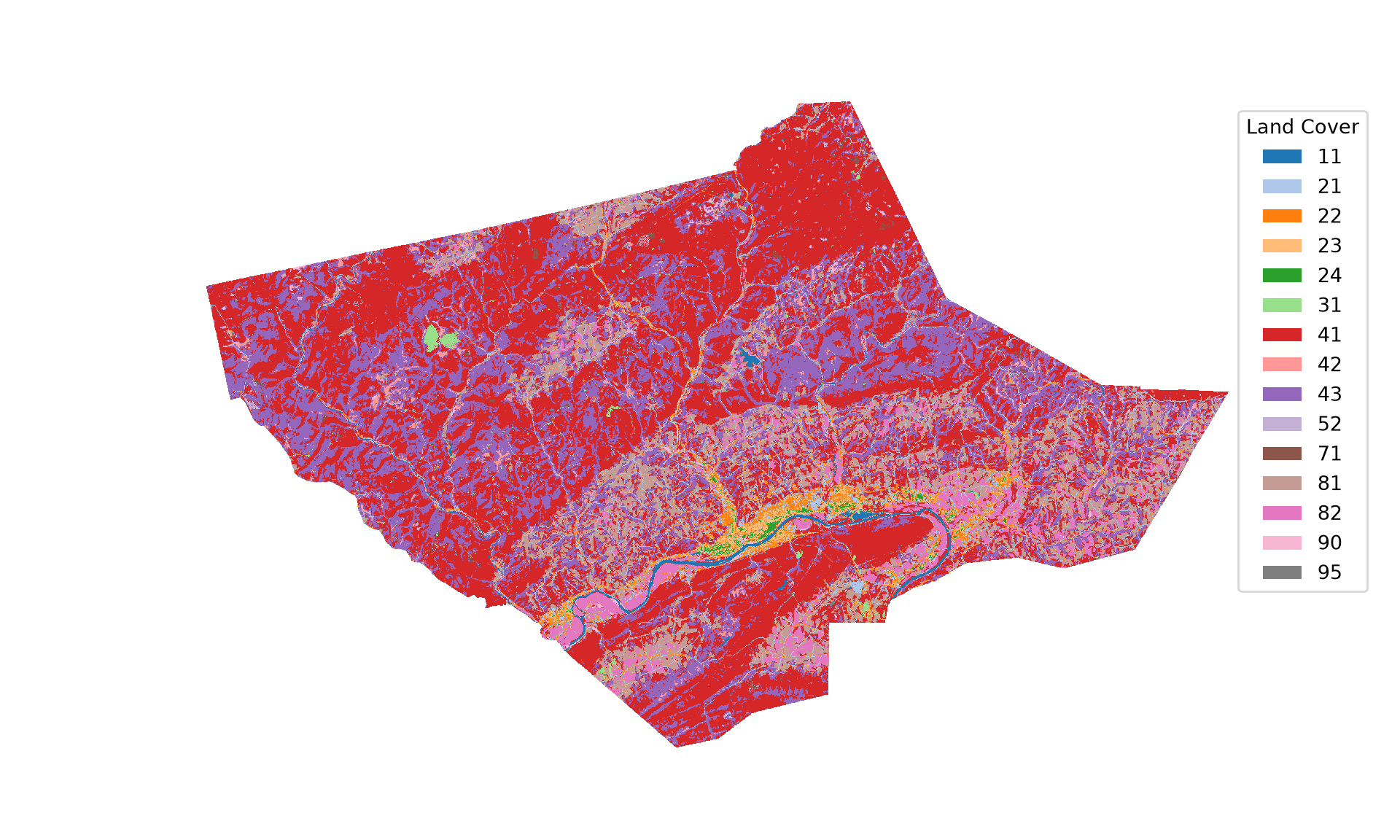
Using default colors will likely not be optimal. As demonstrated in the second example, we can specify the colors to use and update the class names. Using names is much more meaningful in our example than using the raster cell codes. The colors and names are matched to the codes based on their position within the lists, so it is important that we know what numeric code maps to each class. Colors can be provided as names or hexadecimal codes.
lc_labels = ["Open Water", "Developed Open", "Developed Low Int.", "Developed Med. Int.",
             "Developed High Int.", "Barren", "Deciduous Forest", "Evergreen Forest",
             "Mixed Forest", "Shrub/Scrub", "Grassland/Herbaceous", "Pasture/Hay",
             "Cultivated Crop", "Woody Wetland", "Emergent Wetland"]
lc_colors = ["#00BFFF", "#FF4040", "#EE3B3B", "#CD3333", "#8B2323", "#A9A9A9", "#556B2F",
             "#CAFF70", "#C1FFC1", "#EEE8CD", "#EEE685", "#CD9B1D", "#FF8C00", "#BF3EFF",
             "#68228B"]

categorical_map(lc, lc_ext, lc_colors, lc_labels, "Land Cover")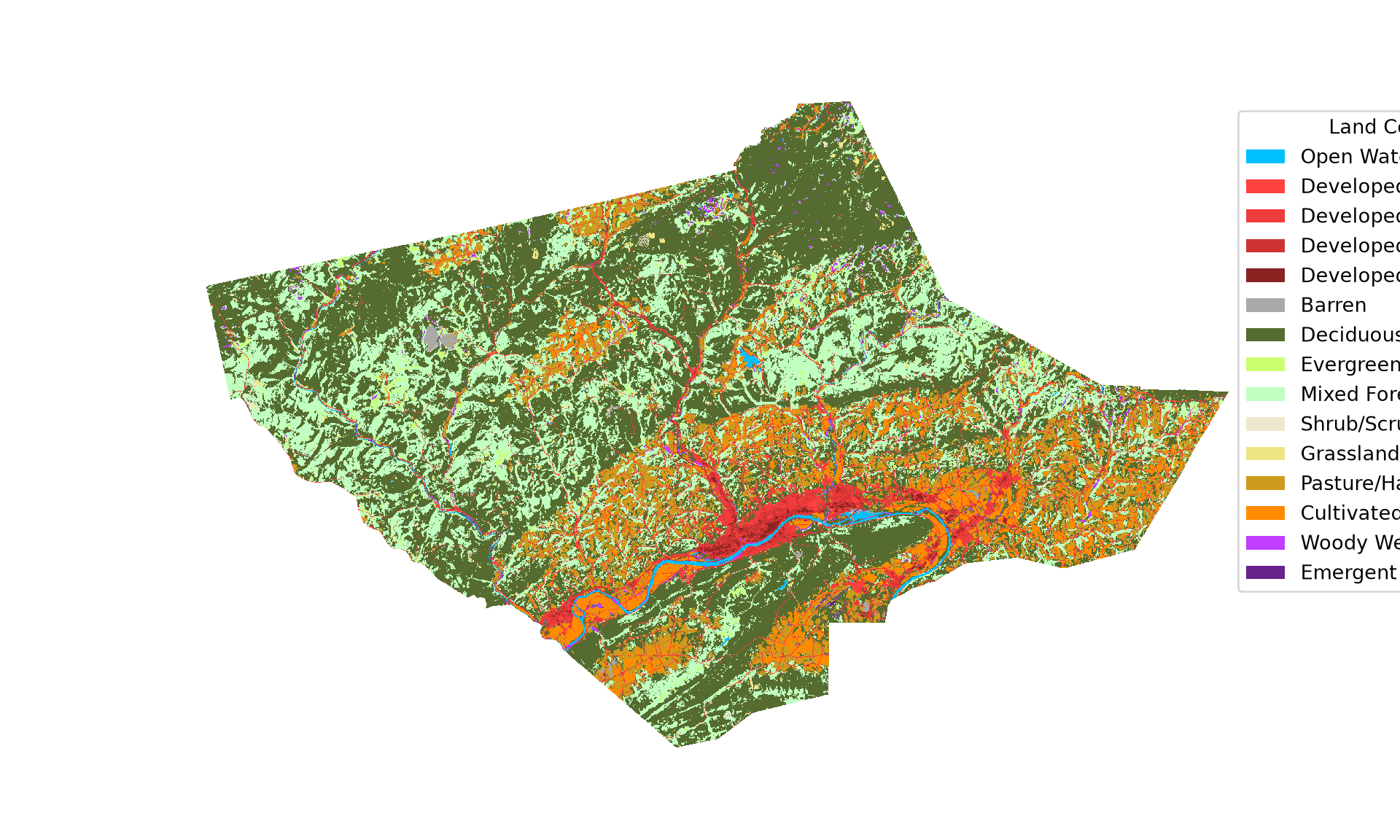
8.5 Additional Components
Now that we have explored how to include base map and operational layers and customize the associated symbology and legends, we will move on to discuss map elements or surrounds and map text.
8.5.1 Map Elements
Table 8.3 describes how common map surrounds or elements can be added to a map. The first block of code below defines a function that adds a north arrow, or indicator of orientation, using annotate() from matplotlib. The position is defined as a fraction of the width and height of the axes (xycoords="axes fraction"), where (0, 0) is the bottom-left corner and (1, 1) is the top-right corner.
| Element | Implementation |
|---|---|
| North arrow |
ax.annotate() with an arrow (no built-in function) |
| Data credits |
ax.text() or fig.text()
|
| Graticules | Lines of latitude and longitude projected to the map’s coordinate reference system |
| Legend |
legend=True in plot(), fig.colorbar(), or ax.legend() with custom handles |
| Logo |
fig.add_axes() and imshow()
|
| Inset map | ax.inset_axes() |
| Scale bar |
ScaleBar() from matplotlib-scalebar
|
| Title |
ax.set_title() or fig.suptitle()
|
A scale bar is added using ScaleBar() from matplotlib-scalebar. The first argument is the length, in meters, of one map unit. Since the Web Mercator projection greatly exaggerates distances away from the equator, the scale bar would be incorrect if we used a value of 1. The scale factor at a given latitude is \(1/\cos(\text{latitude})\), so we multiply by the cosine of the latitude at the center of the map. Note that this makes the scale bar accurate only near the center latitude. This is one reason why it is generally better to use a projection designed for the area being mapped, as demonstrated later in this chapter. By default, the length of the scale bar is chosen automatically and labeled using metric prefixes, which can result in unfamiliar units, such as megameters (Mm). Setting fixed_value=1000 and fixed_units="km" draws a 1,000 km scale bar.
def add_north_arrow(ax, x=0.05, y=0.2, size=12):
    """Add a north arrow at a position defined as a fraction of the axes."""
    ax.annotate("N", xy=(x, y), xytext=(x, y - 0.1), xycoords="axes fraction",
                ha="center", va="center", fontsize=size, fontweight="bold",
                arrowprops={"facecolor": "black", "width": 4, "headwidth": 12})

center_lat = np.radians(states.to_crs(4326).union_all().centroid.y)

fig, ax = plt.subplots(figsize=(10, 6))
states.boundary.plot(ax=ax, color="red", linewidth=2)
ctx.add_basemap(ax, crs=states.crs, source=ctx.providers.Esri.WorldStreetMap, zorder=0)
add_north_arrow(ax)
ax.add_artist(ScaleBar(np.cos(center_lat), units="m", fixed_value=1000, fixed_units="km", location="lower left"))
ax.set_title("States")
ax.set_axis_off()
plt.show()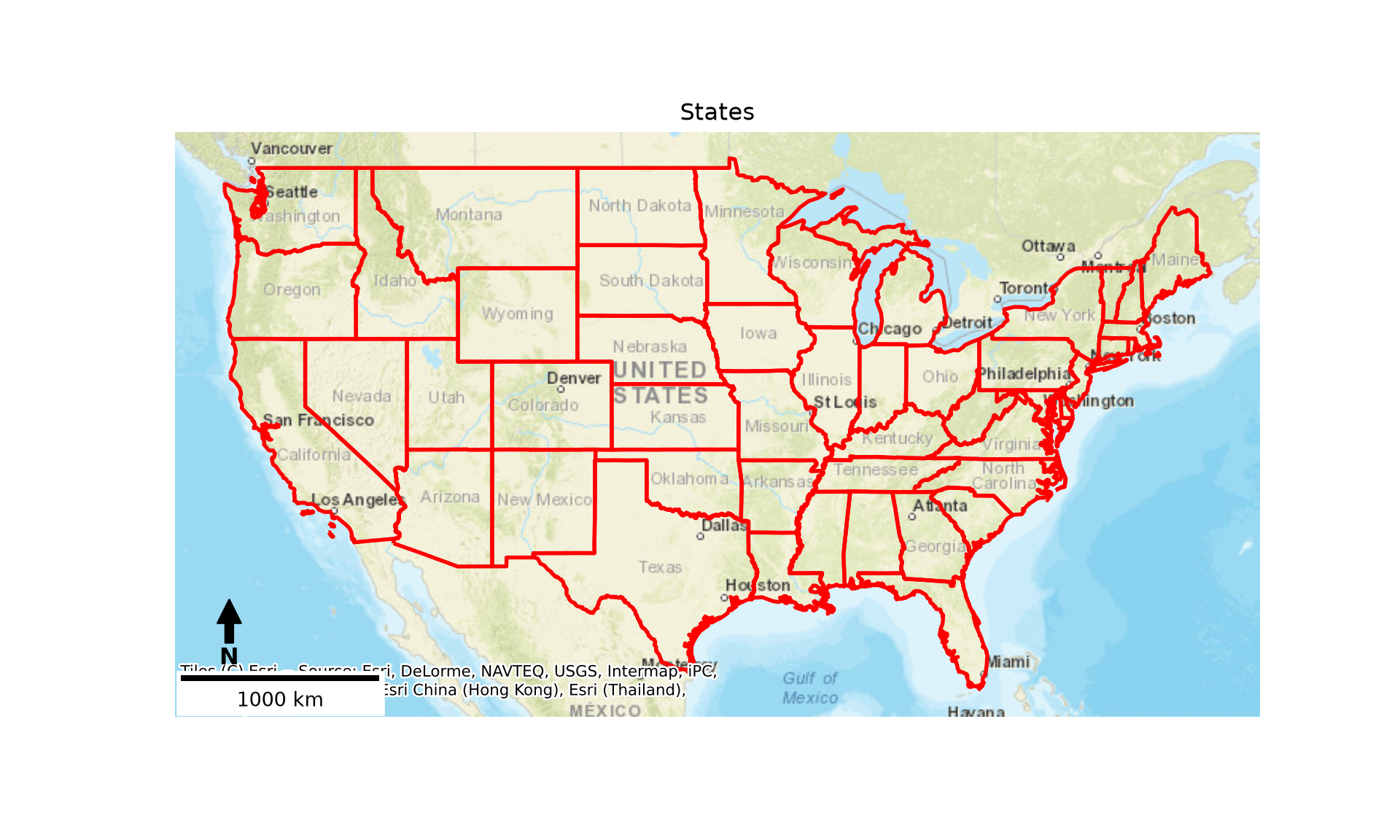
8.5.2 Labels
Text labels can be associated with individual features using annotate(). Each label is placed at a point within each polygon, which is obtained using representative_point(). In our example, we label each state with its abbreviation, which is stored in the “STATE_ABBR” column. We also vary the size of the label relative to the state’s area by scaling the square root of the area, obtained using the area property, to a range of font sizes. Since we will label states in several maps, we write a function to add the labels.
In the second example, we further refine the map by using fill color to visualize state population density. Specifically, we make use of seven bins and a quantile classification method. This is accomplished by providing the column name to the column parameter, “quantiles” to the scheme parameter, and the number of classes to the k parameter. GeoPandas uses mapclassify to calculate the class breaks. In the final example, we use unordered colors to differentiate the sub-regions using the qualitative “Set3” colormap.
def label_states(ax, gdf, min_size=5, max_size=12):
    """Label each polygon with its abbreviation, sized by the square root of its area."""
    root_area = np.sqrt(gdf.area)
    sizes = np.interp(root_area, (root_area.min(), root_area.max()), (min_size, max_size))
    for pnt, label, size in zip(gdf.representative_point(), gdf["STATE_ABBR"], sizes):
        ax.annotate(label, xy=(pnt.x, pnt.y), ha="center", va="center", fontsize=size)

fig, ax = plt.subplots(figsize=(10, 6))
states.plot(ax=ax, color="grey", edgecolor="black")
label_states(ax, states)
add_north_arrow(ax)
ax.add_artist(ScaleBar(np.cos(center_lat), units="m", fixed_value=1000, fixed_units="km", location="lower left"))
ax.set_title("States")
ax.set_axis_off()
plt.show()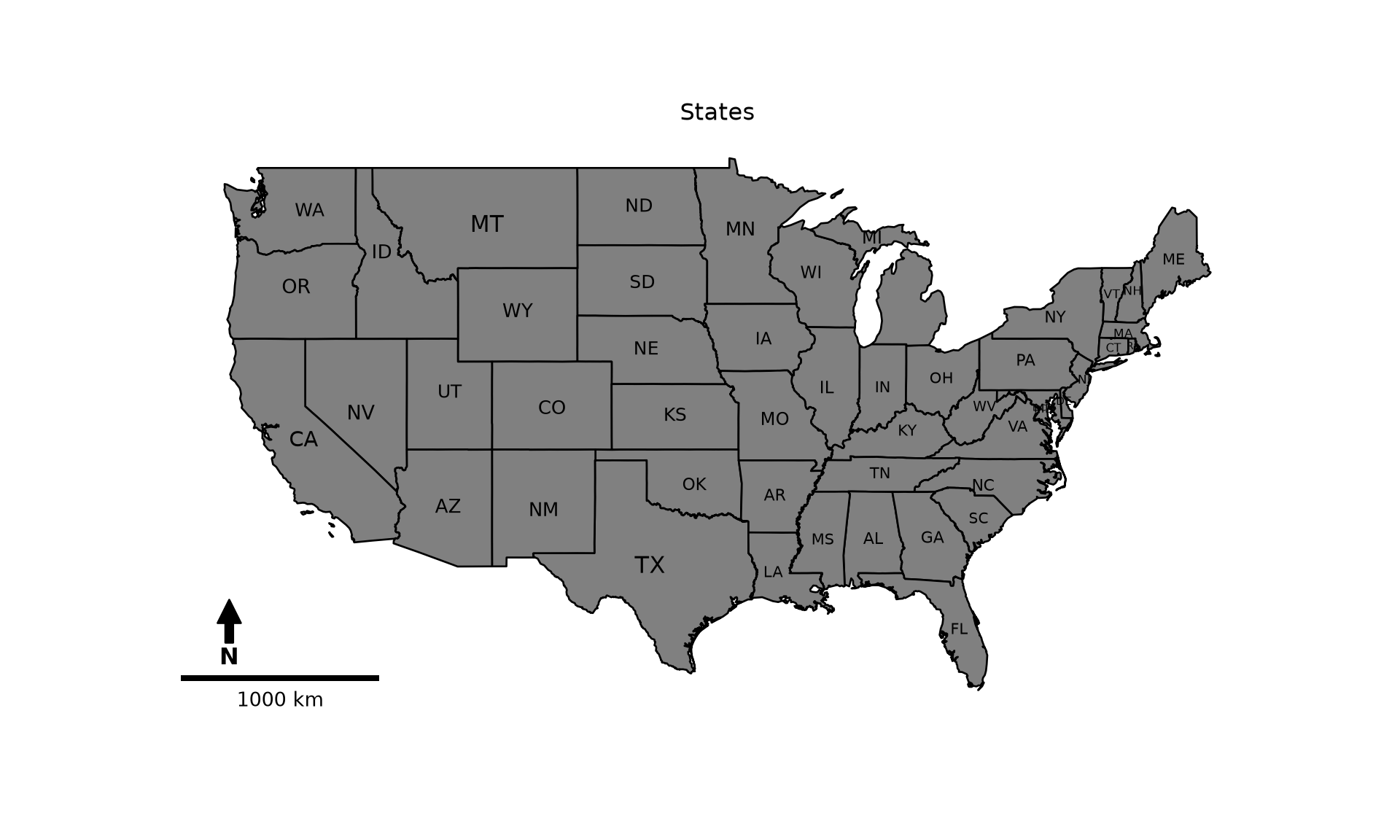
fig, ax = plt.subplots(figsize=(11, 6))
states.plot(ax=ax, column="POP05_SQMI", scheme="quantiles", k=7, cmap="YlOrRd",
            edgecolor="black", linewidth=0.5, legend=True,
            legend_kwds={"title": "People/Sq. Mi.", "loc": "upper left", "bbox_to_anchor": (1, 1)})
label_states(ax, states)
add_north_arrow(ax, x=0.92, y=0.35)
ax.add_artist(ScaleBar(np.cos(center_lat), units="m", fixed_value=1000, fixed_units="km", location="lower left"))
ax.set_title("Population Density")
ax.set_axis_off()
plt.show()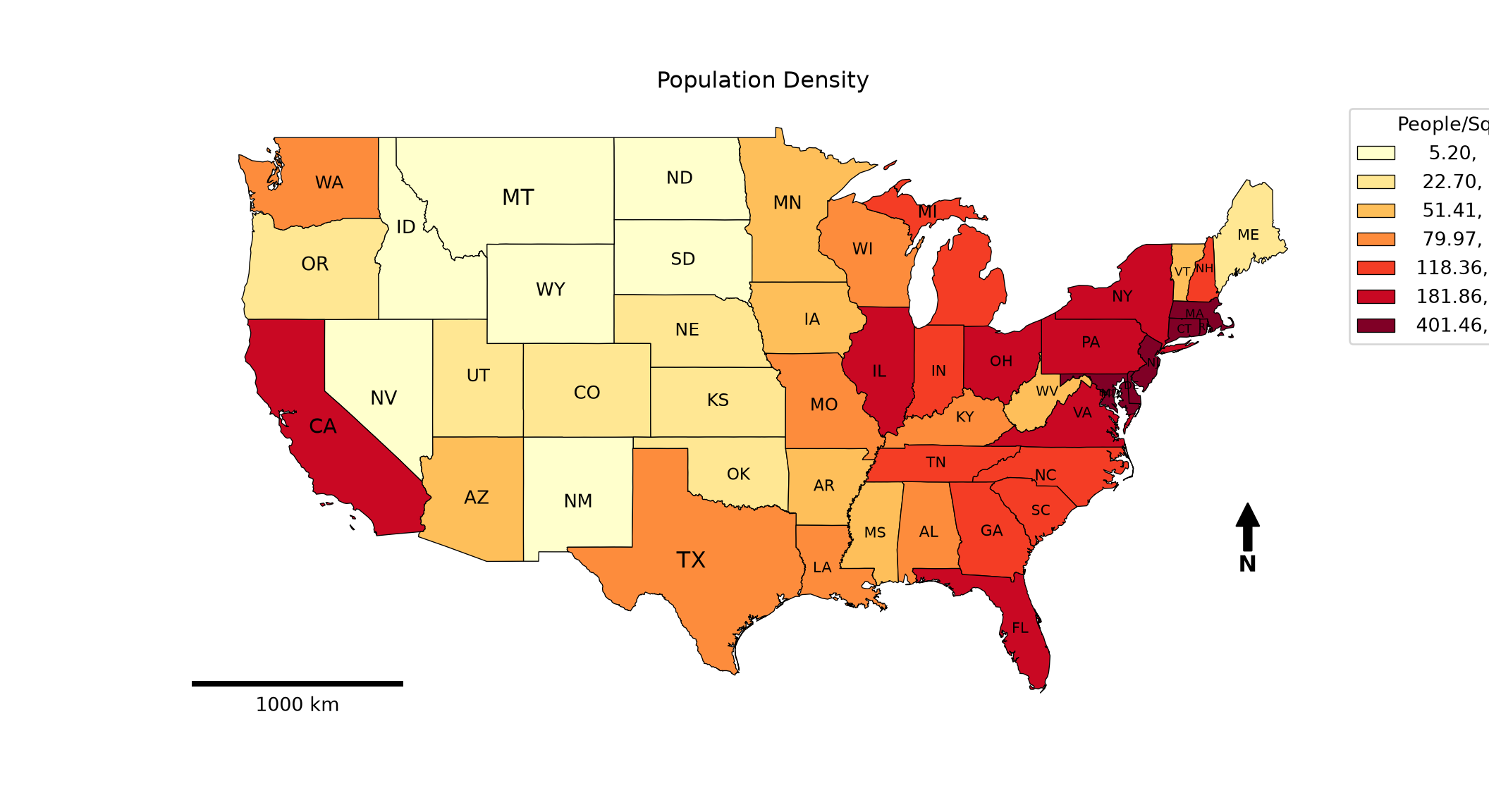
legend_out = {"title": "Sub-Region", "loc": "upper left", "bbox_to_anchor": (1, 1)}

fig, ax = plt.subplots(figsize=(11, 6))
states.plot(ax=ax, column="SUB_REGION", cmap="Set3", edgecolor="black", linewidth=0.5,
            legend=True, legend_kwds=legend_out)
label_states(ax, states)
add_north_arrow(ax)
ax.add_artist(ScaleBar(np.cos(center_lat), units="m", fixed_value=1000, fixed_units="km", location="lower left"))
ax.set_title("Sub-Regions", fontsize=16)
ax.set_axis_off()
plt.show()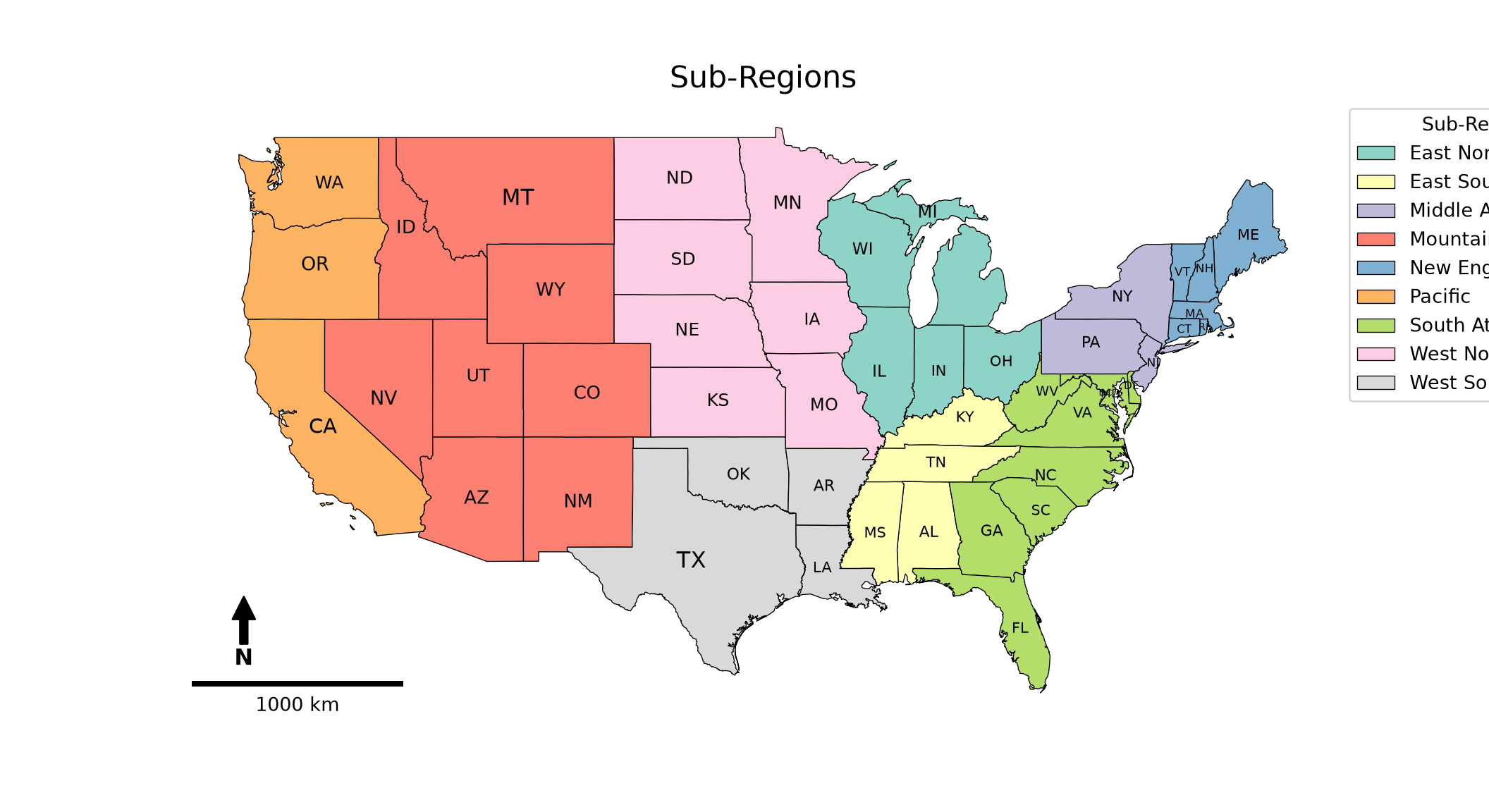
8.6 Examples
8.6.1 Vector Example
We now pull what we have learned so far together to make a final layout with multiple vector layers. The states are differentiated by sub-region using a categorical colormap while the Amtrak lines are drawn in black. The sizes of the points representing cities are scaled relative to the city’s population. We also add a north arrow, scale bar, and main title. Since the map has two legends, we save the first legend to a variable and add it back to the axes using add_artist(); otherwise, the second call to legend() would replace the first.
You may be interested in using a different projection. A map uses the coordinate reference system of the layers being displayed, so all layers must use the same coordinate reference system. In the first code block, the map uses the WGS84 Web Mercator projection since this is the projection of the layers being used. To generate the map using a different projection, we first re-project all of the layers to the desired projection using to_crs() and then recreate the map with these new layers. This is demonstrated in the second code block, where a Lambert Conformal Conic projection for North America is used. The projection is defined using a PROJ string. Since this projection preserves distances well across the country, a scale bar with a value of 1 is appropriate.
def amtrak_map(st, tr, ct, scale_factor=1):
    fig, ax = plt.subplots(figsize=(11, 7))
    st.plot(ax=ax, column="SUB_REGION", cmap="Set3", edgecolor="black", linewidth=0.5,
            legend=True, legend_kwds=legend_out)
    region_legend = ax.get_legend()
    tr.plot(ax=ax, color="black", linewidth=1)
    ct.plot(ax=ax, markersize=pop_size(ct["pop2007b"]), color="grey", edgecolor="black")
    size_legend(ax, [500000, 2000000, 5000000, 8000000], "Population of City",
                loc="upper center", bbox_to_anchor=(0.5, -0.02))
    ax.add_artist(region_legend)
    add_north_arrow(ax, x=0.92, y=0.35)
    ax.add_artist(ScaleBar(scale_factor, units="m", fixed_value=1000, fixed_units="km", location="lower left"))
    ax.set_title("Amtrak Map")
    ax.set_axis_off()
    return fig

amtrak_map(states, tracks, cities, np.cos(center_lat))
plt.show()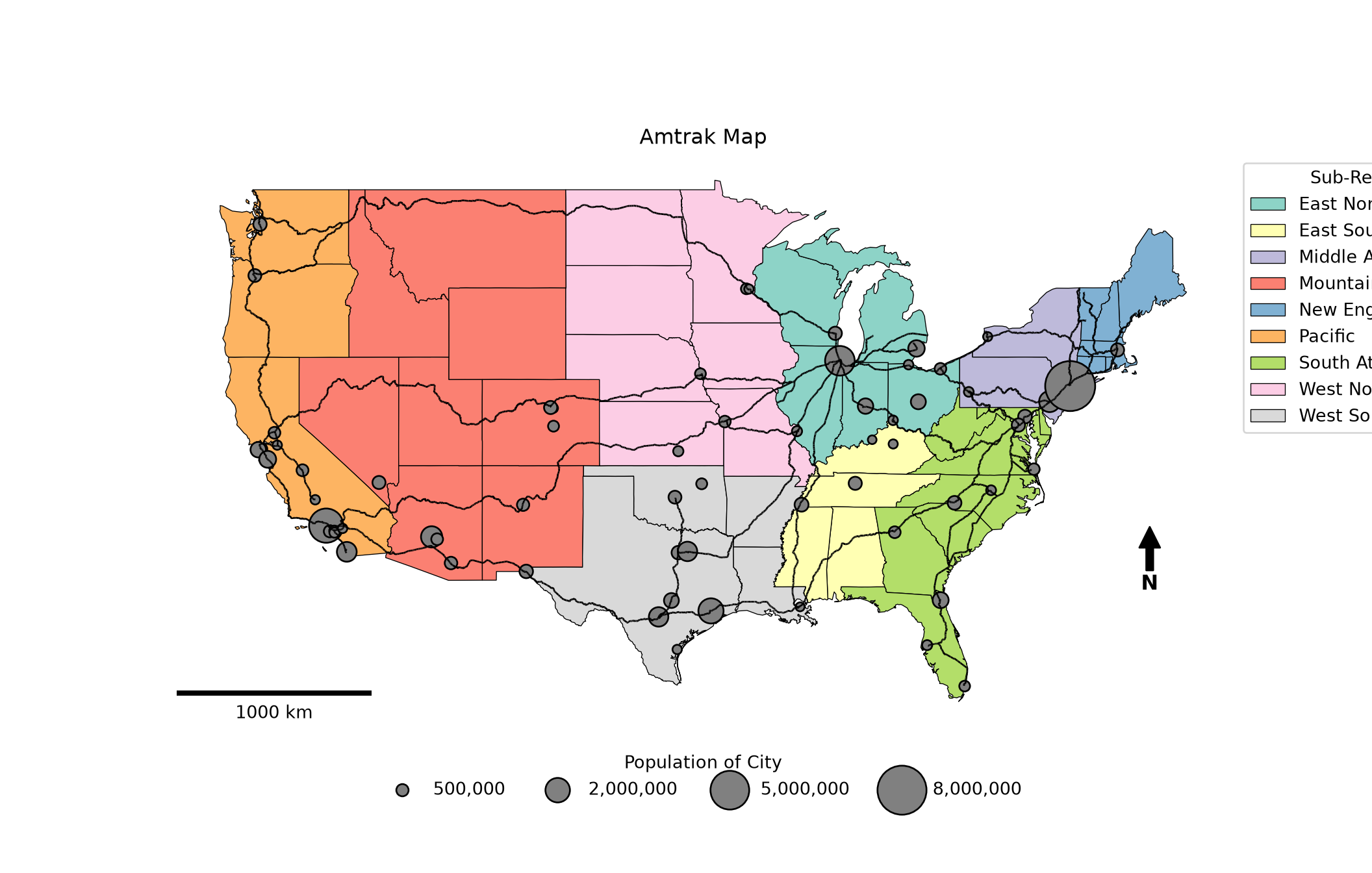
lcc = "+proj=lcc +lat_1=20 +lat_2=60 +lat_0=40 +lon_0=-96 +x_0=0 +y_0=0 +datum=NAD83 +units=m +no_defs"

cities2 = cities.to_crs(lcc)
states2 = states.to_crs(lcc)
tracks2 = tracks.to_crs(lcc)
print(cities2.crs)
+proj=lcc +lat_1=20 +lat_2=60 +lat_0=40 +lon_0=-96 +x_0=0 +y_0=0 +datum=NAD83 +units=m +no_defs +type=crsamtrak_fig = amtrak_map(states2, tracks2, cities2)
plt.show()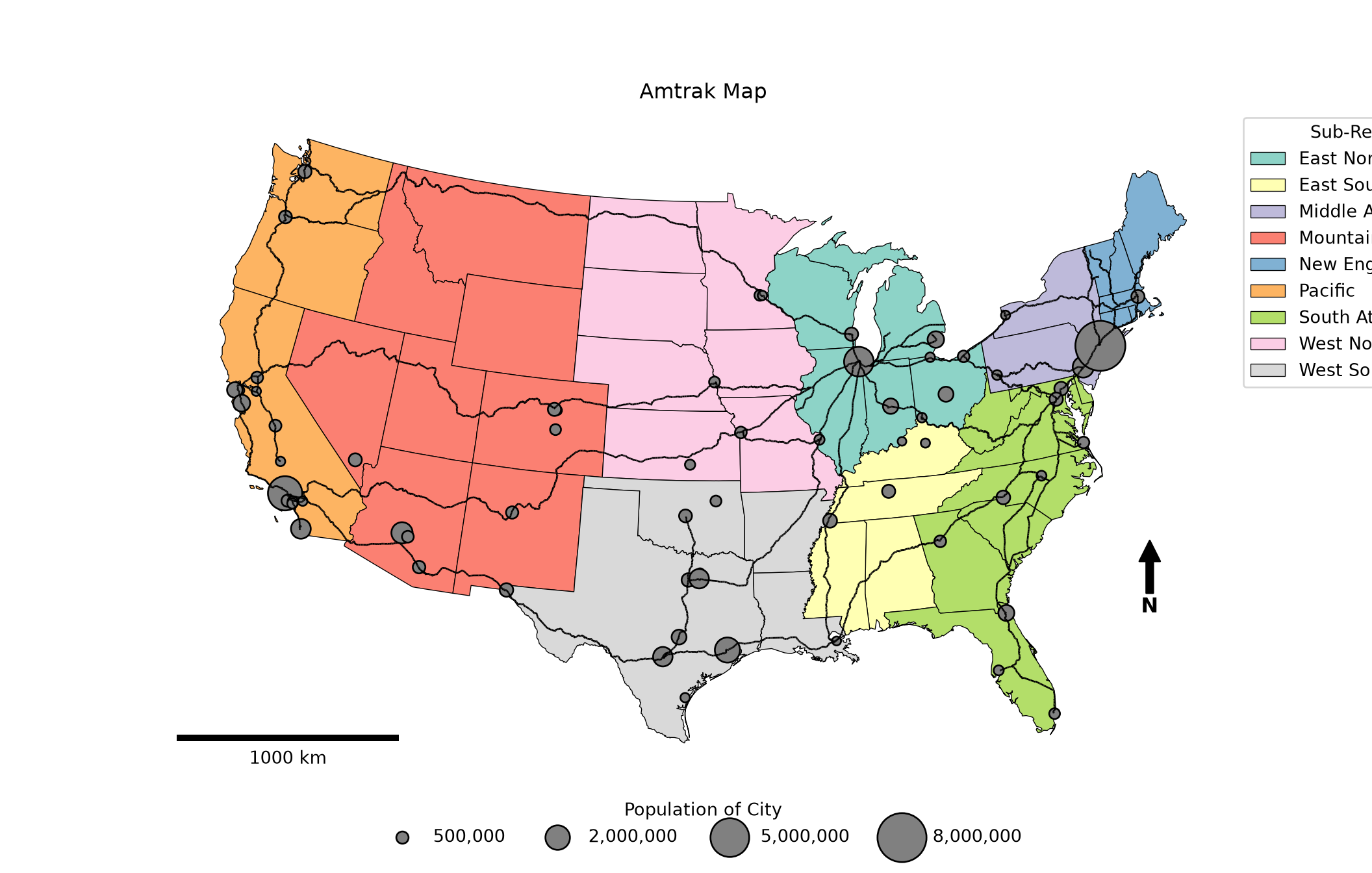
8.6.2 Raster Example
In this second example focused on raster data, we create a map showing the topography and elevation of Tucker County, West Virginia, USA. The hillshade is added using a grayscale colormap followed by the elevation surface, which uses a continuous orange colormap. We add 50% transparency to the elevation data using alpha to allow for the hillshade to be visible under the other raster layer, which allows for incorporating both the elevation color ramp and the terrain texture. The result is a hypsometrically tinted hillshade. We also add a north arrow, scale bar, main title, and data credit. No legend is included for the hillshade layer. For the elevation layer, we orient its color bar horizontally and define the associated title.
def tucker_map():
    fig, ax = plt.subplots(figsize=(10, 8))
    ax.imshow(tucker_hs, extent=tucker_ext, cmap="Greys_r")
    im = ax.imshow(tucker_dem, extent=tucker_ext, cmap="Oranges_r", alpha=0.5)
    fig.colorbar(im, ax=ax, orientation="horizontal", shrink=0.5, pad=0.02, label="Elevation (m)")
    add_north_arrow(ax, x=0.05, y=0.25)
    ax.add_artist(ScaleBar(1, units="m", location="lower left"))
    ax.set_title("Tucker County Elevation", fontsize=16)
    ax.text(0.99, 0.01, "Data from NED", transform=ax.transAxes, ha="right", va="bottom")
    ax.set_axis_off()
    return fig

tucker_fig = tucker_map()
plt.show()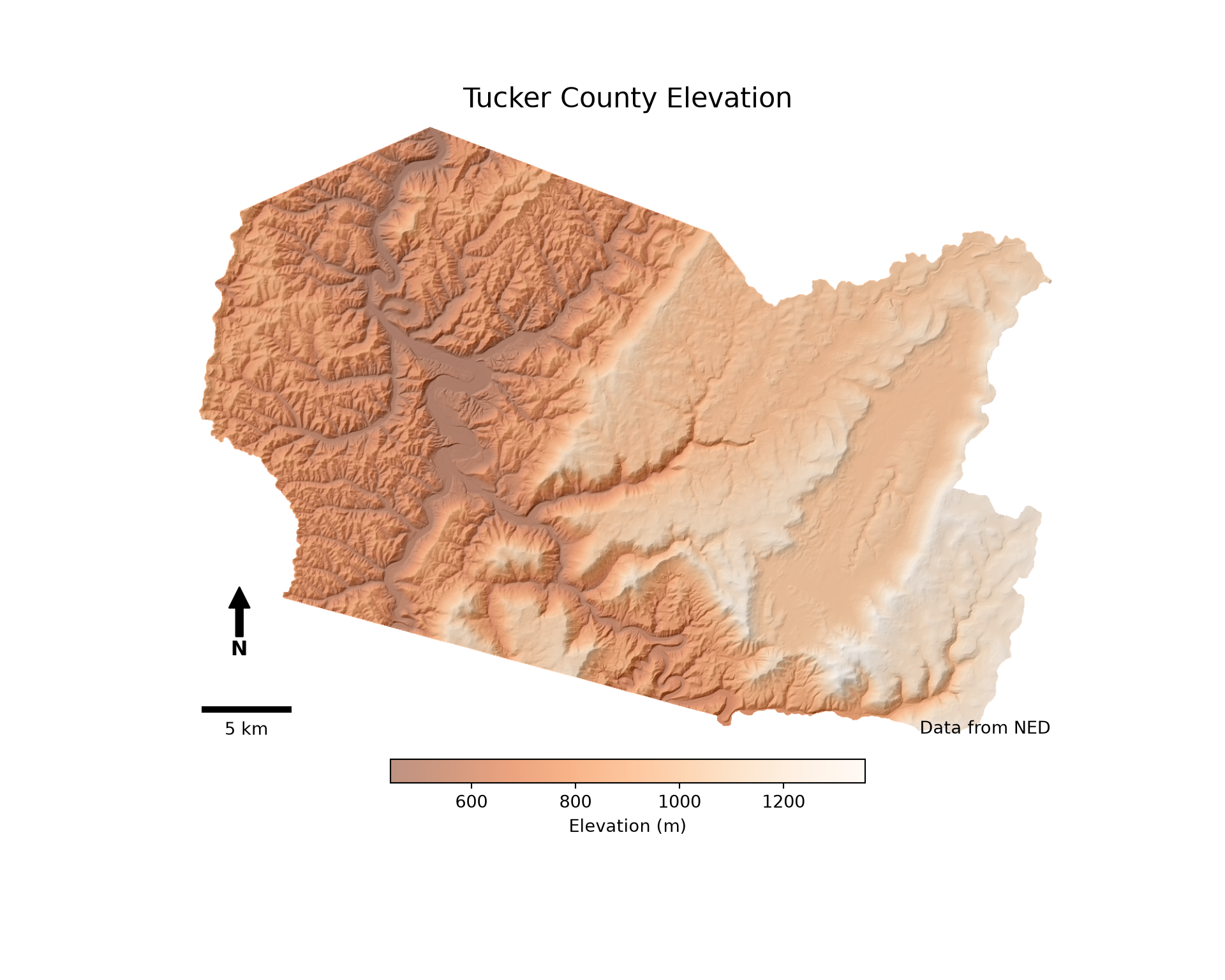
8.7 Multi-Map Layouts
8.7.1 Facets
It is possible to make layouts with multiple maps. Similar to the graphs in Chapter 5, we can generate a separate map, or facet, for each value of a variable. This is accomplished by creating a grid of axes with plt.subplots() and looping over the groups created by groupby(). In our example, we facet on the “SUB_REGION” variable to obtain a separate map for each of the nine sub-regions of the United States. The flat property allows us to loop over the 3-by-3 grid of axes as if it were a list.
fig, axs = plt.subplots(3, 3, figsize=(11, 9))
for ax, (region, grp) in zip(axs.flat, states.groupby("SUB_REGION")):
    grp.plot(ax=ax, color="tan", edgecolor="black")
    label_states(ax, grp, min_size=6, max_size=10)
    ax.set_title(region)
    ax.set_axis_off()
fig.suptitle("Sub-Regions", fontsize=16)
plt.tight_layout()
plt.show()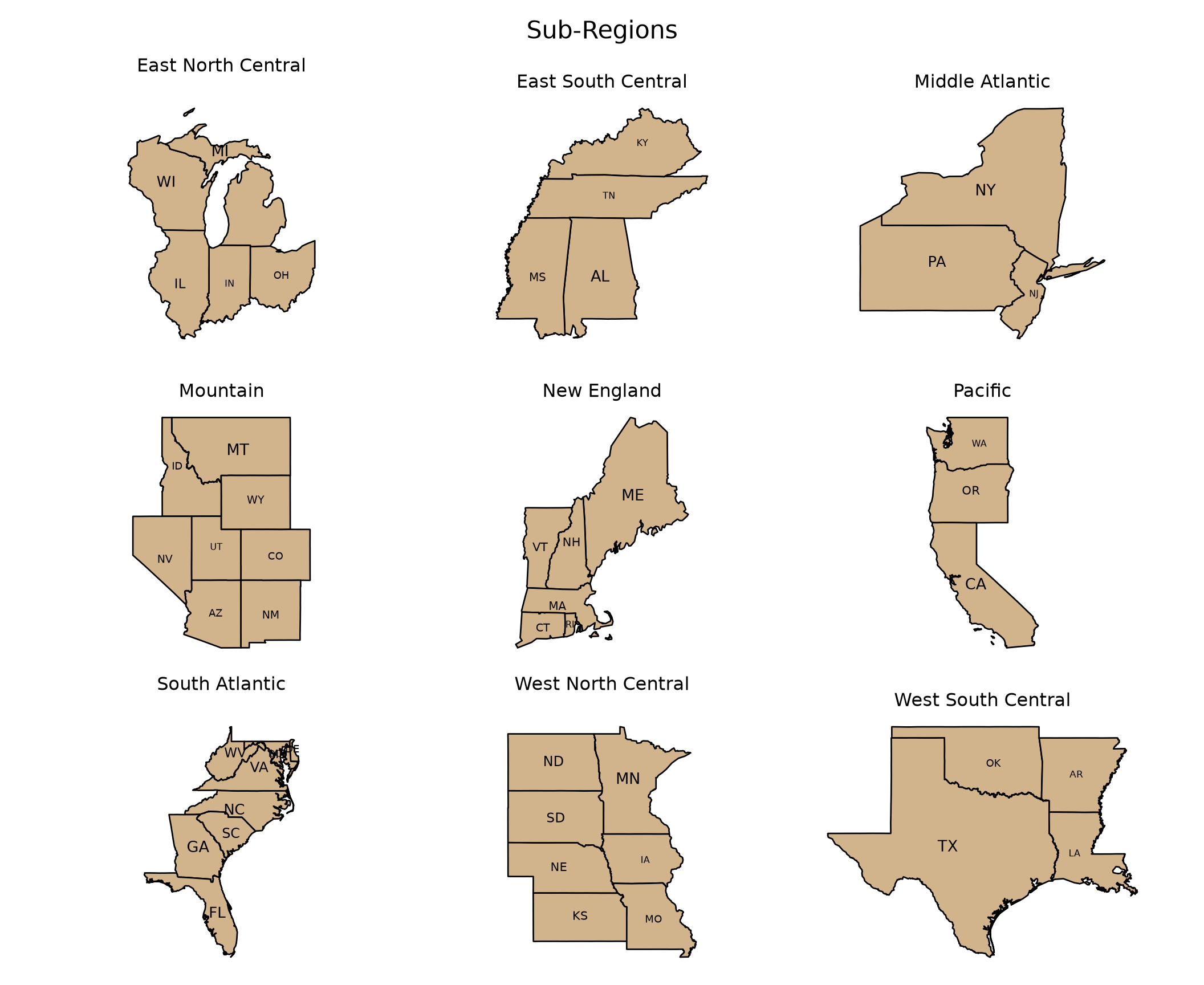
8.7.2 Arranging Multiple Maps
It is also possible to create a layout with multiple maps that are not faceted using a variable. In the example below, we display the US states using different map projections by first using to_crs() to change the projection of the input layer. We then draw each version on a different axes. We have also added graticules, or latitude and longitude grids, which help us understand how the curved surface of the Earth is being flattened. Graticules are created as lines in geographic coordinates (EPSG:4269) every 10 degrees and are then projected to match each map. Many points are included along each line so that they curve properly once projected.
To color the states, we use the greedy() function from mapclassify, which assigns a color index to each polygon such that no two neighboring polygons share the same color. A small number of colors is then sufficient to differentiate all of the states.
If a categorical colormap does not provide enough unique colors to differentiate the number of included classes, colors will be repeated. Using greedy() minimizes the number of colors needed.
def make_graticules(step=10):
    """Lines of longitude and latitude covering the contiguous US in EPSG:4269."""
    lons, lats = np.arange(-130, -59, step), np.arange(20, 61, step)
    lines = ([LineString([(lon, lat) for lat in np.linspace(20, 60, 100)]) for lon in lons] +
             [LineString([(lon, lat) for lon in np.linspace(-130, -60, 100)]) for lat in lats])
    return gpd.GeoSeries(lines, crs=4269)

states_geog = states.to_crs(4269)
states_geog["color"] = mapclassify.greedy(states_geog)
graticules = make_graticules()

projections = {
    "Geographic": 4269,
    "Mercator": "+proj=merc +lon_0=0 +k=1 +x_0=0 +y_0=0 +datum=WGS84 +units=m +no_defs",
    "Albers Equal Area": "+proj=aea +lat_1=20 +lat_2=60 +lat_0=40 +lon_0=-96 +x_0=0 +y_0=0 +ellps=GRS80 +datum=NAD83 +units=m +no_defs",
    "Lambert Conformal Conic": lcc}

fig, axs = plt.subplots(2, 2, figsize=(11, 8))
for ax, (name, crs) in zip(axs.flat, projections.items()):
    graticules.to_crs(crs).plot(ax=ax, color="lightgrey", linewidth=0.5)
    states_geog.to_crs(crs).plot(ax=ax, column="color", cmap="Pastel1", categorical=True,
                                 edgecolor="black", linewidth=0.3)
    ax.set_title(name)
    ax.set_axis_off()
plt.tight_layout()
plt.show()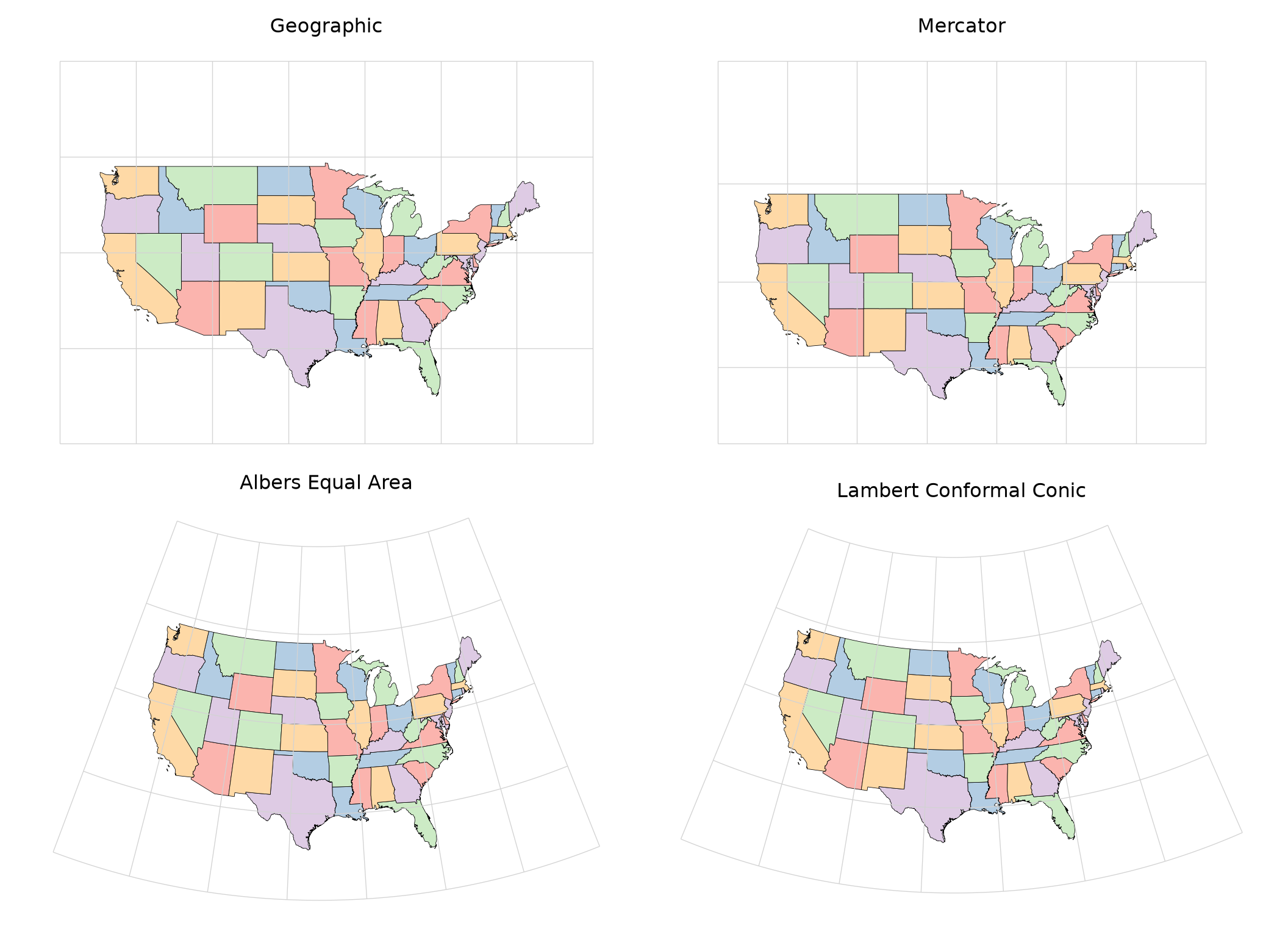
8.8 Static vs. Interactive Maps
We have primarily demonstrated the creation of static maps. However, GeoPandas can also generate interactive web maps using the explore() method, which uses the folium library. The result is a Leaflet web map in which the user can pan, zoom, and click on features to view their attributes. Below, we generate the same map using both approaches. For the interactive map, we do not define a base map; instead, we allow GeoPandas to use the default OpenStreetMap base map. The tooltip parameter defines the attributes shown when hovering over a feature. Since the state boundaries are very detailed, we simplify them first to reduce the size of the web map.
fig, ax = plt.subplots(figsize=(10, 6))
states.boundary.plot(ax=ax, color="red", linewidth=2)
ctx.add_basemap(ax, crs=states.crs, source=ctx.providers.Esri.WorldStreetMap, zorder=0)
ax.set_axis_off()
plt.show()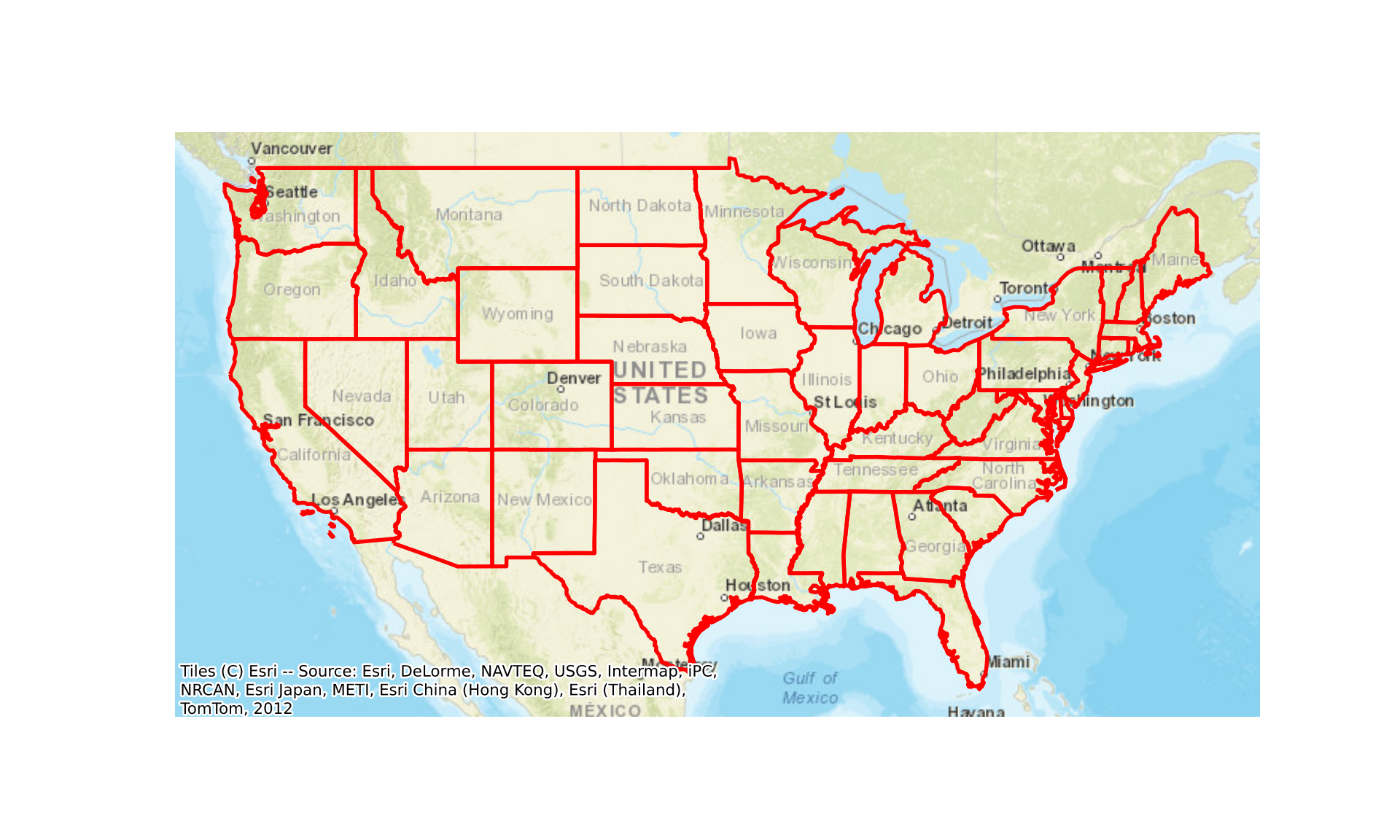
states_simple = states.to_crs(4326)
states_simple["geometry"] = states_simple.simplify(0.01)
m = states_simple.explore(style_kwds={"color": "red", "weight": 2, "fillOpacity": 0},
                          tooltip=["STATE_NAME", "SUB_REGION"])
m
When working in a Jupyter notebook, the interactive map is displayed below the code cell. To display it in this book, we write the HTML code that defines the map directly into the page.
Make this Notebook Trusted to load map: File -> Trust Notebook
8.9 Saving Maps
Lastly, we demonstrate saving a map. Since our maps are matplotlib figures, they can be saved using savefig(), as discussed in Chapter 5. The output format is determined by the file extension: a vector graphic (e.g., SVG), raster graphic (e.g., TIF, JPEG, or PNG), or a PDF. All three options are demonstrated below for the Amtrak map, which we saved to a variable when it was created. The size of the figure in inches is set using set_size_inches(), and the resolution is defined using the dpi parameter. Setting bbox_inches="tight" trims excess white space and ensures that legends placed outside of the axes are included.
amtrak_fig.set_size_inches(11, 8.5)
amtrak_fig.savefig("output/amtrak.svg", bbox_inches="tight")
amtrak_fig.savefig("output/amtrak.png", dpi=300, bbox_inches="tight")
amtrak_fig.savefig("output/amtrak.pdf", dpi=300, bbox_inches="tight")
If raster layers or base maps are included, it generally makes more sense to save the output as a raster graphic; however, raster graphics have more limited editing capability than vector graphics. Below, we demonstrate saving the Tucker County terrain/elevation map to both PNG and PDF format.
tucker_fig.set_size_inches(11, 8.5)
tucker_fig.savefig("output/tuckerMap.pdf", dpi=300, bbox_inches="tight")
tucker_fig.savefig("output/tuckerMap.png", dpi=300, bbox_inches="tight")
It is also possible to save an interactive map to an HTML web page using the save() method of the map object created by explore(). The resulting file can be opened in a web browser.
m.save("output/interactive.html")8.10 Concluding Remarks
We find GeoPandas and matplotlib to be especially useful for visualizing input data, intermediate output, or final output. In fact, they are used throughout this text for those purposes. However, they can also be used to create more polished map output for use in a publication or presentation. If a map is exported as a vector graphic, it can be further refined using vector graphic editing software, such as Inkscape, which is freely available. In the next chapter, we further explore working with vector geospatial data using GeoPandas. We use the mapping methods discussed here throughout that chapter to display our data and results.
8.11 Questions
- Explain the difference between displaying point features using a constant symbol size and using proportional symbols. Why must a legend for proportional symbols be built manually?
- Explain how to draw polygon features with (1) a fill and no outline, (2) an outline and no fill, and (3) both a fill and an outline using the
plot()method of a GeoDataFrame. - What graphical parameters can be used to symbolize line features?
- What graphical parameters can be used to symbolize point features?
- Explain the difference between displaying a raster using a continuous colormap, binned classes using
BoundaryNorm(), and categories usingListedColormap(). - Explain the difference between the equal interval and quantile data binning methods.
- What are graticules, and what is their purpose in a map layout?
- Explain the difference between generating facets for each value of a variable and arranging multiple different maps in a single figure.
- Why does a scale bar on a map in the Web Mercator projection require an adjustment, and why is it only accurate near one latitude?
- Explain the difference between a static map created with matplotlib and an interactive map created with the
explore()method.
8.12 Exercises
Exercise 8.1: Map Layouts
Introduction
In this exercise, you will generate four map layouts using GeoPandas, Rasterio, and matplotlib, along with mapclassify and matplotlib-scalebar as needed, following the methods demonstrated in Chapter 8. The data are provided in the datasets/gisData/mapping/exercise folder:
-
mapping_exercise.gpkg: a GeoPackage containing the following layers:
- indiana: polygon county boundaries for Indiana with election and census attributes
- wv_counties: polygon county boundaries for West Virginia with associated attributes
- wv_towns: point features of towns in West Virginia with associated attributes
- wv_interstates: line features of interstates in West Virginia
- wv_rivers: line features of major rivers in West Virginia
- greatValleyCNTYs: polygon county boundaries for a subset of the Great Valley in the eastern United States
- gvLC2.tif: a raster grid of land cover from the 2011 National Land Cover Database (NLCD) for the Great Valley counties. The legend is available here.
The West Virginia data layers were obtained from the West Virginia GIS Technical Center.
Deliverables
- Jupyter Notebook or Quarto document with all code and maps embedded. Files can be rendered to HTML webpages if your instructor requires this.
Questions and Tasks
Map 1: Indiana Voting Results Map
Map the 2012 presidential race results for Indiana counties (indiana layer).
- The voting results are in the “winner12” column. Counties where the Democratic candidate won should be shown in blue while Republican wins should be displayed in red.
- Make sure to define the labels as “Democrat” and “Republican” and include a legend.
- Add a north arrow and scale bar.
- Add the following title: “Election Results”.
- Try to minimize overlap of map elements by adjusting positions and sizes.
- Cite the US Census.
Map 2: Indiana Median Income Map
Map the median income by county for Indiana (indiana layer).
- The median income data are in the “med_income” column.
- Make sure to use a continuous colormap to visualize the data.
- Add a north arrow and scale bar.
- Add the following title: “Median Income”.
- Try to minimize overlap of map elements by adjusting positions and sizes.
- Cite the US Census.
Map 3: WV Population Data
Map the West Virginia data layers with a focus on visualizing population data.
- All four layers (wv_counties, wv_interstates, wv_rivers, and wv_towns) should be included.
- Use fill color to visualize the population of each county. The population in the year 2000 is provided in the “POP2000” field.
- Map the interstates as red lines with a width of 2.
- Map the rivers as blue lines with a width of 1.5.
- Use the size of the point features to represent the population of each town. Population data are provided in the “POPULATION” field.
- Add a north arrow and scale bar.
- The legend for the county population should be titled “Population in 2000.” The title for the town legend should be “Population of Towns.”
- The layout should include the title “WV Population Data.”
- Try to minimize overlap of map elements by adjusting positions and sizes.
Map 4: Great Valley Land Cover Map
Make a map of land cover for the subset of Great Valley counties using gvLC2.tif and the greatValleyCNTYs layer, with a focus on visualizing categorical land cover data.
- County boundaries should be displayed above the land cover with an outline and no fill color.
- Use a line width of 2 and a color of your choosing.
- Symbolize the raster as categorical data. Choose colors for each land cover category and use meaningful labels in the legend. Make sure the legend title is “Land Cover.”
- Add a north arrow and scale bar.
- Add a title: “Land Cover”.
- Add a credit to cite the NLCD.
- Try to minimize overlap of map elements by adjusting positions and sizes.
- Note that the county boundaries and the land cover grid may use different coordinate reference systems. Check the coordinate reference system of each layer and re-project the county boundaries to match the land cover grid if necessary.