import os
import matplotlib.pyplot as plt
import rasterio
from rasterio.plot import plotting_extent
import geopandas as gpd
import whitebox12 Using WhiteboxTools in Python
12.1 Topics Covered
- Accessing external geospatial software from Python
- Calculating terrain derivatives using WhiteboxTools
- Performing vector geoprocessing using WhiteboxTools
- Processing lidar point clouds using WhiteboxTools
12.2 Introduction
Python has a large collection of native libraries for geospatial data handling and analysis, such as Rasterio for raster data and GeoPandas for vector data, which we explored in Chapter 10 and Chapter 9. However, many mature geospatial software tools have been developed outside of these libraries, and some of them implement algorithms that are not otherwise available or that are more efficient. Instead of re-implementing these tools, a number of Python libraries act as bridges that allow Python to call functions from external geospatial software. This allows the user to combine the data handling, analysis, and visualization capabilities of Python with the specialized tools available in other environments, all within a single, reproducible script.
Below are some commonly used libraries and interfaces that link Python to other geospatial software:
- whitebox: provides a Python interface to WhiteboxTools, an open-source geospatial analysis platform with more than 450 tools for terrain analysis, hydrology, image processing, vector geoprocessing, and lidar processing. This is the library that we explore in this chapter.
- Whitebox Workflows for Python: a newer Python library from the developers of WhiteboxTools in which data are read into memory as Python objects as opposed to being passed between tools as files. Some of its advanced tools require a paid license.
- grass.script: a Python package that is distributed with GRASS GIS and allows Python to run GRASS modules. The grass.jupyter package supports using GRASS within Jupyter notebooks.
-
PyQGIS: the Python interface to QGIS. The
processing.run()function provides access to the QGIS processing framework, which includes native QGIS algorithms as well as providers such as GDAL and GRASS. Theqgis_processcommand-line utility can also be used to run processing algorithms outside of the QGIS interface. -
osgeo.gdal: the Python bindings for GDAL. Functions such as
gdal.Warp(),gdal.Translate(), andgdal.VectorTranslate()provide the same functionality as thegdalwarp,gdal_translate, andogr2ogrcommand-line utilities. Note that Rasterio and GeoPandas also rely on GDAL to read and write data. - otbApplication: the Python interface to the Orfeo Toolbox, which provides remote sensing tools, including image segmentation.
- ArcPy: the Python package included with ArcGIS Pro, which provides access to ArcGIS geoprocessing tools. Unlike the other options listed here, it requires an ArcGIS license.
- earthengine-api and geemap: provide Python interfaces to the Google Earth Engine cloud computing platform.
- rpy2: although not geospatial-specific, this library allows Python to call R code and packages, which opens up the R geospatial ecosystem (e.g., terra, sf, and lidR).
Many of these tools work by passing commands to the external software, which then reads input from, and writes output to, files on disk. As a result, a common workflow is to (1) write data to disk from Python, (2) run the external tool, and (3) read the results back into Python for further analysis or visualization. We follow this pattern throughout this chapter.
Using external software requires that it be installed on your machine and that Python can find it. Some tools, such as GRASS GIS, QGIS, and the Orfeo Toolbox, must be installed separately. WhiteboxTools is especially easy to set up since the whitebox library can download the WhiteboxTools executable for you.
We make use of the following data. The DTM is stored in the datasets/gisData/raster folder, since it is also used in Chapter 10, while the remaining files are stored in the datasets/gisData/whitebox folder.
- dtm5.tif: A digital terrain model (DTM) for a mountainous area in the Appalachian region of the eastern United States, centered near 37.50°N, 80.10°W. The original 1 m DTM was aggregated to a 5 m cell size. The grid uses the NAD83 UTM Zone 17N projection, and elevations are in meters.
- whitebox.gpkg: A GeoPackage containing three vector layers for the United States: cities (citiesUS, points), interstates (interstatesUS, lines), and state boundaries (statesUS, polygons).
- madison.las: A lidar point cloud for an area around Madison, West Virginia, USA.
Since this is a short chapter meant to simply introduce how Python can interface with other geospatial software tools, it does not include any exercises.
12.3 Setup
Rasterio is used for reading raster data, GeoPandas is used for vector data, and maps are generated with matplotlib. The os module is used to define file paths. Lastly, the whitebox library provides access to WhiteboxTools. All of these libraries are included in the pybook environment.
The whitebox library does not include the WhiteboxTools software itself. The first time a WhiteboxTools object is created, the library downloads the WhiteboxTools executable for your operating system and stores it in the library’s folder, so an internet connection is required. This only happens once. The version() method confirms that the executable can be called from Python.
wbt = whitebox.WhiteboxTools()Downloading WhiteboxTools pre-compiled binary for first time use ...
Downloading WhiteboxTools binary from https://www.whiteboxgeo.com/WBT_Windows/WhiteboxTools_win_amd64.zip
Decompressing WhiteboxTools_win_amd64.zip ...
WhiteboxTools package directory: C:\Users\vidcg\MINICO~1\envs\pybook\Lib\site-packages\whitebox
Downloading testdata ...print(wbt.version())WhiteboxTools v2.4.0 (c) Dr. John Lindsay 2017-2023
WhiteboxTools is an advanced geospatial data analysis platform developed at
the University of Guelph's Geomorphometry and Hydrogeomatics Research
Group (GHRG). See www.whiteboxgeo.com for more details.By default, each tool prints a description of the command that was run, a header, and its progress as it runs, which can result in more than 100 lines of output per tool. This is useful when running a long process interactively, but it clutters the output when running many tools in sequence. We turn it off using set_verbose_mode().
wbt.set_verbose_mode(False)0All WhiteboxTools functions are available as methods of the WhiteboxTools object. The method names are written in lowercase with words separated by underscores (for example, ruggedness_index()), while the WhiteboxTools User Manual uses the CamelCase form of the names (for example, RuggednessIndex). A complete list of the available tools and their parameters is available in the WhiteboxTools User Manual. You can also use list_tools() to search the available tools by keyword and tool_help() to view documentation for a specific tool, as demonstrated below.
list_tools() returns a dictionary in which the keys are tool names and the values are short descriptions. Here, we search for tools that include the keyword “slope” and print the first five.
slope_tools = wbt.list_tools(["slope"])
print(len(slope_tools))28for name, description in list(slope_tools.items())[:5]:
print(f"{name}: {description}")average_flowpath_slope: Measures the average slope gradient from each grid cell to all upslope divide cells.
average_upslope_flowpath_length: Measures the average length of all upslope flowpaths draining each grid cell.
downslope_distance_to_stream: Measures distance to the nearest downslope stream cell.
downslope_flowpath_length: Calculates the downslope flowpath length from each cell to basin outlet.
downslope_index: Calculates the Hjerdt et al. (2004) downslope index.print(wbt.tool_help("ruggedness_index"))RuggednessIndex
Description:
Calculates the Riley et al.'s (1999) terrain ruggedness index from an input DEM.
Toolbox: Geomorphometric Analysis
Parameters:
Flag Description
----------------- -----------
-i, --dem Input raster DEM file.
-o, --output Output raster file.
Example usage:
>>.\whitebox_tools.exe -r=RuggednessIndex -v --wd="\path\to\data\" --dem=DEM.tif -o=output.tif12.3.1 File Paths
WhiteboxTools operates on files as opposed to Python objects, so inputs and outputs are provided as file paths. When a tool is run, the whitebox library temporarily changes the working directory to the folder that contains the WhiteboxTools executable. As a result, relative paths, such as datasets/gisData/whitebox/dtm5.tif, would be interpreted relative to that folder and would not be found. To avoid this issue, we use the abspath() function from the os module to convert the paths to the input and output folders to absolute paths, which include the full path from the root of the drive. We then use os.path.join() to build the path to each file. We also create the output folder if it does not already exist.
data_dir = os.path.abspath("datasets/gisData/whitebox")
out_dir = os.path.abspath("output/whitebox")
os.makedirs(out_dir, exist_ok=True)
Each tool method returns 0 when the WhiteboxTools executable runs. However, a value of 0 does not guarantee that the tool succeeded. For example, if an input file does not exist, the error message is only printed when verbose mode is on, and 0 is still returned. So, it is a good idea to confirm that the output file was created before using it. If a tool does not seem to work, turn verbose mode back on using wbt.set_verbose_mode(True) and run it again to view the messages.
Lastly, since we will display several raster grids, we define a function that reads the first band of a raster file as a masked array, so that cells equal to the NoData value are not displayed, and plots it in map coordinates with a color bar. This is the same process that we used in Chapter 10. The function also checks that the file exists so that a failed tool is easier to identify.
def plot_raster(file, cmap, label, title):
    """Read the first band of a raster file and display it with a color bar."""
    if not os.path.exists(file):
        raise FileNotFoundError(f"{file} does not exist. Did the tool run successfully?")
    with rasterio.open(file) as src:
        arr = src.read(1, masked=True)
        ext = plotting_extent(src)
    fig, ax = plt.subplots(figsize=(8, 6))
    im = ax.imshow(arr, cmap=cmap, extent=ext)
    fig.colorbar(im, ax=ax, label=label, shrink=0.8)
    ax.set_title(title)
    plt.show()
12.4 Terrain Analysis
We begin with a terrain analysis example. The digital terrain model (DTM) has already been aggregated to a coarser cell size by a factor of 5 using the mean of the cells being combined, which reduces the file size and processing time. In Chapter 10, we discussed how to read a grid at a reduced resolution using Rasterio; the result could then be written to disk for use with WhiteboxTools. Since the DTM is already stored as a file, it can be provided to WhiteboxTools directly.
We first display the DTM using a grey color ramp so that higher elevations are displayed with lighter shades.
dtm_file = os.path.abspath("datasets/gisData/raster/dtm5.tif")
plot_raster(dtm_file, cmap="gray", label="Elevation (m)", title="DTM")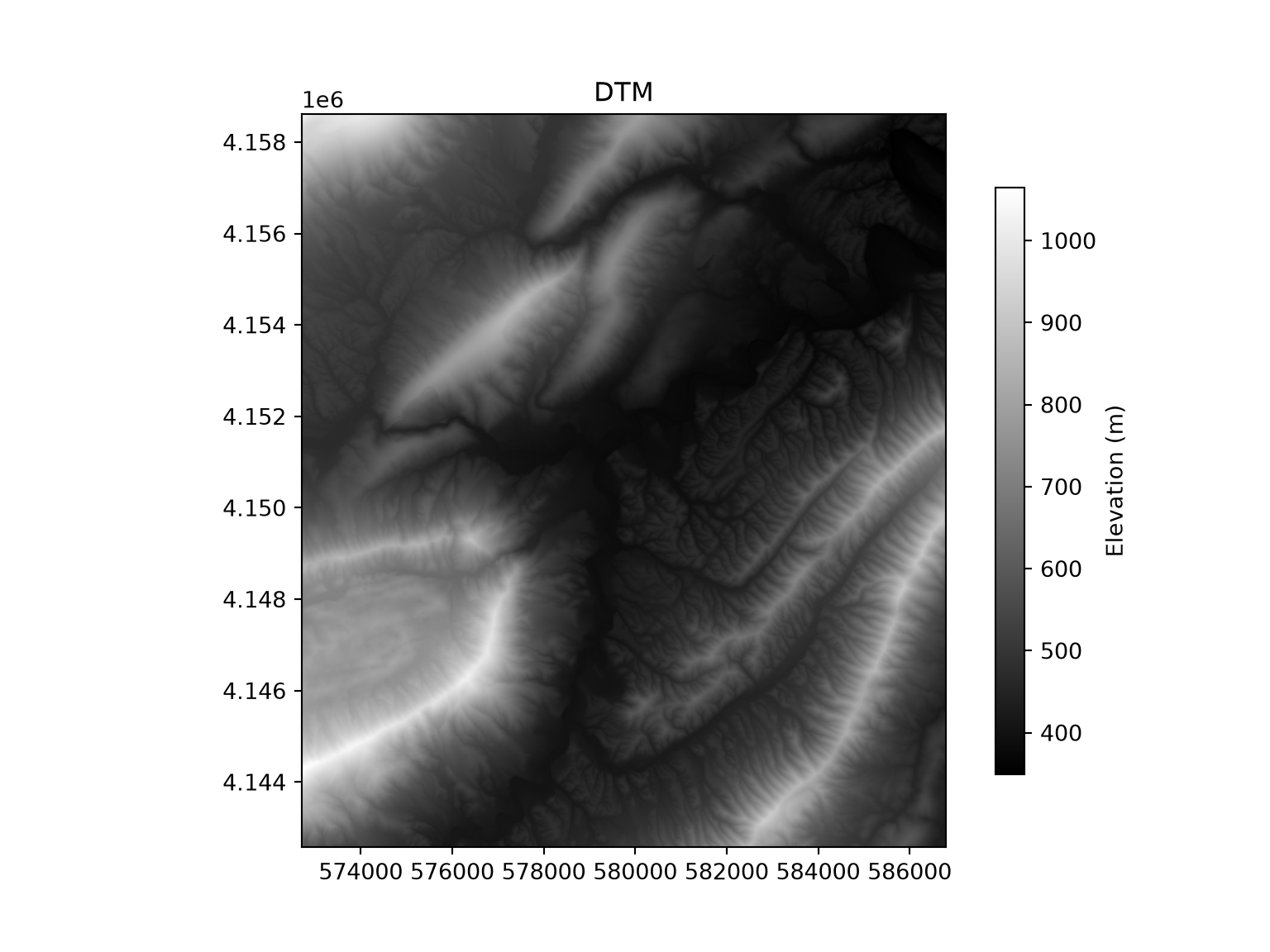
Topographic slope is calculated using the slope() method. Note that the input and output are provided as file paths as opposed to Python objects. We specify that we want slope to be calculated in degrees as opposed to percent or radians. The method writes the result to disk, so we must read it back into Python before mapping it, which is handled by our plot_raster() function.
slp_file = os.path.join(out_dir, "slp.tif")
wbt.slope(dem=dtm_file, output=slp_file, units="degrees")
print(os.path.exists(slp_file))Trueplot_raster(slp_file, cmap="YlOrRd", label="Slope (degrees)", title="Slope")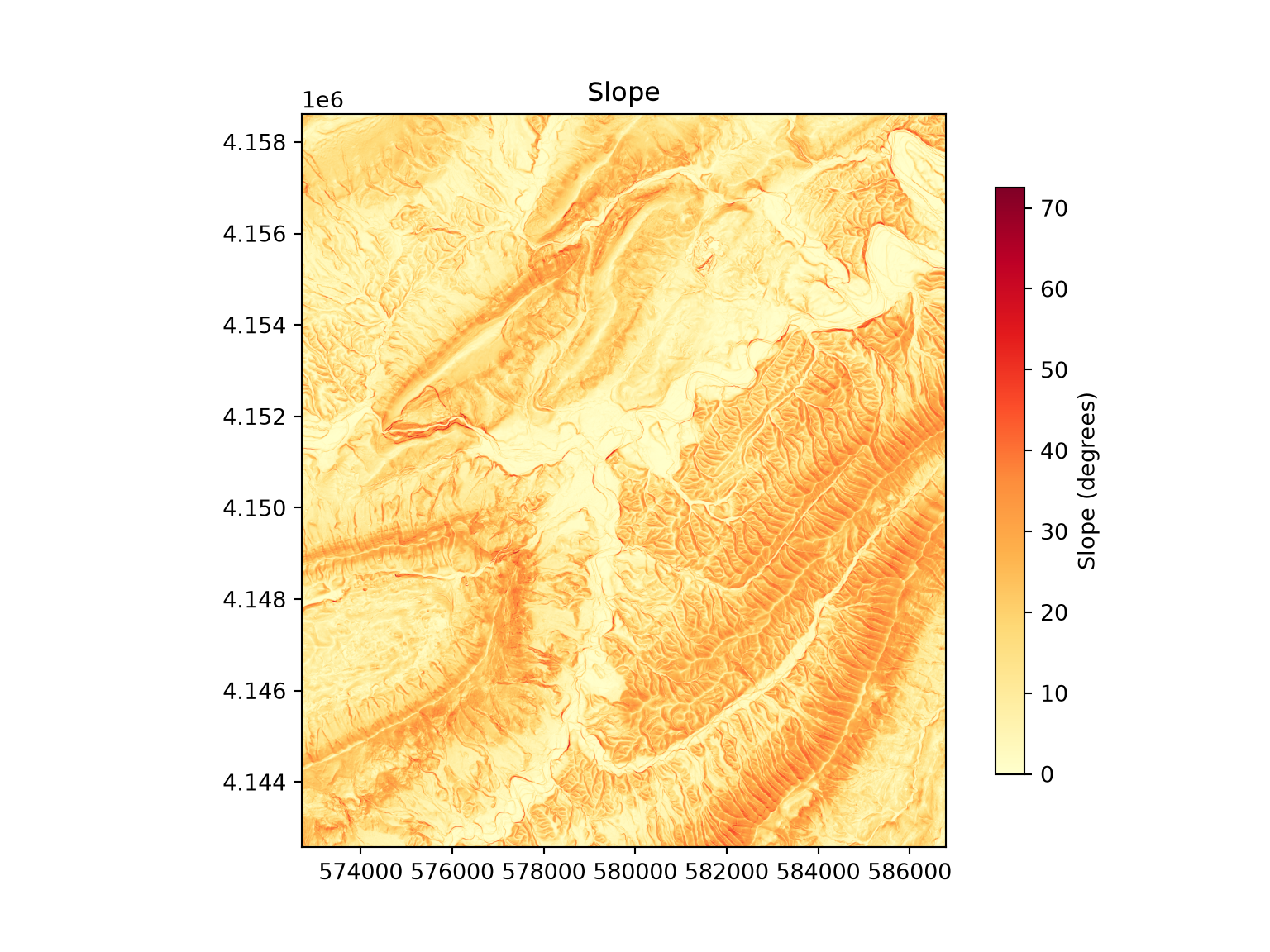
Next, we calculate the terrain ruggedness index (TRI) after Riley et al. (1999) using ruggedness_index(). This measure characterizes local topographic heterogeneity by quantifying the elevation differences between each cell and its eight neighboring cells. Larger values indicate more rugged terrain.
rug_file = os.path.join(out_dir, "rug.tif")
wbt.ruggedness_index(dem=dtm_file, output=rug_file)0plot_raster(rug_file, cmap="YlOrBr", label="TRI", title="Terrain Ruggedness Index")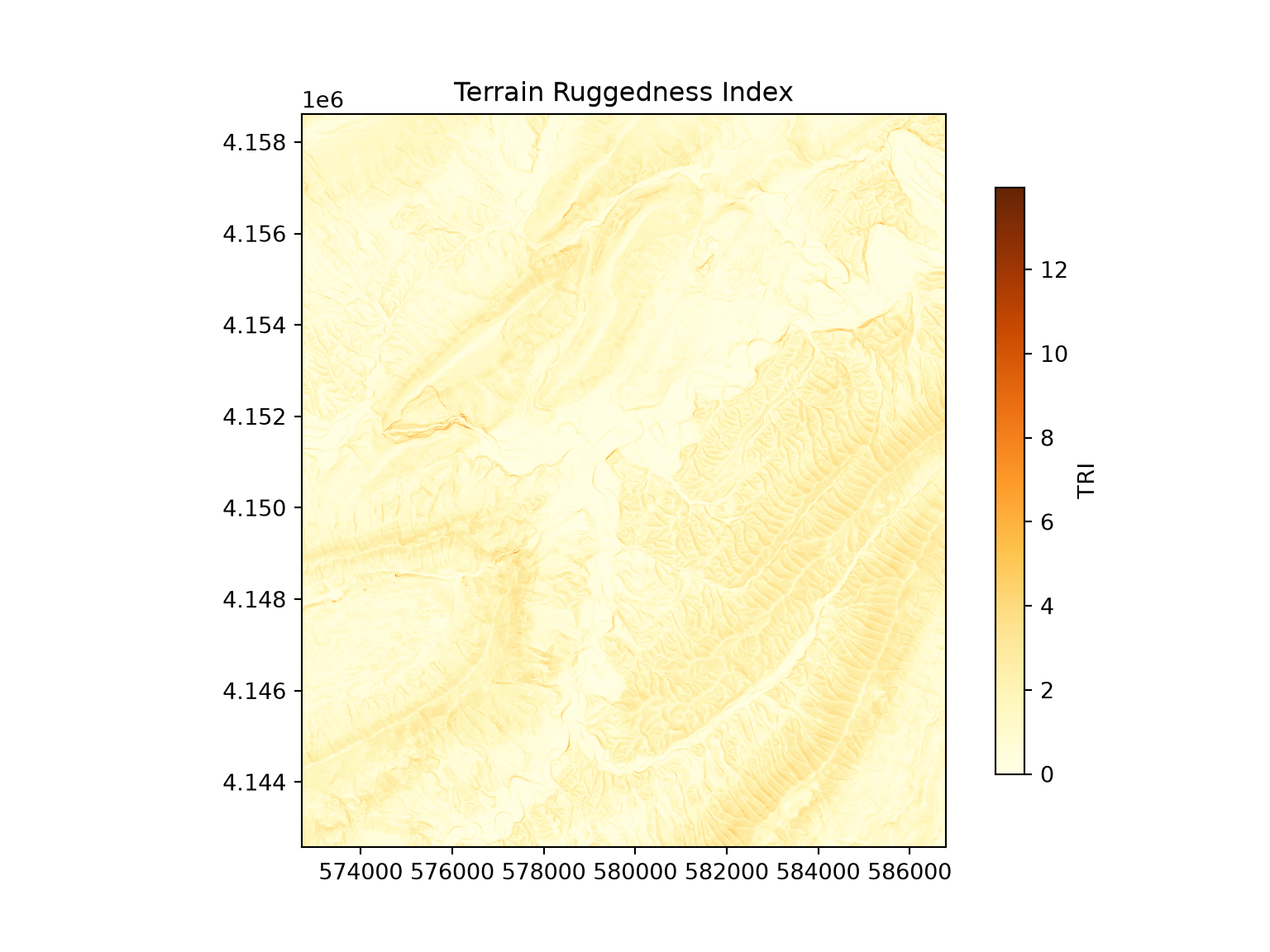
WhiteboxTools provides many additional terrain derivatives that are useful as predictor variables in machine learning and deep learning workflows, such as those discussed in Chapter 16. Examples include topographic position index (TPI), surface curvatures, topographic openness, hillshades, and hydrologic variables such as flow accumulation and topographic wetness index.
12.5 Vector Geoprocessing
WhiteboxTools also provides tools for working with vector data. However, it only supports vector data in the shapefile format. So, we first read the layers from the GeoPackage using GeoPandas and then save them to shapefiles using the to_file() method. The output format is determined by the .shp file extension, and existing files are overwritten if the code is re-run. We read in cities in the United States (point features), interstates (line features), and state boundaries (polygon features).
gpkg = os.path.join(data_dir, "whitebox.gpkg")

us_cities = gpd.read_file(gpkg, layer="citiesUS")
us_cities.to_file(os.path.join(out_dir, "cities.shp"))

us_inter = gpd.read_file(gpkg, layer="interstatesUS")
us_inter.to_file(os.path.join(out_dir, "inter.shp"))

states = gpd.read_file(gpkg, layer="statesUS")
states.to_file(os.path.join(out_dir, "states.shp"))
The shapefile format has several limitations in comparison to the GeoPackage format. For example, attribute field names are limited to 10 characters, so longer names are shortened when the data are saved. A single shapefile is also made up of several files (for example, .shp, .shx, .dbf, and .prj) that must be kept together.
The three layers are then mapped together: state boundaries as polygons, interstates as lines, and cities as points. As discussed in Chapter 8, multiple layers are displayed in the same map space by plotting each to the same axes.
fig, ax = plt.subplots(figsize=(10, 6))
states.plot(ax=ax, color="tan", edgecolor="grey", linewidth=0.5)
us_inter.plot(ax=ax, color="black", linewidth=1)
us_cities.plot(ax=ax, color="red", markersize=8)
ax.set_axis_off()
plt.show()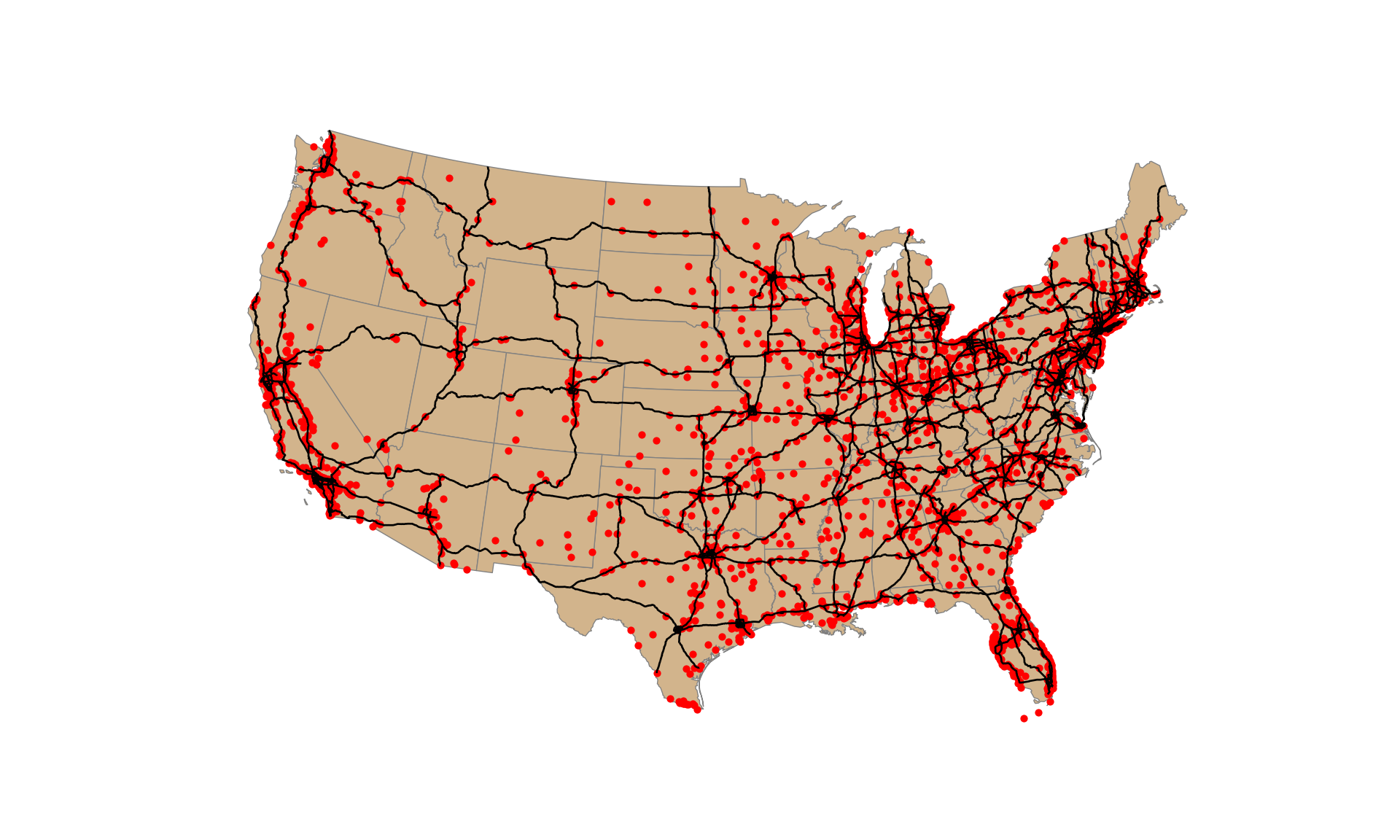
The dissolve() method merges, or dissolves, polygons that share the same value in a specified attribute field. Here, we dissolve the state boundaries based on the “SUB_REGION” field to generate a layer of US sub-regions. Note that the vector tools use the i parameter, as opposed to input, for the input file. The result is then read back into Python and mapped. Providing a column name to the column parameter of plot() symbolizes the features by that attribute, and legend_kwds is used to place the legend outside of the map.
subreg_file = os.path.join(out_dir, "subregions.shp")
wbt.dissolve(i=os.path.join(out_dir, "states.shp"), output=subreg_file, field="SUB_REGION")

sub_reg = gpd.read_file(subreg_file)
legend_opts = {"loc": "upper left", "bbox_to_anchor": (1, 1)}
fig, ax = plt.subplots(figsize=(10, 6))
sub_reg.plot(ax=ax, column="SUB_REGION", cmap="tab10", legend=True, legend_kwds=legend_opts)
ax.set_axis_off()
plt.show()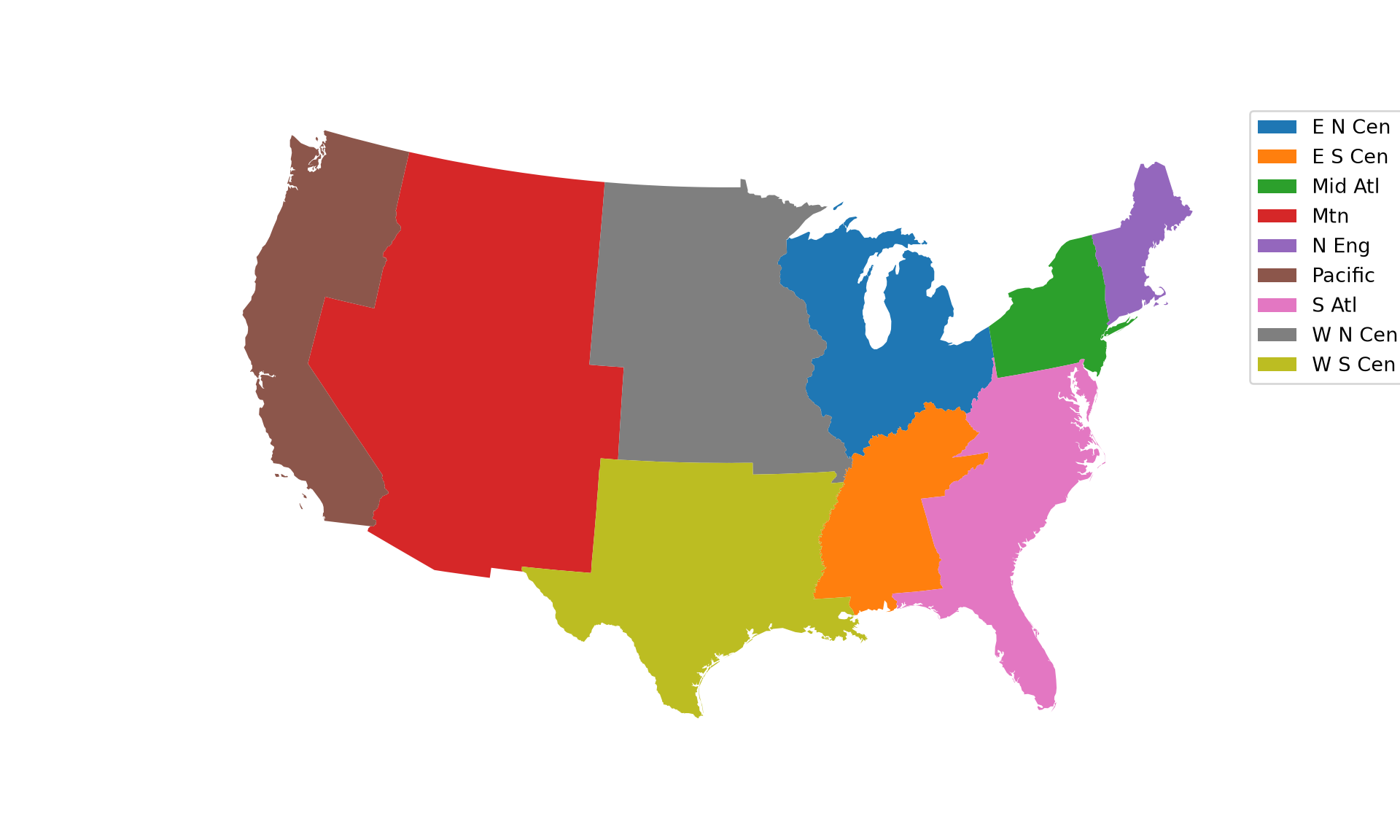
Next, we calculate the centroid of each sub-region using centroid_vector(). When we map the results, you will notice that some sub-regions have more than one centroid. This is because the dissolve operation produced a separate, single-part polygon for each spatially disconnected piece of a sub-region (for example, islands or areas separated by water bodies). A centroid is then calculated for each of these separate features.
subregc_file = os.path.join(out_dir, "subregionsC.shp")
wbt.centroid_vector(i=subreg_file, output=subregc_file)

sub_reg_c = gpd.read_file(subregc_file)
print(len(sub_reg), len(sub_reg_c))
47 47fig, ax = plt.subplots(figsize=(10, 6))
sub_reg.plot(ax=ax, column="SUB_REGION", cmap="tab10", legend=True, legend_kwds=legend_opts)
sub_reg_c.plot(ax=ax, color="red", markersize=30)
ax.set_axis_off()
plt.show()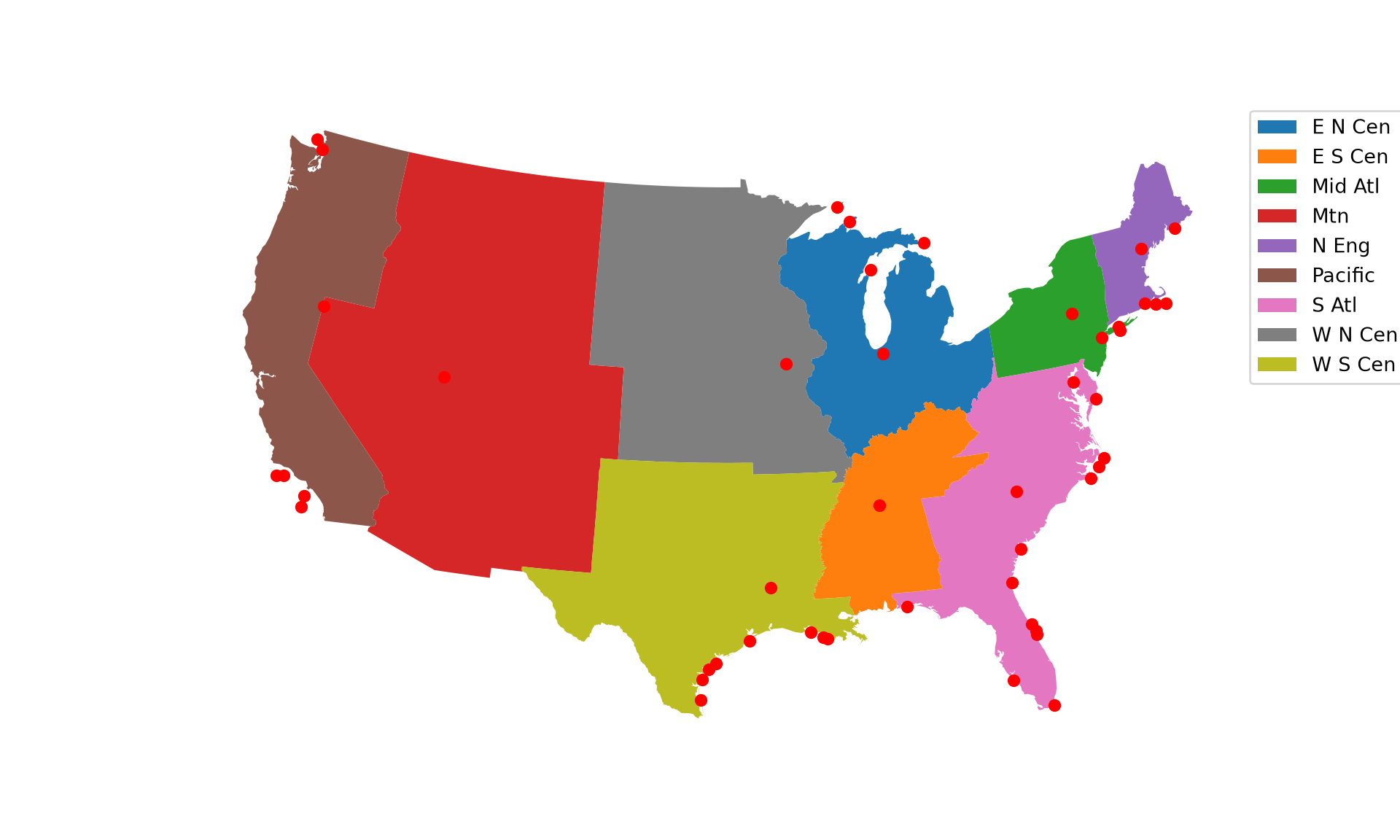
To obtain a single centroid per sub-region, we first convert the single-part polygons to multi-part polygons using single_part_to_multi_part(). All of the parts that share the same “SUB_REGION” value are combined into a single multi-part feature. We then re-calculate the centroids.
subreg2_file = os.path.join(out_dir, "subregions2.shp")
wbt.single_part_to_multi_part(i=subreg_file, output=subreg2_file, field="SUB_REGION")

subregc2_file = os.path.join(out_dir, "subregionsC2.shp")
wbt.centroid_vector(i=subreg2_file, output=subregc2_file)

sub_reg_c2 = gpd.read_file(subregc2_file)
print(len(sub_reg_c2))9Now, each sub-region is represented by a single centroid.
fig, ax = plt.subplots(figsize=(10, 6))
sub_reg.plot(ax=ax, column="SUB_REGION", cmap="tab10", legend=True, legend_kwds=legend_opts)
sub_reg_c2.plot(ax=ax, color="red", markersize=30)
ax.set_axis_off()
plt.show()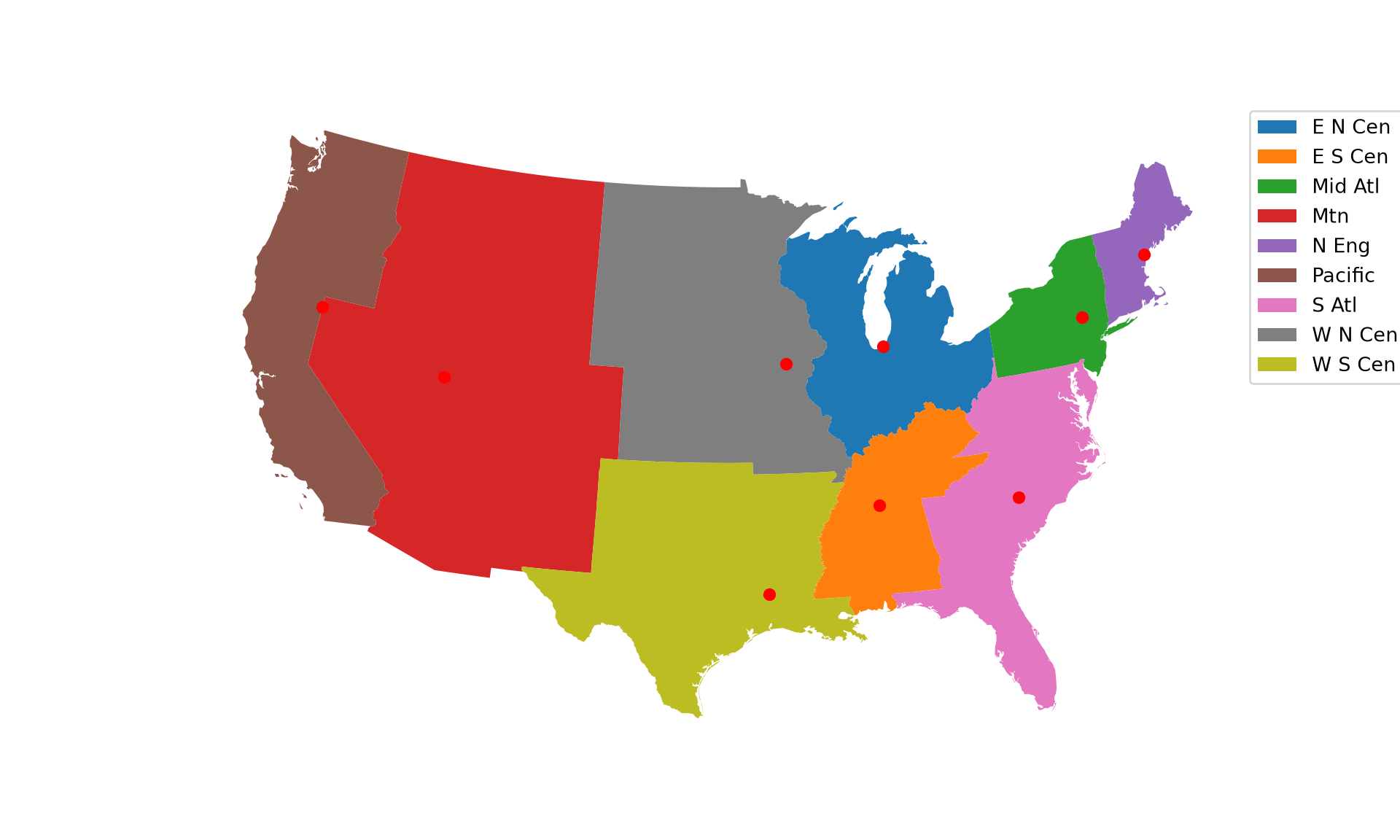
Since the centroid of a multi-part feature is calculated using all of its parts, it may not fall within any of the polygons that make up the feature. This is also true for single polygons with irregular, concave shapes.
These vector operations can also be performed directly in GeoPandas without writing shapefiles: the dissolve() method dissolves features by an attribute and returns multi-part features by default, the centroid property returns the centroid of each feature, and the explode() method converts multi-part features to single-part features. WhiteboxTools is most valuable for the tasks that are not readily available in the native Python libraries, such as terrain, hydrologic, and lidar analysis.
12.6 Lidar Processing
Lastly, WhiteboxTools provides a variety of tools for processing lidar point clouds stored in the LAS format. Here, we use an example point cloud for an area around Madison, West Virginia, USA (madison.las).
The lidar_digital_surface_model() method creates a digital surface model (DSM) from the point cloud. Unlike a DTM, which represents the bare earth surface, a DSM represents the elevation of the highest surface, including vegetation canopy and buildings. The DSM is generated using the highest points within the local neighborhood of each cell. We specify an output cell size of 5 m. Note that, similar to the vector tools, the lidar tools use the i parameter for the input file.
las_file = os.path.join(data_dir, "madison.las")
dsm_file = os.path.join(out_dir, "dsm.tif")
wbt.lidar_digital_surface_model(i=las_file, output=dsm_file, resolution=5)0plot_raster(dsm_file, cmap="Purples", label="Elevation (m)", title="Digital Surface Model")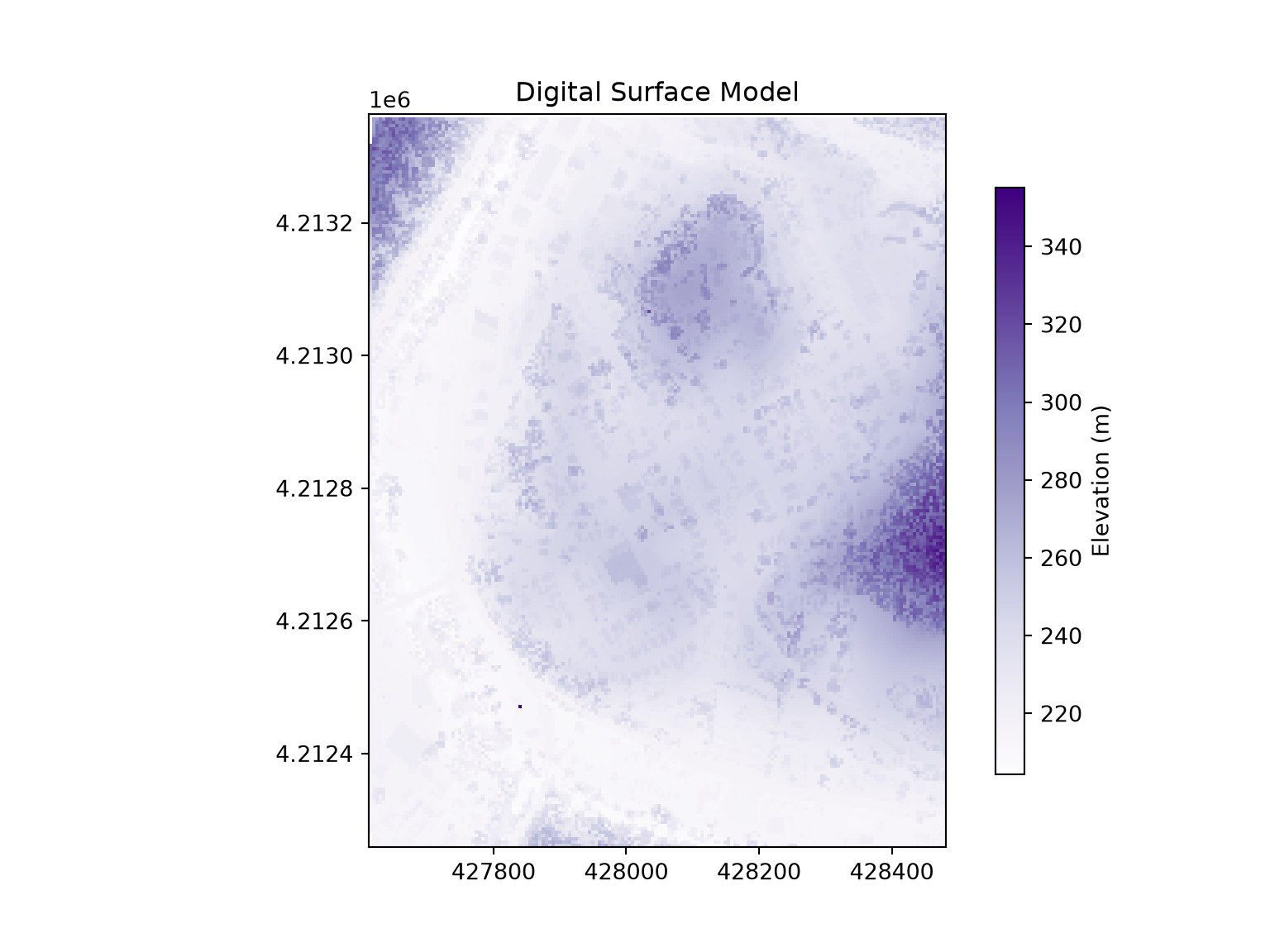
This point cloud does not store a coordinate reference system, so the output grid is assigned an undefined local coordinate system with unknown units, as shown by the crs property below. The cell size is still 5 map units, as requested. If needed, the correct coordinate reference system can be assigned when the data are written to a new file using Rasterio (Chapter 10).
with rasterio.open(dsm_file) as src:
    print(src.crs)
    print(src.res)
LOCAL_CS["unnamed",UNIT["unknown",1],AXIS["Easting",EAST],AXIS["Northing",NORTH]]
(5.0, 5.0)The lidar_point_density() method calculates the density of lidar returns per unit area. Here, we include all returns, generate an output with a 5 m cell size, and use a 10 m search radius around each cell center to count points. Mapping point density is useful for assessing the quality and consistency of a lidar dataset. For example, low density areas may be associated with water bodies, which absorb the laser pulses, or gaps between flight lines, while high density areas may occur where flight lines overlap.
den_file = os.path.join(out_dir, "pntDen.tif")
wbt.lidar_point_density(i=las_file, output=den_file, returns="all", resolution=5, radius=10)0plot_raster(den_file, cmap="Reds", label="Points per square meter", title="Lidar Point Density")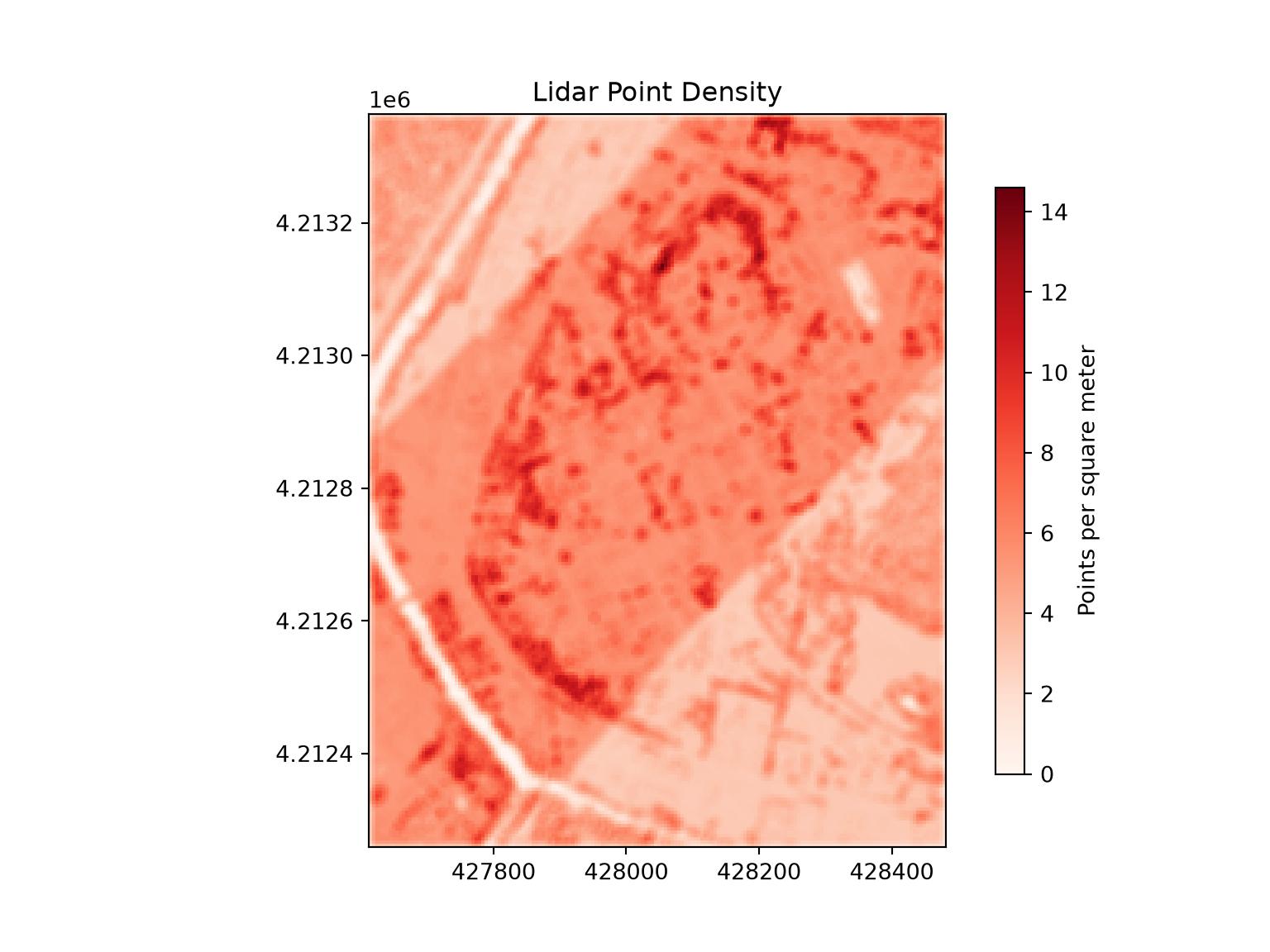
Native Python libraries are also available for working with lidar data. For example, laspy reads and writes LAS files as NumPy arrays, and PDAL provides a Python interface for building point cloud processing pipelines. WhiteboxTools is a good alternative when processing large datasets, since its tools are implemented in the Rust programming language and are generally very fast.
12.7 Concluding Remarks
In this chapter, we demonstrated how to use the whitebox library to access WhiteboxTools from Python for terrain analysis, vector geoprocessing, and lidar processing. The general workflow is the same regardless of the tool being used: write the input data to disk, run the WhiteboxTools method with absolute file paths as input and output, and read the result back into Python. This same pattern applies to many of the other libraries discussed in the introduction that link Python to external geospatial software. Being able to access these tools greatly expands the set of analyses that can be performed within a Python-based workflow. The scripting skills discussed in Chapter 7 can also be combined with WhiteboxTools to build command-line tools that apply a terrain or lidar processing workflow to new data.
12.8 References
Riley, S.J., DeGloria, S.D. and Elliot, R., 1999. “A terrain ruggedness index that quantifies topographic heterogeneity.” Intermountain Journal of Sciences, 5(1-4), pp.23-27.
12.9 Questions
- Explain the general workflow used when accessing external geospatial software, such as WhiteboxTools, from Python. Why are data passed between Python and the software as files on disk?
- Why must absolute file paths be used when running WhiteboxTools with the whitebox library?
- Why is it important to confirm that an output file was created even when a WhiteboxTools method returns 0?
- What is the purpose of
set_verbose_mode(False)? - WhiteboxTools only supports vector data in the shapefile format. What are two limitations of the shapefile format in comparison to a GeoPackage?
- Explain why some sub-regions had more than one centroid after the dissolve operation and how
single_part_to_multi_part()addressed this. - Explain the difference between a digital surface model (DSM) and a digital terrain model (DTM).
- What can a map of lidar point density reveal about the quality and consistency of a lidar dataset?
- Name two other external geospatial software platforms and the Python libraries that can be used to access them.