import numpy as np
import pandas as pd
import matplotlib.pyplot as plt
from matplotlib.colors import ListedColormap, BoundaryNorm
from matplotlib.patches import Patch
import geopandas as gpd
import rasterio
from rasterio.enums import Resampling
from rasterio.mask import mask
from rasterio.windows import from_bounds
from rasterio.warp import reproject, calculate_default_transform
from rasterio.features import rasterize
from rasterio.transform import from_origin
from rasterio.plot import plotting_extent
from scipy import ndimage, signal
from sklearn.decomposition import PCA
from pyproj import Transformer10 Raster Processing with Rasterio
10.1 Topics Covered
- Reading raster geospatial data with Rasterio
- Raster preprocessing (crop, mask, merge, resample, and re-project)
- Raster math and logic
- Raster reclassification
- Raster summarization relative to points and polygons
- Rasterization of vector geospatial data (binary masks, Euclidean distance, kernel density)
- Band ratios and the tasseled cap transformation from multispectral imagery
- Principal component analysis (PCA) on raster data for feature reduction
- Spatial enhancement via convolution filters
- Land surface parameters (LSPs) from a digital terrain model (DTM) and custom moving windows
10.2 Introduction
Many geospatial datasets, including remotely sensed imagery, digital terrain models, and model outputs, are represented as raster grids. As a result, it is important to know how to work with and manipulate raster data in Python. For this purpose, we primarily make use of Rasterio, which provides access to the raster functionality of GDAL. Rasterio reads raster bands as NumPy arrays, so the array skills discussed in Chapter 3 apply directly: once the data are read, raster math, logic, and summarization are simply array operations. Rasterio then handles the geospatial components: reading and writing files, georeferencing, coordinate reference systems, cropping, masking, re-projecting, and converting between vector and raster data. Moving window operations are implemented using the ndimage and signal modules of SciPy.
A raster file is opened using rasterio.open(), which returns a dataset object. Opening a file does not read in the cell values. Instead, it provides access to the file’s metadata and methods for reading the data. The cell values are read using the read() method, which returns a NumPy array. A single band is returned as a two-dimensional array (rows, columns), while multiple bands are returned as a three-dimensional array (bands, rows, columns). The location of the grid is defined by its affine transformation (transform), which relates row and column positions to map coordinates, and its coordinate reference system (crs).
If you are interested in working with labeled arrays, spatiotemporal data cubes, or data that are too large to fit in memory, consider using Xarray (Chapter 3) along with the rioxarray extension, which adds Rasterio’s functionality to Xarray objects. Since we primarily work with single or multiband raster grids, we focus on Rasterio and NumPy in this chapter.
Our primary goal in this chapter is to explore a wide variety of common raster preprocessing and analysis methods, as well as methods for creating derived products from multispectral imagery and DTMs. We use matplotlib to visualize input data and results, as discussed in Chapter 8. We also use GeoPandas (Chapter 9) to work with vector data and scikit-learn to perform principal component analysis (PCA).
10.3 Reading Data
To support our demonstration, we read in several raster files. We first load a digital terrain model (DTM) from the United States Geological Survey (USGS) 3D Elevation Program (3DEP). The original DTM has a spatial resolution of 1 m. In order to speed up our examples and reduce the size of the book files, the provided DTM has already been degraded to a 5 m resolution by calculating the mean of the 25 1 m cells within each new 5 m cell. With Rasterio, this aggregation could be performed when reading the data by providing the desired number of rows and columns to the out_shape parameter of read() and setting resampling=Resampling.average, as demonstrated for the Landsat data below.
As is the standard in remote sensing and GIS, when we discuss the spatial resolution of a raster grid, instead of stating 5x5 m, we will use 5 m.
We also read in multispectral data from the Landsat 8 Operational Land Imager (OLI) sensor. The image covers the area around Philadelphia, Pennsylvania, USA, and was collected in March of 2024 (leaf-off conditions). The bands are read as a three-dimensional array. Since NumPy arrays do not store band names, we store the names in a list and create a dictionary that returns the index of each band from its name. Remember that NumPy indexes start at 0, while Rasterio band numbers start at 1.
We define two functions for displaying raster data. The first, show_raster(), displays a single-band array with a color bar. The second, plot_rgb(), displays three bands as a color composite. Reflectance values must be scaled from 0 to 1 for display, and a linear stretch is applied to improve contrast: the 2nd and 98th percentiles of each band are mapped to 0 and 1, and values outside of this range are clipped. A fourth channel, which defines transparency (alpha), is added so that NoData cells are not displayed. The DTM is displayed using a reversed grayscale colormap while the multispectral data are displayed as a simulated true color image using the red, green, and blue bands.
def show_raster(arr, extent=None, cmap="viridis", title=None, label=None, **kwargs):
    """Display a single-band array with a color bar."""
    fig, ax = plt.subplots(figsize=(8, 6))
    im = ax.imshow(arr, extent=extent, cmap=cmap, **kwargs)
    fig.colorbar(im, ax=ax, shrink=0.7, label=label)
    ax.set_title(title)
    ax.set_axis_off()
    plt.show()

def stretch(band, low=2, high=98):
    """Linear percent stretch of a band to 0-1, ignoring masked or NaN cells."""
    vals = np.ma.masked_invalid(np.ma.asarray(band, dtype="float32"))
    p_low, p_high = np.percentile(vals.compressed(), [low, high])
    return np.ma.clip((vals - p_low) / (p_high - p_low), 0, 1)

def plot_rgb(img, r, g, b, extent=None, title=None, nodata_color=None):
    """Display three bands (given by index) of a (bands, rows, columns) array."""
    rgb = np.ma.dstack([stretch(img[i]) for i in (r, g, b)])
    # Add an alpha (transparency) channel so that masked cells are transparent
    alpha = (~np.ma.getmaskarray(rgb).any(axis=2)).astype(float)
    rgba = np.dstack([rgb.filled(0), alpha])
    fig, ax = plt.subplots(figsize=(8, 8))
    if nodata_color is not None:
        ax.set_facecolor(nodata_color)
    ax.imshow(rgba, extent=extent)
    ax.set_title(title)
    ax.set_xticks([])
    ax.set_yticks([])
    plt.show()
fld = "datasets/gisData/raster/"
with rasterio.open(fld + "dtm5.tif") as src:
dtm = src.read(1, masked=True)
dtm_profile = src.profile
dtm_ext = plotting_extent(src)
dtm_res = src.res[0]
show_raster(dtm, dtm_ext, cmap="Greys_r", label="Elevation (m)")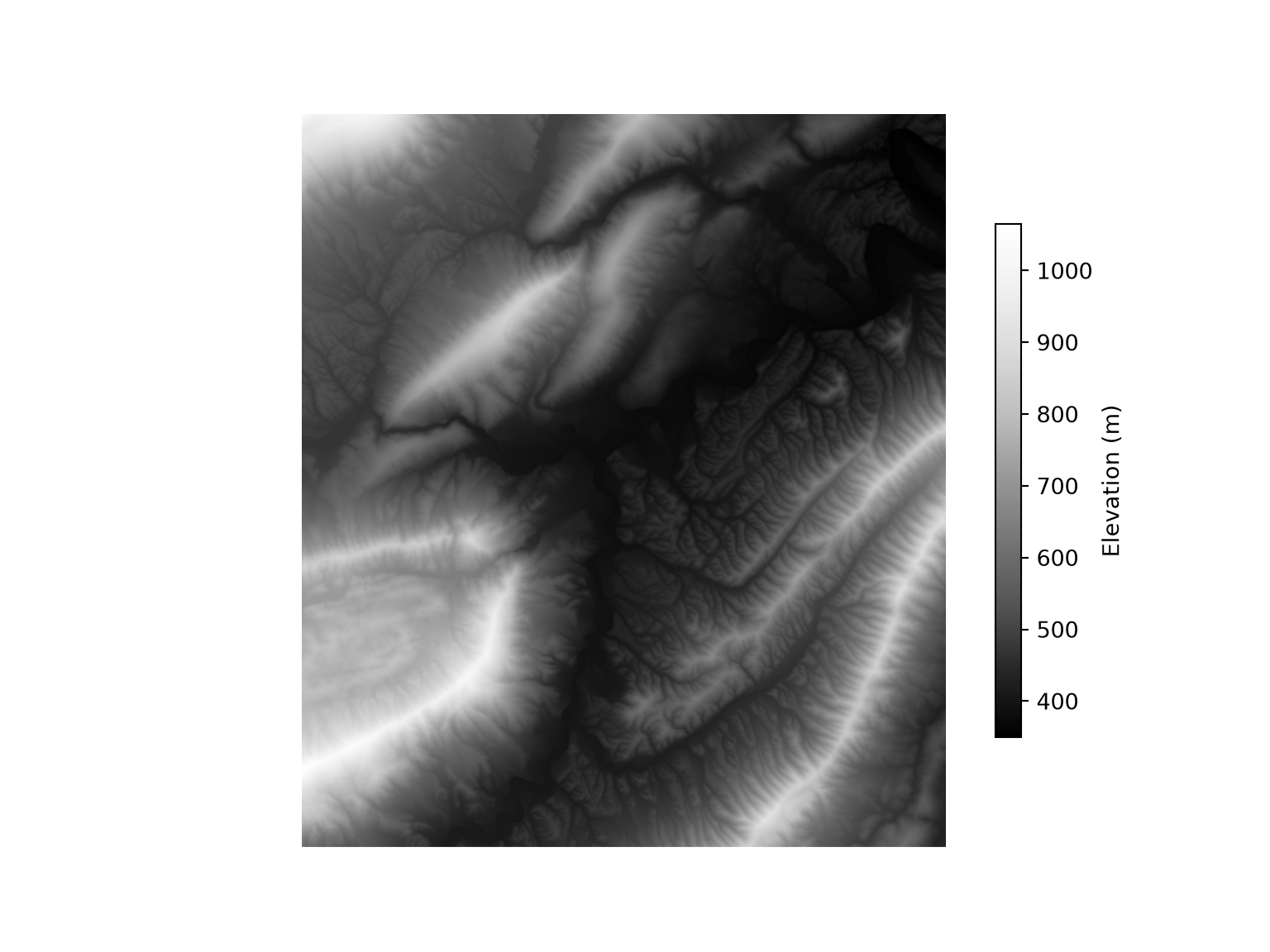
band_names = ["Edge", "Blue", "Green", "Red", "NIR", "SWIR1", "SWIR2"]
b = {name: i for i, name in enumerate(band_names)}

loff_src = rasterio.open(fld + "ls8_3_11_2024_SR.tif")
loff = loff_src.read()
loff_ext = plotting_extent(loff_src)

plot_rgb(loff, b["Red"], b["Green"], b["Blue"], loff_ext)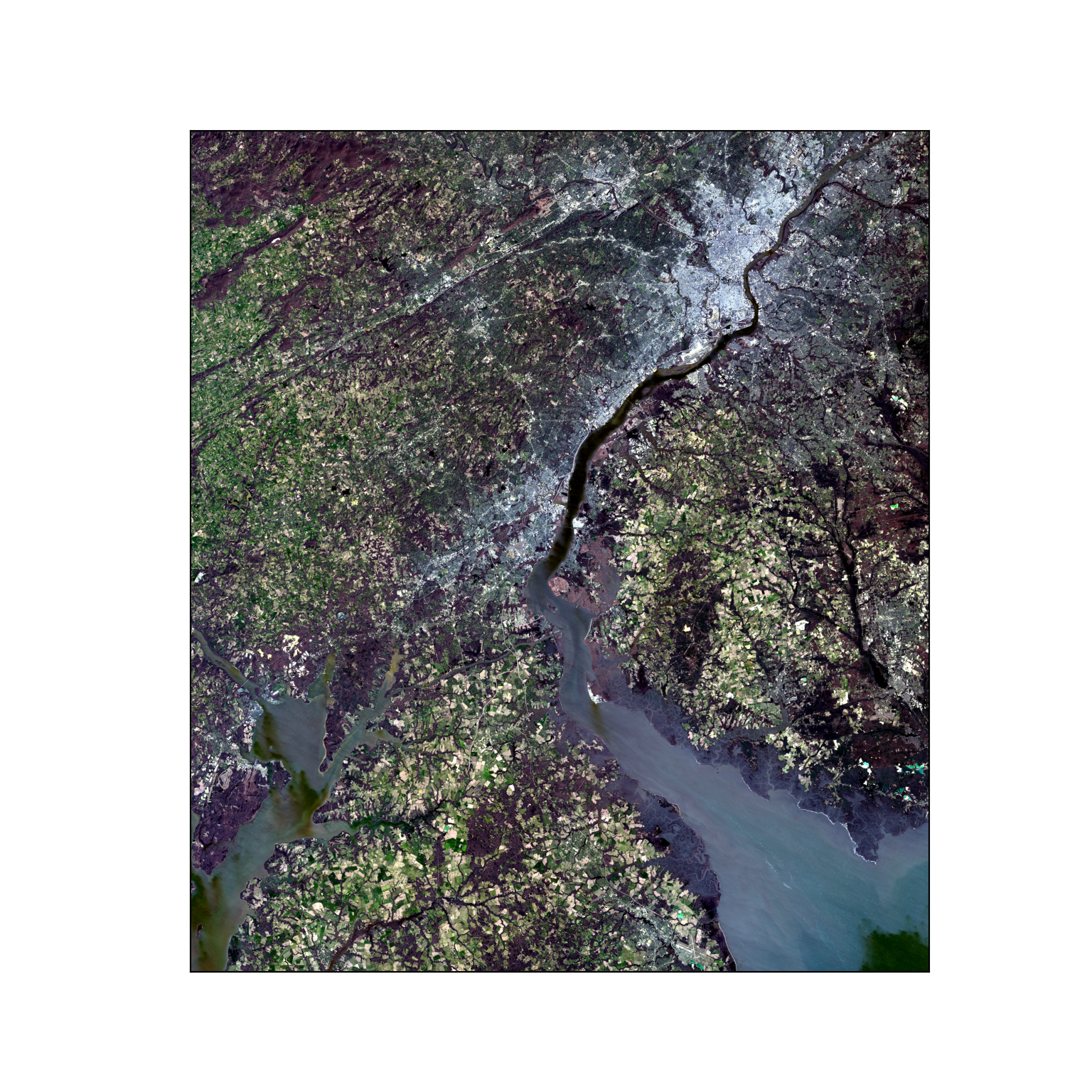
Using GeoPandas, we read in some vector extents, which will be used to crop out portions of the data, sample point locations at which to extract raster cell values, and a hexagon tessellation, which will be used to demonstrate data summarization. These layers are stored in the raster.gpkg GeoPackage. To be safe, we re-project each layer to the coordinate reference system of the Landsat image using to_crs().
gpkg = fld + "raster.gpkg"
ext1 = gpd.read_file(gpkg, layer="extent1").to_crs(loff_src.crs)
ext2 = gpd.read_file(gpkg, layer="extent2").to_crs(loff_src.crs)
samp_pnts = gpd.read_file(gpkg, layer="sampPnts").to_crs(loff_src.crs)
tess = gpd.read_file(gpkg, layer="tesselation").to_crs(loff_src.crs)
10.4 Raster Data Info
There are several properties that provide general information about raster data. The number of layers, channels, or bands is stored in the count property. The number of columns and rows of cells are stored in width and height, respectively. Coordinate reference information is stored in crs, which can be printed in different formats, such as well-known text (WKT) using to_wkt() or a PROJ string using to_proj4(). It is generally a good idea to explore your data before using them in an analysis.
print(loff_src.count)7print(loff_src.width)3521print(loff_src.height)4007print(loff_src.crs.to_wkt())PROJCS["AEA_WGS84",GEOGCS["WGS 84",DATUM["WGS_1984",SPHEROID["WGS 84",6378137,298.257223563,AUTHORITY["EPSG","7030"]],AUTHORITY["EPSG","6326"]],PRIMEM["Greenwich",0],UNIT["degree",0.0174532925199433,AUTHORITY["EPSG","9122"]],AUTHORITY["EPSG","4326"]],PROJECTION["Albers_Conic_Equal_Area"],PARAMETER["latitude_of_center",23],PARAMETER["longitude_of_center",-96],PARAMETER["standard_parallel_1",29.5],PARAMETER["standard_parallel_2",45.5],PARAMETER["false_easting",0],PARAMETER["false_northing",0],UNIT["metre",1,AUTHORITY["EPSG","9001"]],AXIS["Easting",EAST],AXIS["Northing",NORTH]]print(loff_src.crs.to_proj4())+proj=aea +lat_0=23 +lon_0=-96 +lat_1=29.5 +lat_2=45.5 +x_0=0 +y_0=0 +datum=WGS84 +units=m +no_defs=TrueThe profile property provides the key metadata as a dictionary, including the file format (driver), data type (dtype), the value used to represent missing data (nodata), the number of columns and rows, the number of bands, the coordinate reference system, and the affine transformation. The res and bounds properties provide the spatial resolution and the spatial extent. The shape of the array confirms that we have read 7 bands with 4,007 rows and 3,521 columns of cells.
print(loff_src.profile){'driver': 'GTiff', 'dtype': 'uint16', 'nodata': None, 'width': 3521, 'height': 4007, 'count': 7, 'crs': CRS.from_wkt('PROJCS["AEA_WGS84",GEOGCS["WGS 84",DATUM["WGS_1984",SPHEROID["WGS 84",6378137,298.257223563,AUTHORITY["EPSG","7030"]],AUTHORITY["EPSG","6326"]],PRIMEM["Greenwich",0],UNIT["degree",0.0174532925199433,AUTHORITY["EPSG","9122"]],AUTHORITY["EPSG","4326"]],PROJECTION["Albers_Conic_Equal_Area"],PARAMETER["latitude_of_center",23],PARAMETER["longitude_of_center",-96],PARAMETER["standard_parallel_1",29.5],PARAMETER["standard_parallel_2",45.5],PARAMETER["false_easting",0],PARAMETER["false_northing",0],UNIT["metre",1,AUTHORITY["EPSG","9001"]],AXIS["Easting",EAST],AXIS["Northing",NORTH]]'), 'transform': Affine(30.0, 0.0, 1673295.0,
0.0, -30.0, 2095575.0), 'blockxsize': 128, 'blockysize': 128, 'tiled': True, 'interleave': 'pixel'}print(loff_src.res)(30.0, 30.0)print(loff_src.bounds)BoundingBox(left=1673295.0, bottom=1975365.0, right=1778925.0, top=2095575.0)print(loff.shape, loff.dtype)(7, 4007, 3521) uint1610.5 General Data Processing
10.5.1 Band Subsets and Stacking
For a multiband array, you can extract a subset of the bands using a list of band indexes. Here, we use the dictionary defined above so that the bands can be referenced by name. Note that providing a list ([b["NIR"]]) as opposed to a single index (b["NIR"]) maintains the band dimension. Arrays can be subsequently merged or stacked back into a single array using np.concatenate(). Arrays being stacked must have the same number of rows and columns. When working with arrays from different files, they must also share the same spatial extent, cell size, and coordinate reference system for the result to be meaningful. This is not an issue in our example since all the data being stacked were extracted from the same input grid.
vis_b = loff[[b["Blue"], b["Green"], b["Red"]]]
nir_b = loff[[b["NIR"]]]
swir_b = loff[[b["SWIR1"], b["SWIR2"]]]

img_stk = np.concatenate([vis_b, nir_b, swir_b], axis=0)
print(vis_b.shape, nir_b.shape, img_stk.shape)
(3, 4007, 3521) (1, 4007, 3521) (6, 4007, 3521)10.5.2 Crop, Mask, and Merge
Cropping extracts a rectangular extent from a larger raster file based on coordinates that define a bounding box. With Rasterio, this is accomplished by defining a window, or a subset of rows and columns, using from_bounds(). The bounding box coordinates (minimum x, minimum y, maximum x, maximum y) should be relative to the projection of the data being cropped. The window is then provided to read() so that only the cells within the window are read from the file. Since the cropped grid starts at a different location than the original grid, a new transform is obtained using window_transform(), and the new extent is calculated from the window. We plot the result to confirm that the extent has changed and print the array shape to confirm that there are now fewer columns and rows of cells in comparison to the original array. We repeat this process in the second code block using the bounding box of a vector extent, which is obtained using the total_bounds property.
win1 = from_bounds(1710000, 2030000, 1752000, 2050000, transform=loff_src.transform)
loff_crop1 = loff_src.read(window=win1)
crop1_ext = plotting_extent(loff_crop1[0], loff_src.window_transform(win1))

plot_rgb(loff_crop1, b["Red"], b["Green"], b["Blue"], crop1_ext)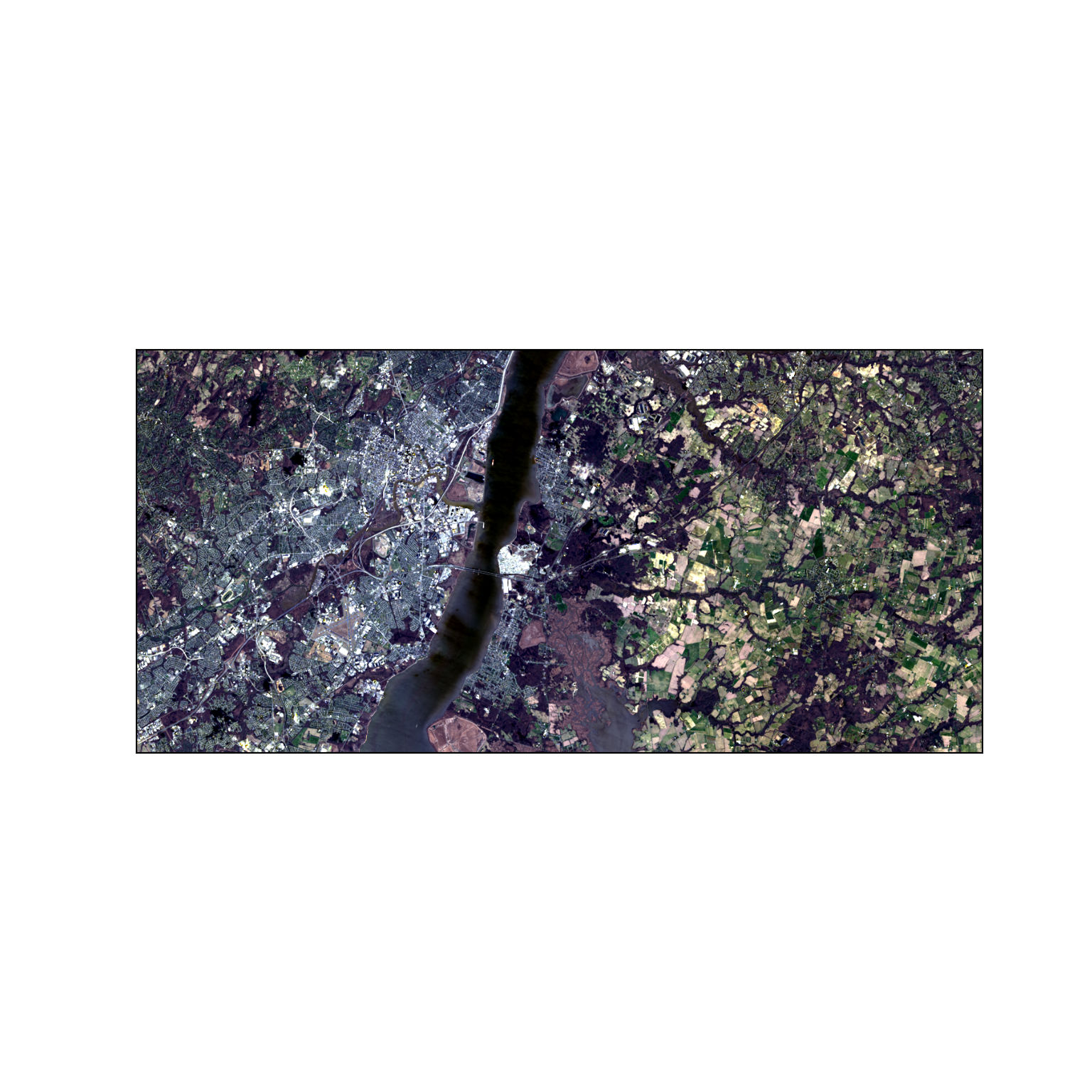
print(loff_crop1.shape)(7, 667, 1400)win2 = from_bounds(*ext1.total_bounds, transform=loff_src.transform)
loff_crop2 = loff_src.read(window=win2)
plot_rgb(loff_crop2, b["Red"], b["Green"], b["Blue"],
plotting_extent(loff_crop2[0], loff_src.window_transform(win2)))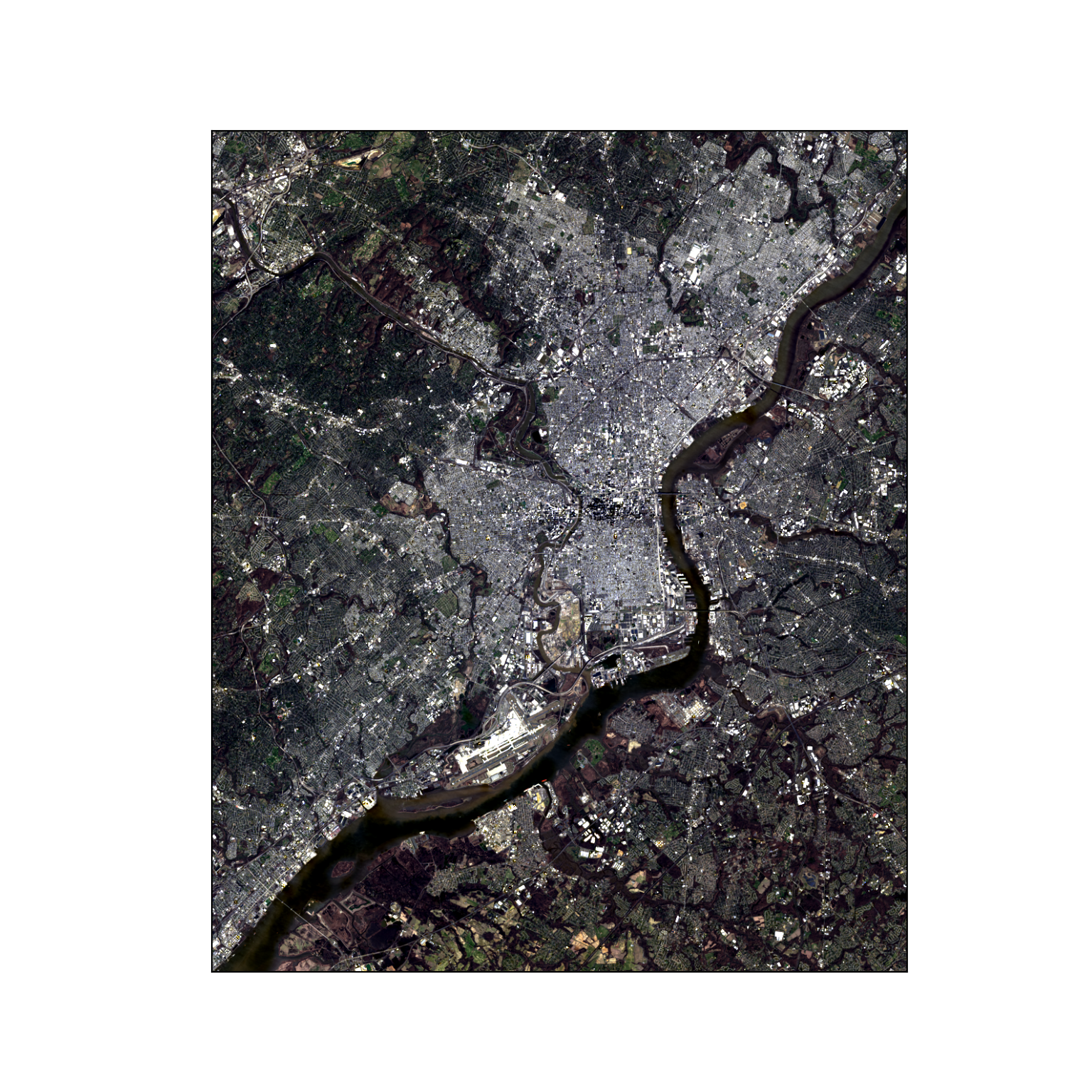
In contrast to cropping, masking can be used to extract a non-rectangular extent. However, the resulting grid is still rectangular since each row and column of cells must have the same length or be a full array of values. Masking simply converts cells outside of the mask to NoData. The mask() function from rasterio.mask accepts an open dataset and a list of geometries. Setting crop=True also crops the result to the extent of the geometries, and setting filled=False returns a masked array in which the cells outside of the geometries are masked. Masked cells are displayed as transparent.
Below, we extract two extents, one that is nearly rectangular and one that is circular. To demonstrate that masked cells exist for the circular extent, we assign a color to these cells by setting the background color of the axes in the third code block.
loff_crop3, crop3_transform = mask(loff_src, ext1.geometry, crop=True, filled=False)
plot_rgb(loff_crop3, b["Red"], b["Green"], b["Blue"],
         plotting_extent(loff_crop3[0], crop3_transform))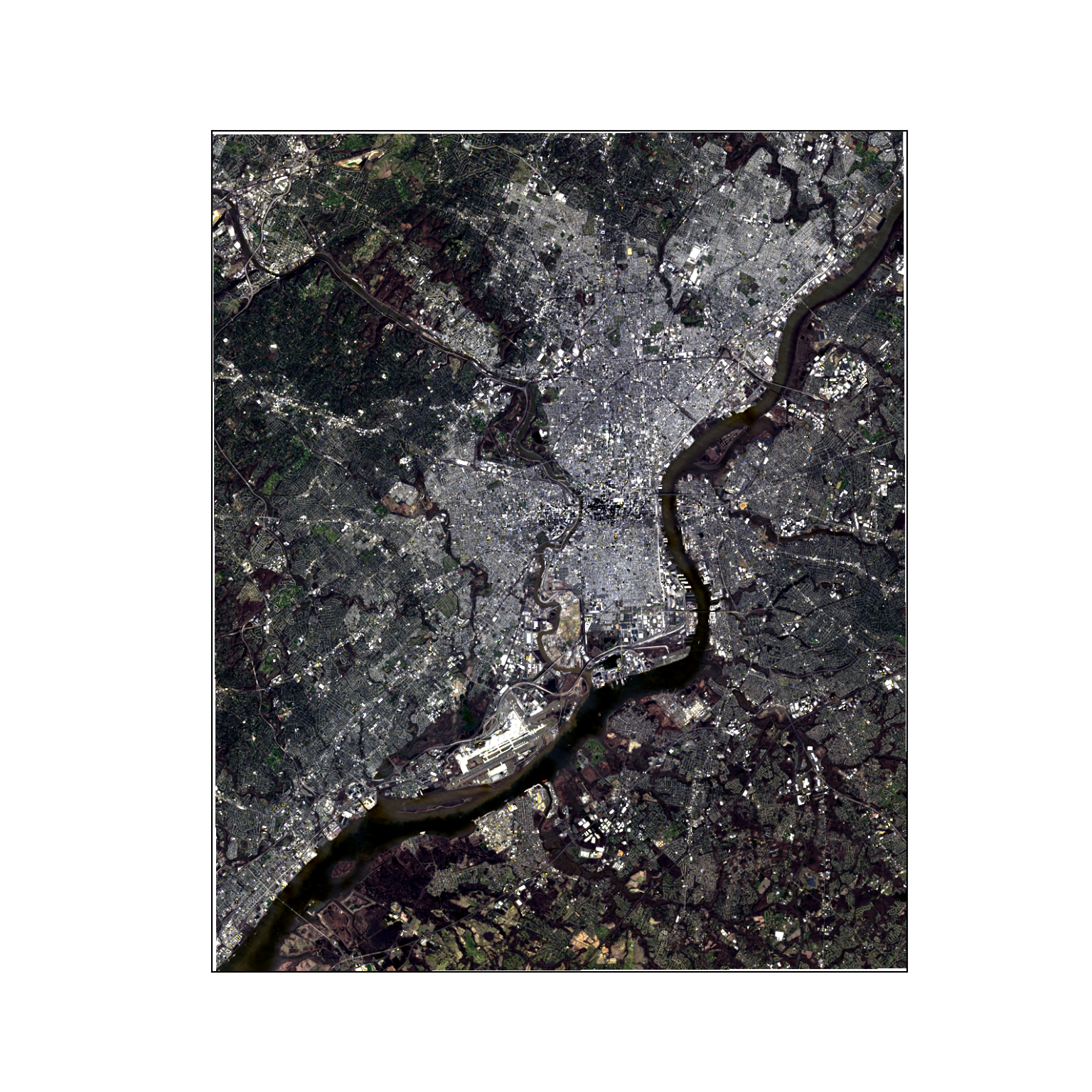
loff_crop4, crop4_transform = mask(loff_src, ext2.geometry, crop=True, filled=False)
crop4_ext = plotting_extent(loff_crop4[0], crop4_transform)
plot_rgb(loff_crop4, b["Red"], b["Green"], b["Blue"], crop4_ext)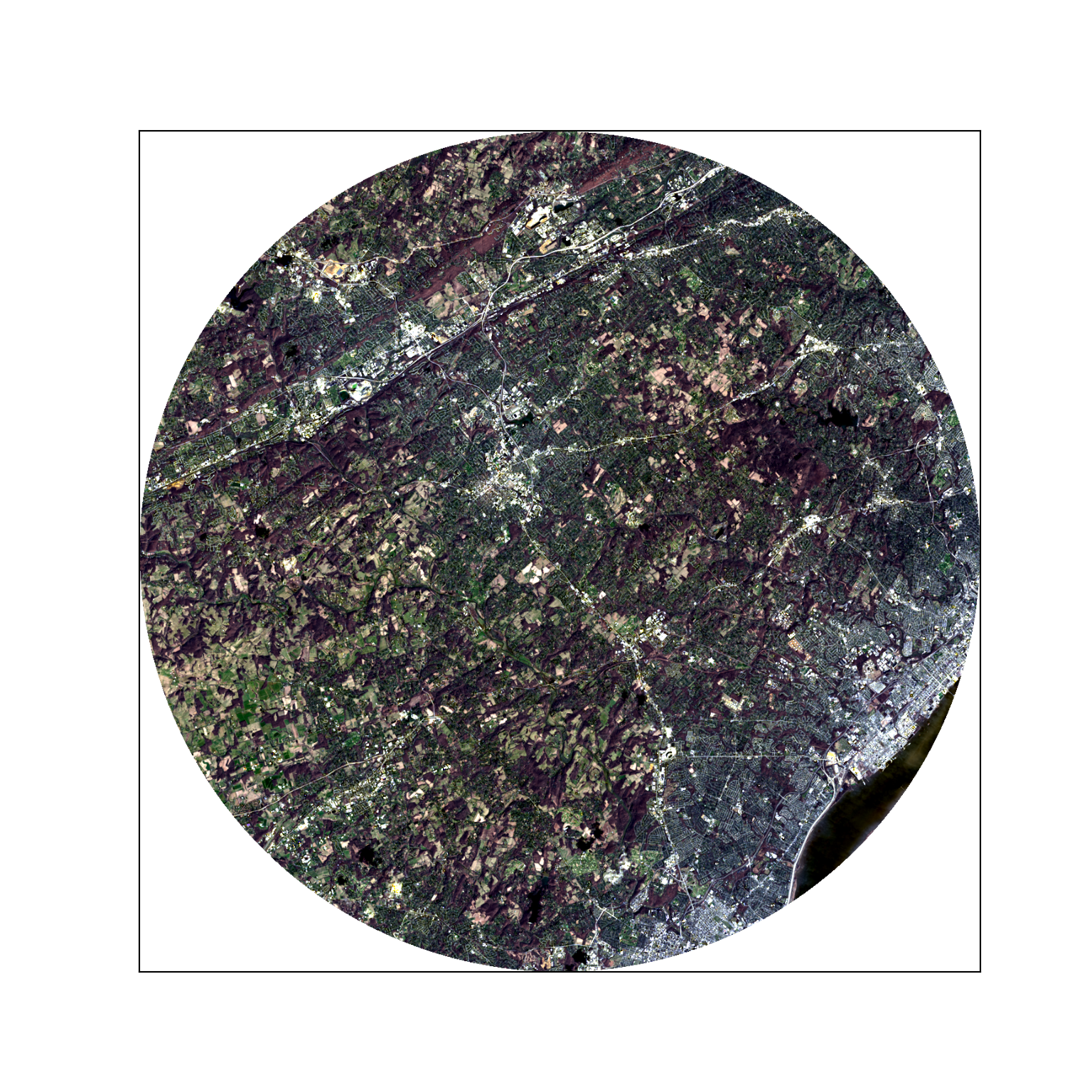
plot_rgb(loff_crop4, b["Red"], b["Green"], b["Blue"], crop4_ext, nodata_color="salmon")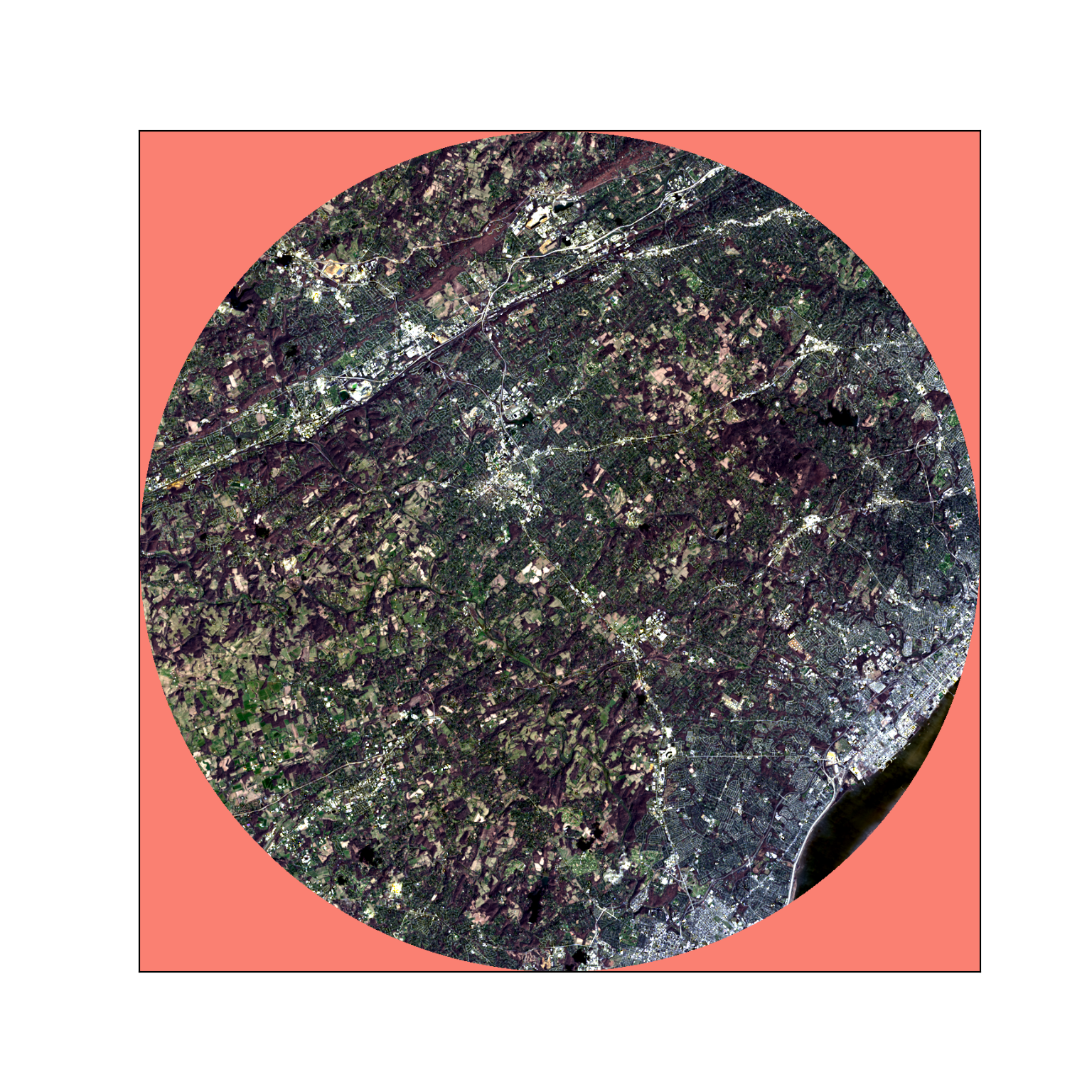
It is important to note that masking does not remove rows and columns of cells; it simply codes cells outside of the mask as NoData. If we set crop=False, as demonstrated in the next code block, all of the original rows and columns of cells are maintained.
loff_crop4x, _ = mask(loff_src, ext2.geometry, crop=False, filled=False)
print(loff_crop4.shape, loff_crop4x.shape)
(7, 1340, 1340) (7, 4007, 3521)plot_rgb(loff_crop4x, b["Red"], b["Green"], b["Blue"], loff_ext, nodata_color="salmon")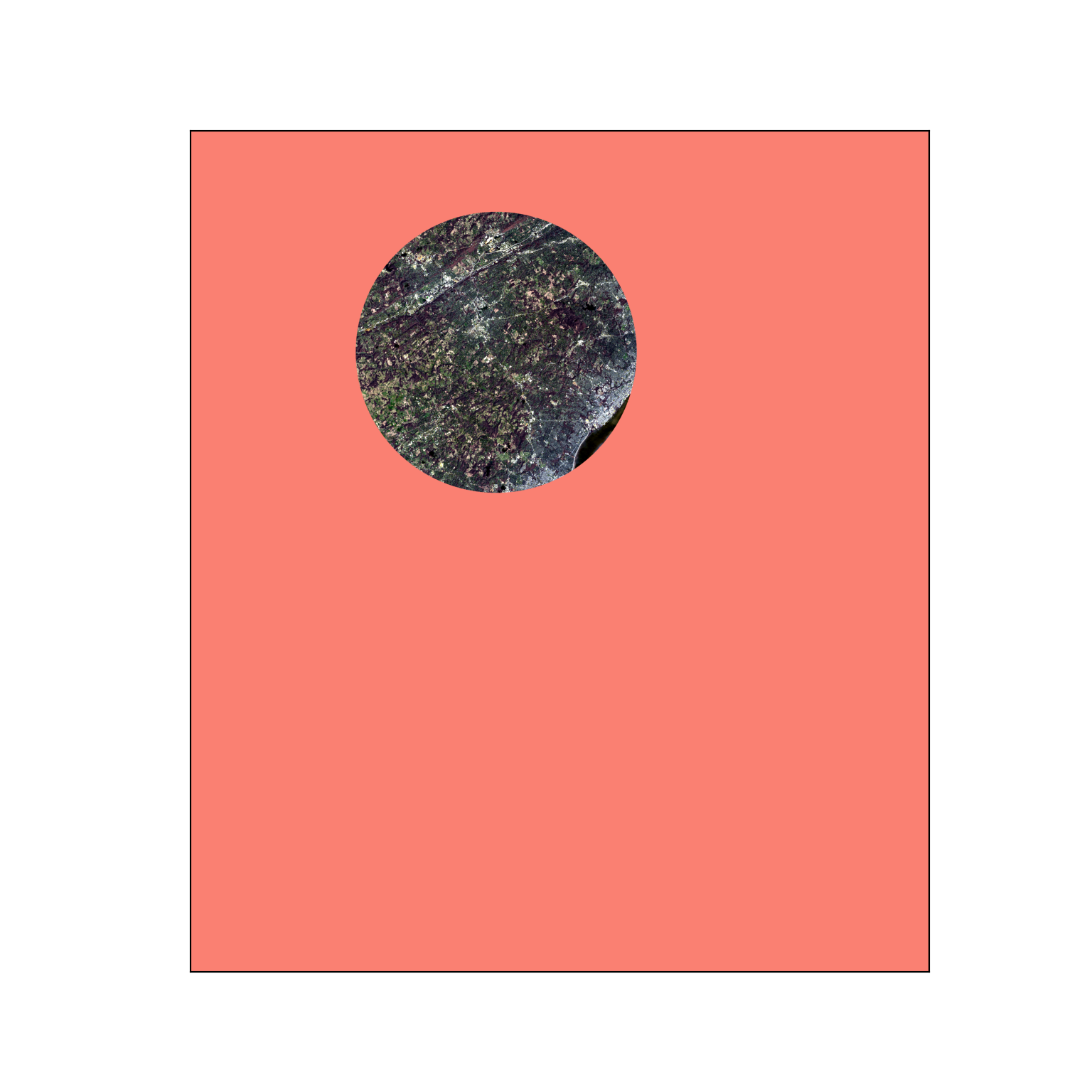
Multiple adjacent or overlapping raster grids can be combined into a single grid, or mosaicked, using the merge() function from rasterio.merge, which accepts a list of open datasets or file paths and returns the merged array and its transform. Where grids overlap, the value from the first grid is used by default.
10.5.3 Resample
When raster grids are used in the same operation, they must have the same number of rows and columns of cells, the same origin, the same coordinate reference system, and the same cell size. If they do not, one grid should be resampled to align with the other. With Rasterio, this is accomplished using the reproject() function from rasterio.warp. The function accepts the source array, its transform, and its coordinate reference system, along with a destination array and the destination transform and coordinate reference system that define the target grid. A variety of resampling methods are available, including nearest neighbor, bilinear interpolation, cubic convolution, cubic spline, and Lanczos windowed sinc. It is also possible to calculate a summary metric from the contributing cells, such as the mean (Resampling.average).
When resampling categorical data, it is generally best to use nearest neighbor since any method that relies on averaging or weighted averaging is inappropriate for categorical data. For continuous data, such as image bands or DTMs, we commonly use either bilinear interpolation or cubic convolution. In the example below, we resample the DTM to a 30 m grid with the same origin as the original grid using cubic convolution. The new transform is obtained by scaling the original transform.
scale = 30 / dtm_res
dst_shape = (int(dtm.shape[0] / scale), int(dtm.shape[1] / scale))
dst_transform = dtm_profile["transform"] * dtm_profile["transform"].scale(scale, scale)

dtm30 = np.full(dst_shape, np.nan, dtype="float32")
reproject(dtm.filled(np.nan), dtm30,
          src_transform=dtm_profile["transform"], src_crs=dtm_profile["crs"],
          dst_transform=dst_transform, dst_crs=dtm_profile["crs"],
          src_nodata=np.nan, dst_nodata=np.nan, resampling=Resampling.cubic)
print(dtm.shape, dtm30.shape)
(3207, 2818) (534, 469)10.5.4 Re-Project
If you need to change the coordinate reference system of a layer, or re-project the layer, you can also use reproject(). This is appropriate when you know the current projection and the desired projection. It should not be used to set or define missing projection information. If the projection is missing, we first recommend troubleshooting the layer as there might be an issue with the file being referenced. If the projection is known, it can be defined when writing the data to a new file. The calculate_default_transform() function determines a suitable transform and number of rows and columns for the output grid. Below, we re-project the 30 m DTM from UTM to geographic coordinates (NAD83, EPSG:4269), in which the cell size is defined in decimal degrees.
left, top = dst_transform.c, dst_transform.f
bounds = (left, top - 30 * dst_shape[0], left + 30 * dst_shape[1], top)
geo_transform, geo_w, geo_h = calculate_default_transform(
    dtm_profile["crs"], "EPSG:4269", dst_shape[1], dst_shape[0], *bounds)

dtm_geo = np.full((geo_h, geo_w), np.nan, dtype="float32")
reproject(dtm30, dtm_geo, src_transform=dst_transform, src_crs=dtm_profile["crs"],
          dst_transform=geo_transform, dst_crs="EPSG:4269",
          src_nodata=np.nan, dst_nodata=np.nan, resampling=Resampling.bilinear)
print(geo_transform)
| 0.00, 0.00,-80.18|
| 0.00,-0.00, 37.57|
| 0.00, 0.00, 1.00|show_raster(dtm_geo, plotting_extent(dtm_geo, geo_transform), cmap="Greys_r",
label="Elevation (m)")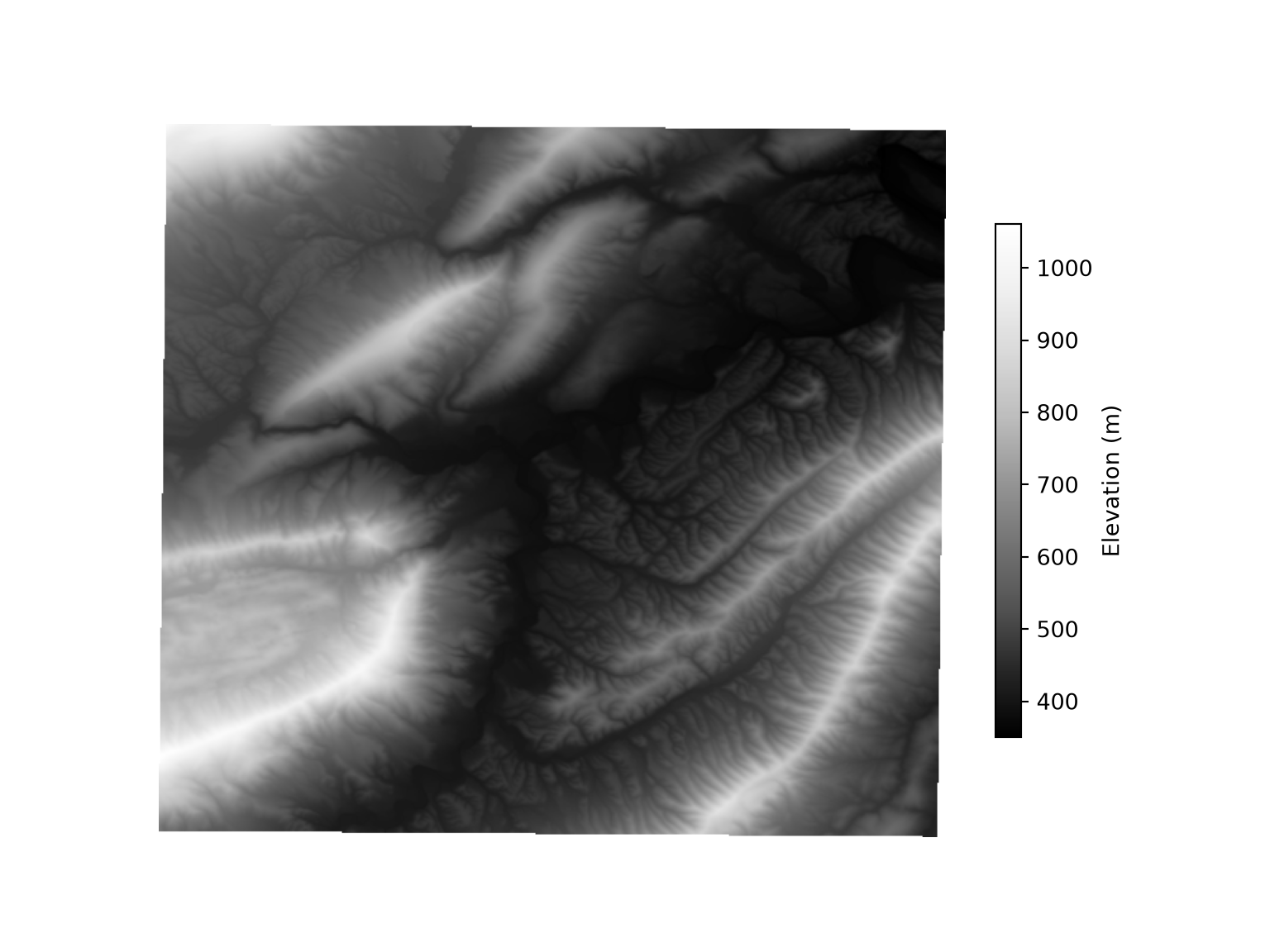
10.5.5 Raster Math and Logic
Performing logical or mathematical operations on raster data is the same as performing such operations on NumPy arrays. In the first example, we convert the DTM data from meters to feet by multiplying each cell by the conversion factor.
elev_ft = dtm * 3.28084When a logical operation is performed, the result is a Boolean array, which can be converted to a binary grid (0/1) where 0 indicates False and 1 indicates True. In our first example, we find all cells with an elevation greater than 700 m. Since the DTM is a masked array, the result is also a masked array, so NoData cells remain NoData. In the second example, we find all cells in the result that were coded to 0, or were less than or equal to 700 m in elevation. This inverts the result: 0 returns 1 and 1 returns 0. To display binary or categorical grids, we define a function that assigns a color and legend label to each code, as discussed in Chapter 8.
def categorical_raster(arr, extent, colors, labels, title=None):
    """Display a grid of consecutive integer codes (0, 1, ...) with a legend."""
    n = len(colors)
    fig, ax = plt.subplots(figsize=(8, 6))
    ax.imshow(arr, extent=extent, cmap=ListedColormap(colors),
              norm=BoundaryNorm(np.arange(n + 1) - 0.5, n), interpolation="nearest")
    ax.legend(handles=[Patch(facecolor=c, label=l) for c, l in zip(colors, labels)],
              title=title, loc="upper left", bbox_to_anchor=(1, 1))
    ax.set_axis_off()
    plt.show()

elev700 = (dtm > 700).astype("uint8")
categorical_raster(elev700, dtm_ext, ["gray", "darksalmon"], ["<= 700", "> 700"])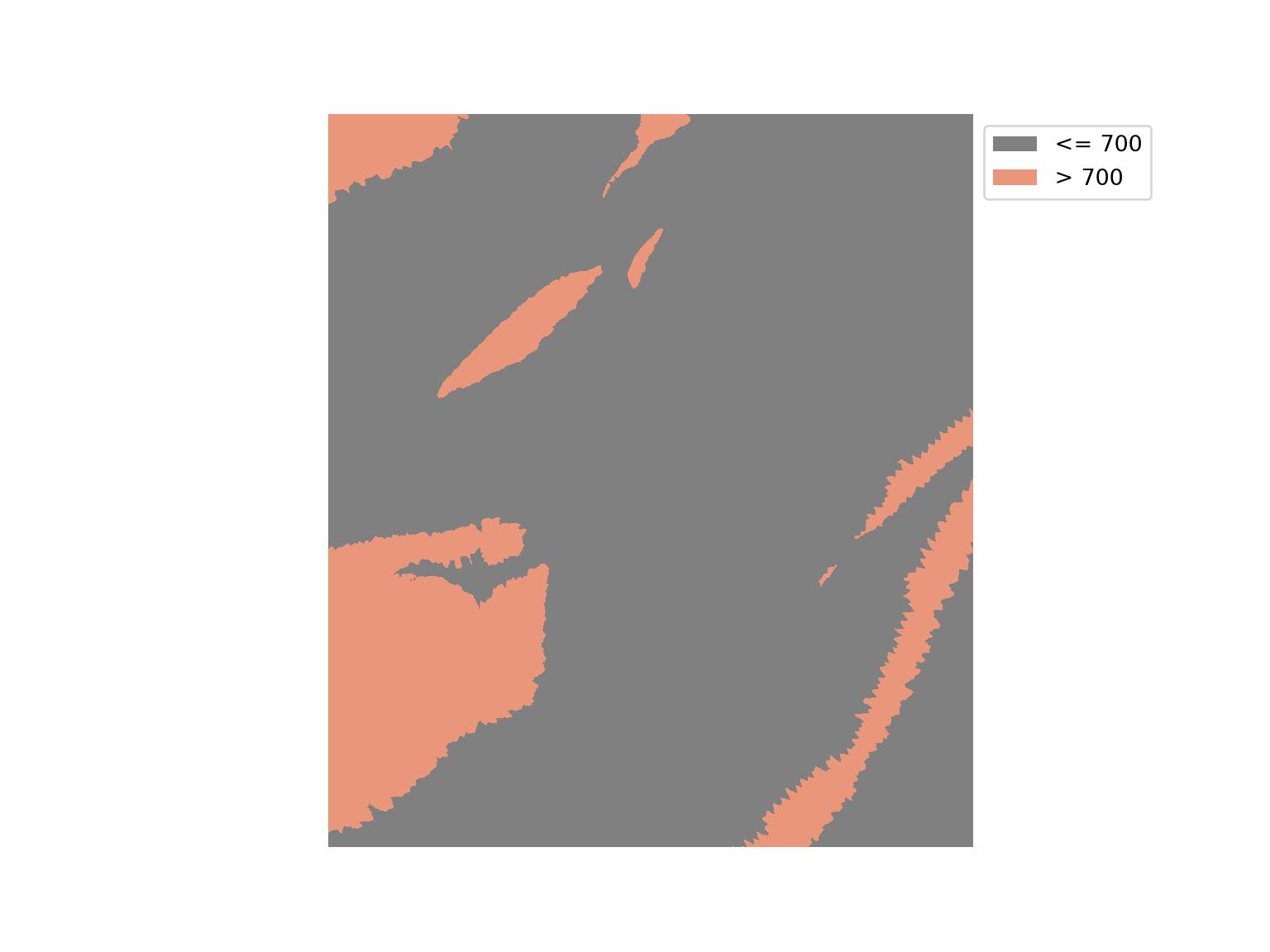
elev700b = (elev700 == 0).astype("uint8")
categorical_raster(elev700b, dtm_ext, ["gray", "darksalmon"], ["> 700", "<= 700"])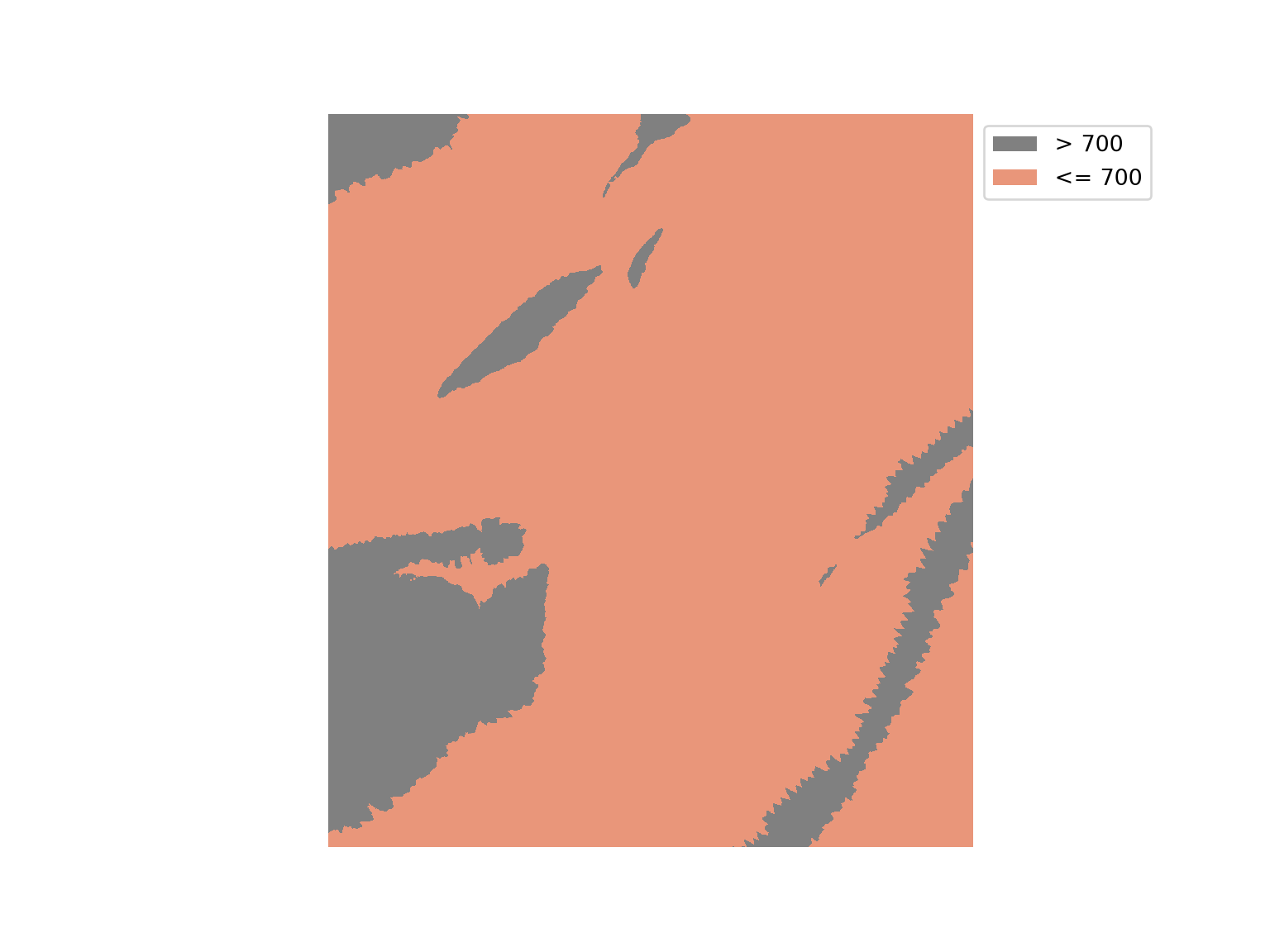
It is also possible to perform mathematical operations between two or more raster grids as long as they align, have the same cell size, and the same number of rows and columns of cells. If they do not meet these criteria, then one grid should be resampled to match the other grid, as noted above. In our example below, we multiply the binary output by the original DTM to return a grid where all elevations less than or equal to 700 m return 0 and all elevations greater than 700 m return the original elevation.
rast_mult = elev700 * dtm
show_raster(rast_mult, dtm_ext, cmap="Greys_r", label="Elevation (m)")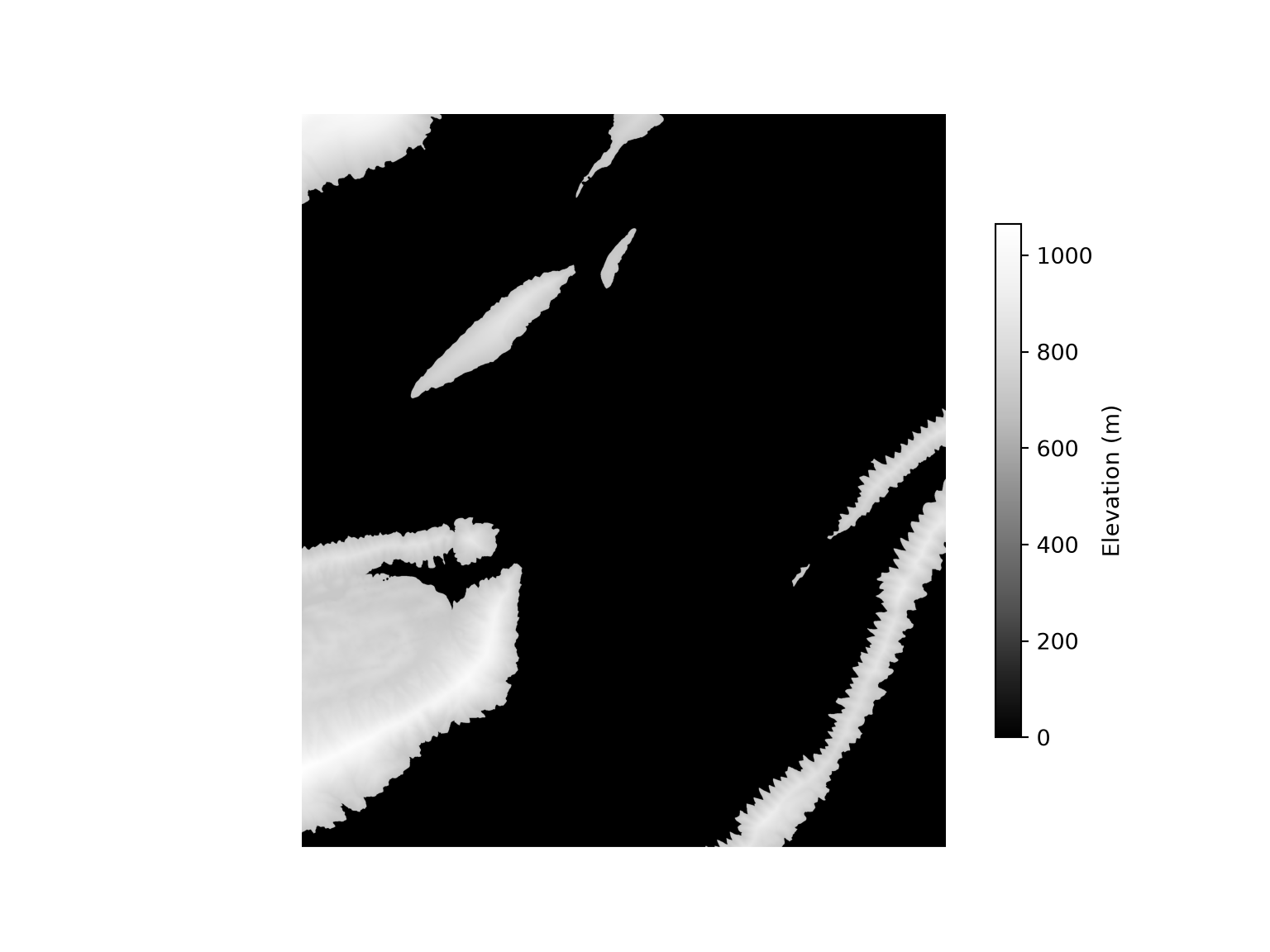
10.6 Reclassify
A categorical raster grid can be reclassified into a smaller number of categories. Alternatively, a continuous grid can be reclassified, or binned, into ranges. For continuous data, this can be accomplished using np.digitize(), which returns the index of the bin that each value falls into given a list of bin edges. In our example, elevations up to 550 m are coded to 1, elevations between 550 and 650 m are coded to 2, elevations between 650 and 750 m are coded to 3, and higher elevations are coded to 4. Since np.digitize() returns 0 for the first bin, we add 1. Setting right=True closes the interval on the right and opens it on the left. This means that a value equal to the upper edge of a bin, such as 650, is coded to that bin as opposed to the next bin.
If you are reclassifying categories or integers, you can instead use a dictionary that maps each original value to a new value, or a lookup array in which the index is the original value and the stored value is the new value.
dtm_re = np.ma.masked_array(np.digitize(dtm.filled(np.nan), [550, 650, 750], right=True) + 1,
                            mask=dtm.mask)
categorical_raster(dtm_re - 1, dtm_ext, ["#ffffcc", "#a1dab4", "#41b6c4", "#225ea8"],
                   ["1: <= 550", "2: 550-650", "3: 650-750", "4: > 750"], "Class")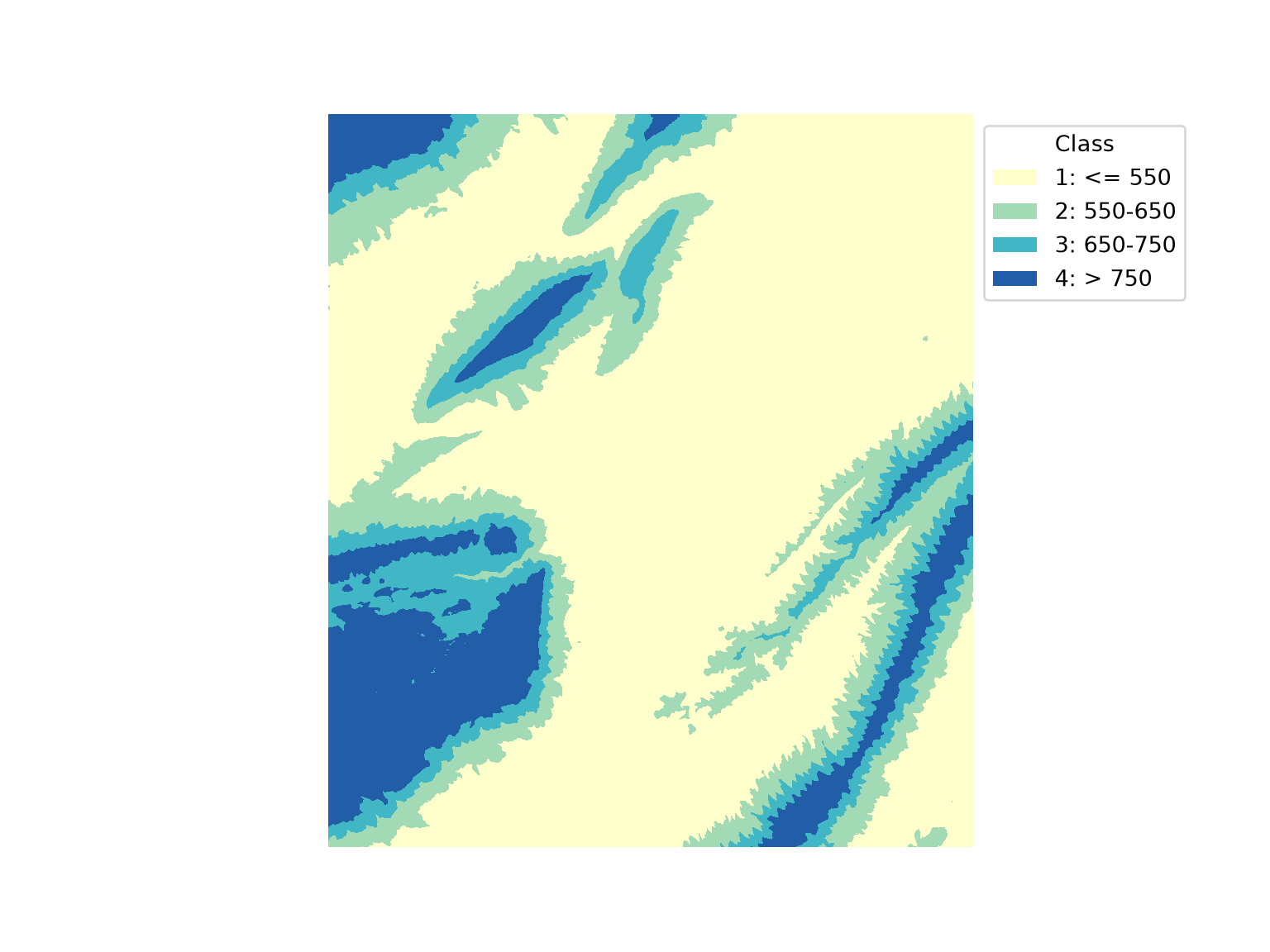
10.7 Data Summarization
There are many situations where you may want to extract raster cell values at point locations. For example, this could be used to create tabulated data to perform a correlation analysis or data visualization. This process can also be useful for creating training data for supervised learning projects.
Our first example below demonstrates how to extract raster values at point locations using the sample() method of a dataset, which accepts a list of (x, y) coordinate pairs and returns the value of every band at each location. The results are converted to a DataFrame using the band names and then added back to the original point layer using pd.concat().
coords = list(zip(samp_pnts.geometry.x, samp_pnts.geometry.y))
pnt_vals = pd.DataFrame(list(loff_src.sample(coords)), columns=band_names)
samp_pnts1 = pd.concat([samp_pnts, pnt_vals], axis=1)
print(samp_pnts1.head())
Id geometry Edge Blue ... Red NIR SWIR1 SWIR2
0 0 POINT (1686720.626 2077187.219) 8356 8684 ... 10077 20599 14940 11568
1 0 POINT (1701710.448 2077370.022) 7966 8076 ... 8297 7916 7788 7629
2 0 POINT (1714141.033 2079015.247) 9117 9361 ... 10317 15480 15965 13325
3 0 POINT (1730958.882 2078832.444) 8415 8534 ... 9047 13219 12344 10663
4 0 POINT (1739550.61 2083036.906) 8173 8221 ... 8652 10881 12026 10538
[5 rows x 9 columns]It is also possible to perform a summarization relative to polygon extents, which is sometimes called zonal statistics. In such cases, you will need to specify what statistic to calculate from the cells occurring within the extent of each polygon. We write a function that loops over the polygons, uses mask() to extract the cells within each polygon as a masked array, and calculates a statistic for each band. The function accepts any function that operates on masked arrays, such as np.ma.median() or np.ma.mean(). In our example, we calculate the median. Once the data are extracted, new measures can be generated in the table using basic column math. Below, we calculate the normalized difference vegetation index (NDVI) using the near infrared (NIR) and red bands.
To visualize the results, we display the median NDVI value for each hexagon in the tessellation.
def zonal_stats(src, geoms, func):
    """Calculate a statistic for every band within each polygon."""
    rows = []
    for geom in geoms:
        arr, _ = mask(src, [geom], crop=True, filled=False)
        rows.append([func(band.astype("float64")) for band in arr])
    return pd.DataFrame(rows, columns=band_names)

tess_summary = zonal_stats(loff_src, tess.geometry, np.ma.median)
tess_summary["ndvi"] = (tess_summary["NIR"] - tess_summary["Red"]) / (
    tess_summary["NIR"] + tess_summary["Red"] + 0.001)

tess = pd.concat([tess, tess_summary], axis=1)

fig, ax = plt.subplots(figsize=(8, 8))
tess.plot(ax=ax, column="ndvi", cmap="Greens", edgecolor="grey", legend=True,
          legend_kwds={"label": "Median NDVI", "shrink": 0.6})
ax.set_axis_off()
plt.show()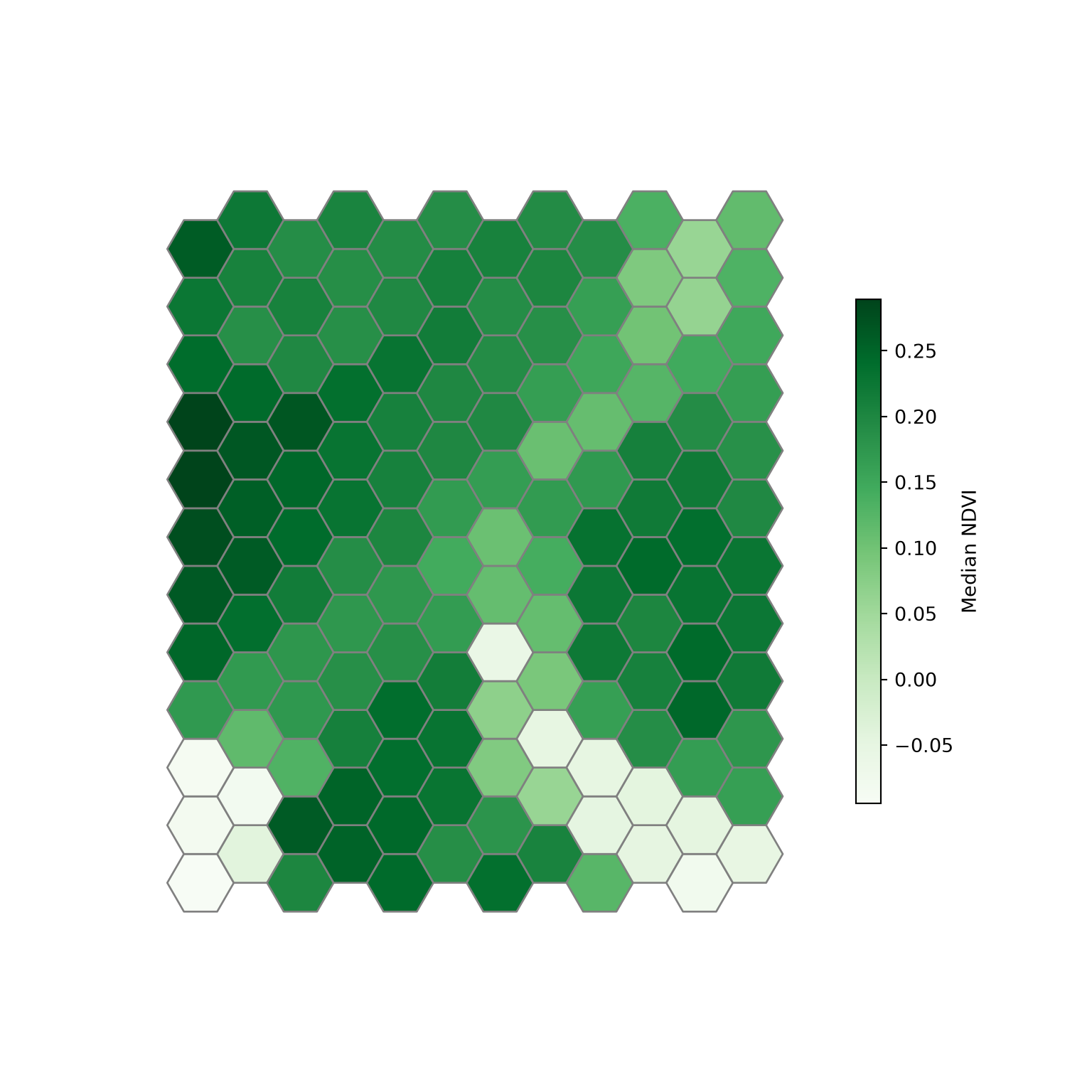
If you would like to generalize the extracted information for each point sample, you could use a buffered version of the points and calculate a statistic from all the cells that fall within the buffer, which is demonstrated below using a 200 m buffer and the mean. Alternatively, you could perform a smoothing or generalization of the raster data prior to summarizing them.
pnt_buf = zonal_stats(loff_src, samp_pnts.buffer(200), np.ma.mean)
samp_pnts2 = pd.concat([samp_pnts, pnt_buf], axis=1)
print(samp_pnts2.head())
Id geometry ... SWIR1 SWIR2
0 0 POINT (1686720.626 2077187.219) ... 14740.130435 11535.768116
1 0 POINT (1701710.448 2077370.022) ... 12162.550725 10437.275362
2 0 POINT (1714141.033 2079015.247) ... 15559.210145 12869.014493
3 0 POINT (1730958.882 2078832.444) ... 12931.713287 10900.468531
4 0 POINT (1739550.61 2083036.906) ... 13664.427536 11493.731884
[5 rows x 9 columns]10.8 Ancillary Data
You may want to incorporate information derived from vector data into your model as predictor variables or as a processing mask. For example, if your results only pertain to land, you may want to mask out all water areas in the final result. There are several means to represent vector data in a raster format. For categories, unique numeric codes can be used to differentiate categories on a cell-by-cell basis. You may also be interested in representing the distance from features or the density of features. These methods are demonstrated below; however, we first need to read in some example data. Here, we make use of data for Morgantown, West Virginia, USA provided by the West Virginia GIS Technical Center. These layers, which are stored as shapefiles, include public land extents, wards or subdivisions of the city, buildings as point locations, and roads as line features. Before working with these data, we visualize them.
mo = fld + "morgantown/"
p_lands = gpd.read_file(mo + "publicLands.shp")
wards = gpd.read_file(mo + "wards.shp")
str_pnts = gpd.read_file(mo + "structures.shp")
rds = gpd.read_file(mo + "roads.shp")

fig, axs = plt.subplots(1, 3, figsize=(12, 5))
for ax, (layer, kwargs) in zip(axs, [(p_lands, {"color": "darkolivegreen"}),
                                     (str_pnts, {"color": "red", "markersize": 1}),
                                     (rds, {"color": "black", "linewidth": 0.5})]):
    wards.plot(ax=ax, color="tan", edgecolor="grey")
    layer.plot(ax=ax, **kwargs)
    ax.set_axis_off()
plt.tight_layout()
plt.show()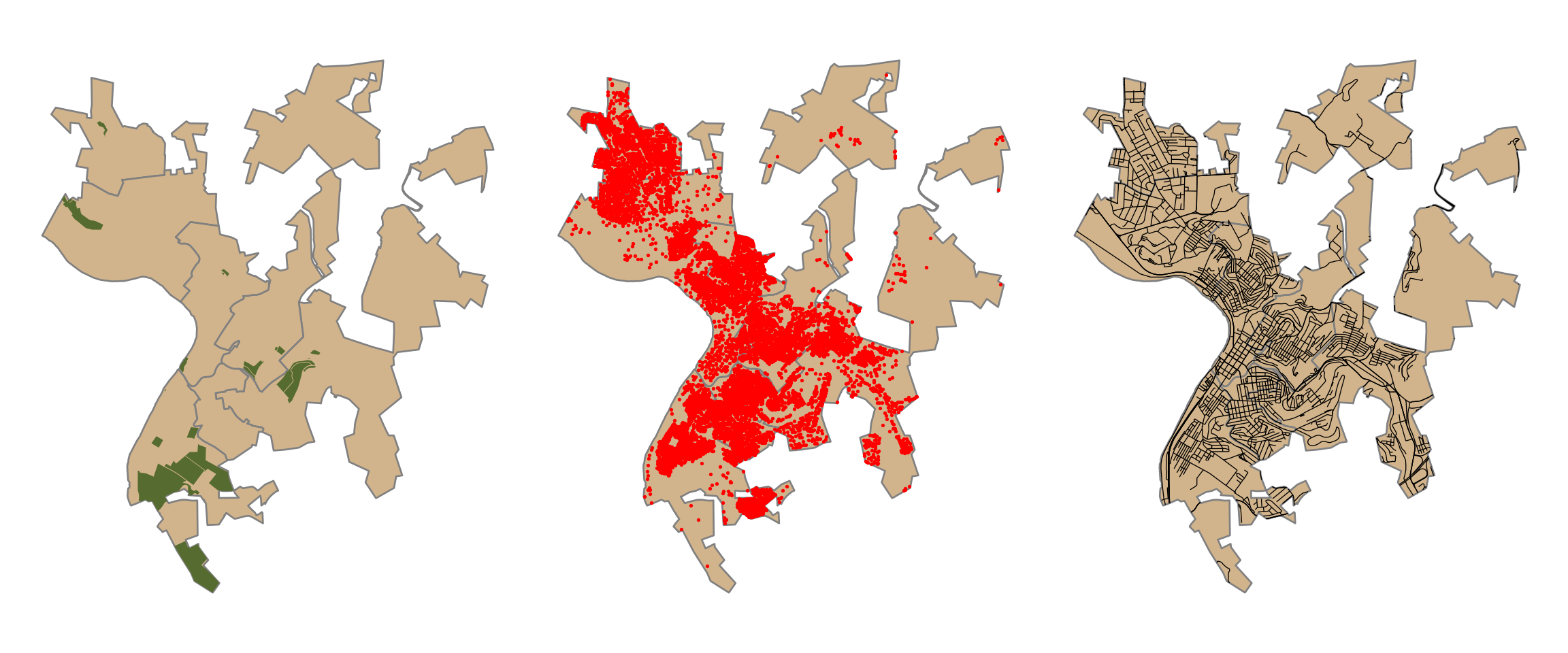
10.8.1 Rasterization
First, we convert the public land data into a binary raster mask. We first need to define a template grid. We specifically create a grid that fills the spatial extent of the wards layer, has a resolution of 10 m, and uses the same coordinate reference system as the wards layer. The from_origin() function creates a transform from the coordinates of the top-left corner and the cell size, and the number of rows and columns is calculated from the extent.
We would first like all of the cells within the extent of the wards to be coded to 0. The rasterize() function from rasterio.features converts geometries to a grid. It accepts a list of (geometry, value) pairs, the output shape, the transform, and the value to assign to cells not covered by any geometry (fill). Setting all_touched=True codes every cell that is touched by a geometry as opposed to only cells whose center falls within a geometry. All cells outside of the wards extent but within the associated layer’s bounding box are coded to NaN.
We next repeat this process for the public lands layer but using a cell value of 1 and a fill value of 0. By adding the results, we obtain a grid where areas within public lands and within the ward extents are coded to 1, cells within the wards extents but not in the public lands are coded to 0, and cells within the bounding box extent but not within the wards are coded to NaN, since adding NaN to any other value returns NaN.
res = 10
xmin, ymin, xmax, ymax = wards.total_bounds
r_transform = from_origin(xmin, ymax, res, res)
r_shape = (int(np.ceil((ymax - ymin) / res)), int(np.ceil((xmax - xmin) / res)))
r_ext = plotting_extent(np.empty(r_shape), r_transform)

wards_r = rasterize([(g, 0) for g in wards.geometry], out_shape=r_shape,
                    transform=r_transform, fill=np.nan, all_touched=True, dtype="float32")

p_lands_r = rasterize([(g, 1) for g in p_lands.to_crs(wards.crs).geometry], out_shape=r_shape,
                      transform=r_transform, fill=0, all_touched=True, dtype="float32") + wards_r

categorical_raster(p_lands_r, r_ext, ["darkgrey", "darkolivegreen"], ["Private", "Public"],
                   "Private vs. Public")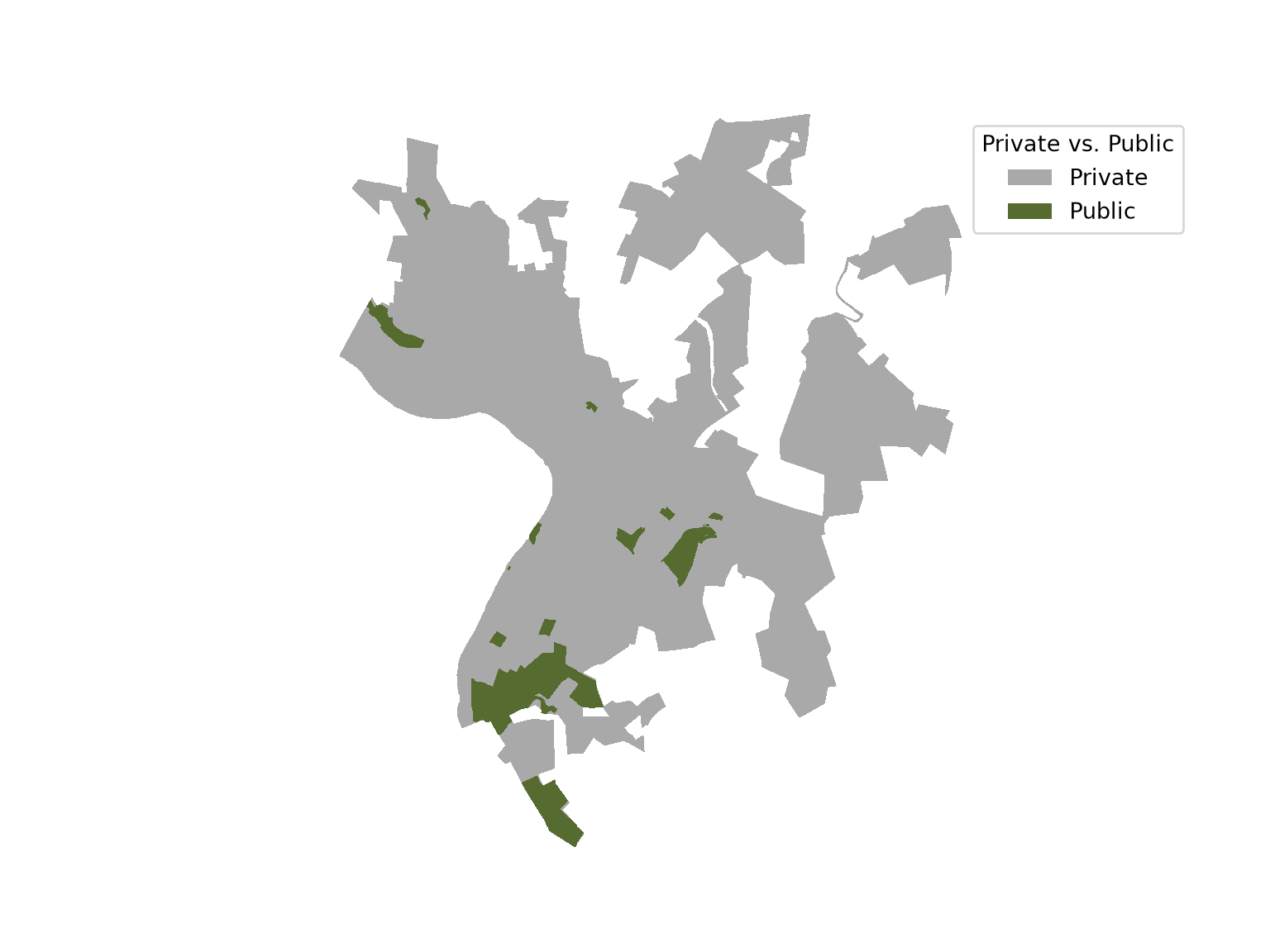
10.8.2 Distance Grids
Euclidean, or straight-line, distance from the nearest feature can be calculated using distance_transform_edt() from the ndimage module of SciPy. For each cell, this function calculates the distance to the nearest cell with a value of 0. So, we first rasterize the roads using the same template, coding road cells as 0 and all other cells as 1. The result is in units of cells, so we multiply by the cell size to obtain distances in meters. Note that distances are measured between cell centers, so the result is an approximation of the distance to the vector features that improves as the cell size decreases.
In order to mask the result to the ward extents, we add the distance and ward grids. Since all cells in the wards are coded to 0, adding them does not change the distance measurement. However, this converts all of the cells outside of the ward extents to NaN.
rds_r = rasterize([(g, 0) for g in rds.to_crs(wards.crs).geometry], out_shape=r_shape,
                  transform=r_transform, fill=1, all_touched=True, dtype="uint8")

rd_dist = ndimage.distance_transform_edt(rds_r) * res + wards_r

show_raster(rd_dist, r_ext, cmap="Reds", label="Distance (m)")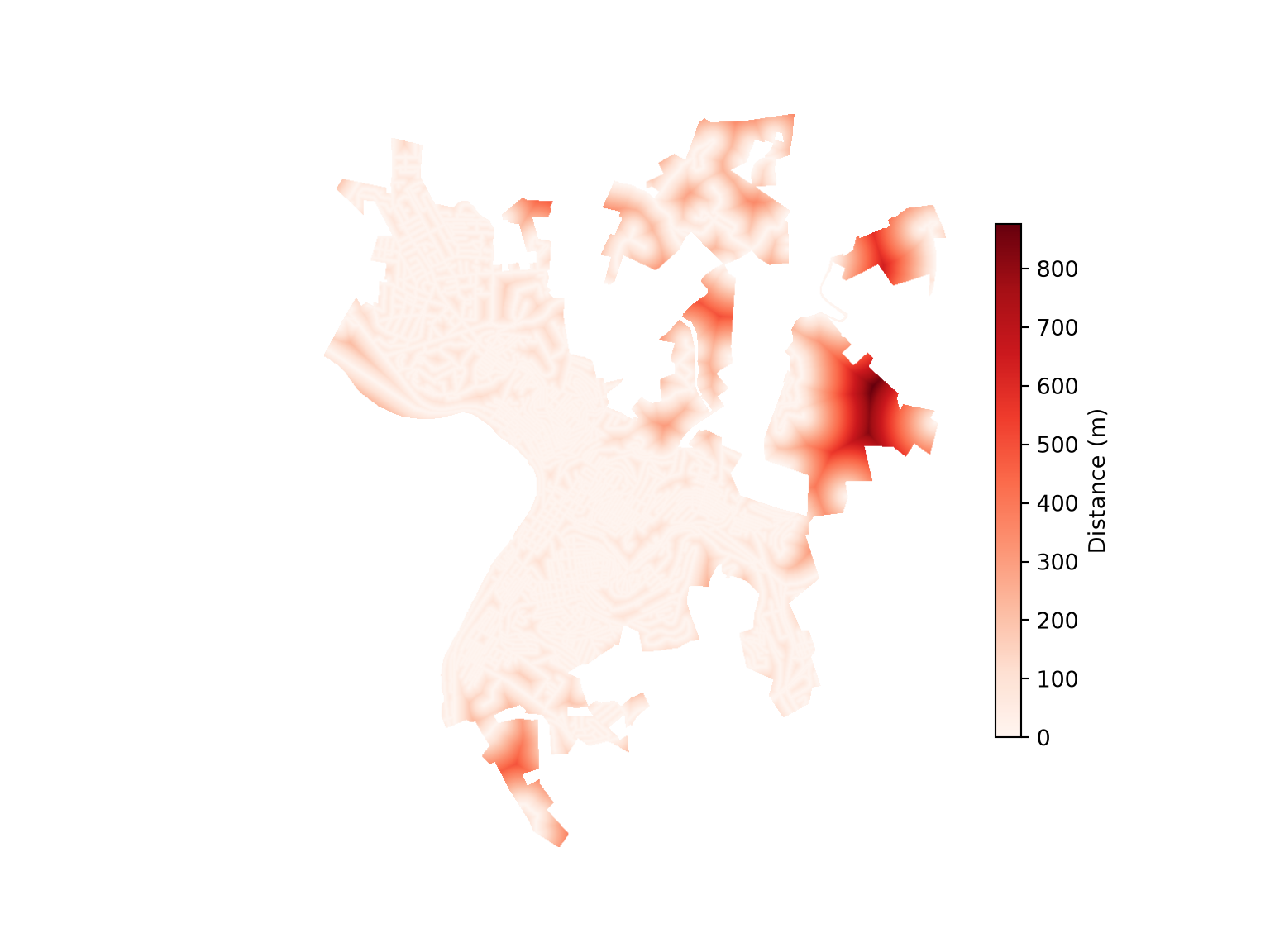
10.8.3 Density Grids
For point data, you may be interested in calculating the density of features as opposed to the distance from the nearest features. This can be accomplished using kernel density estimation, in which each point is replaced by a smooth “bump”, or kernel, and the kernels are summed. The bandwidth determines the size of the kernel used for the density calculations. Larger values result in a more generalized pattern while smaller values result in a more local pattern. Here, we use a Gaussian kernel with a bandwidth (standard deviation) of 200 m.
An efficient way to calculate a kernel density grid is to first count the number of points in each cell of the template grid and then smooth the counts using a Gaussian filter. To count the points, we use the rowcol() function from rasterio.transform, which returns the row and column of the cell containing each point, keep only the points that fall within the grid, and use np.add.at(), which adds 1 to the count of each cell for every point that it contains. The counts are then smoothed using gaussian_filter() from the ndimage module of SciPy, where the bandwidth is converted from meters to cells. The smoothed counts are divided by the area of a cell in square kilometers to obtain an estimate of the number of structures per square kilometer.
str_utm = str_pnts.to_crs(wards.crs)
str_rows, str_cols = rasterio.transform.rowcol(r_transform, str_utm.geometry.x, str_utm.geometry.y)
str_rows, str_cols = np.array(str_rows), np.array(str_cols)
inside = (str_rows >= 0) & (str_rows < r_shape[0]) & (str_cols >= 0) & (str_cols < r_shape[1])

counts = np.zeros(r_shape)
np.add.at(counts, (str_rows[inside], str_cols[inside]), 1)

cell_km2 = (res / 1000) ** 2
str_density = ndimage.gaussian_filter(counts, sigma=200 / res) / cell_km2 + wards_r

show_raster(str_density, r_ext, cmap="Purples", label="Structures per square km")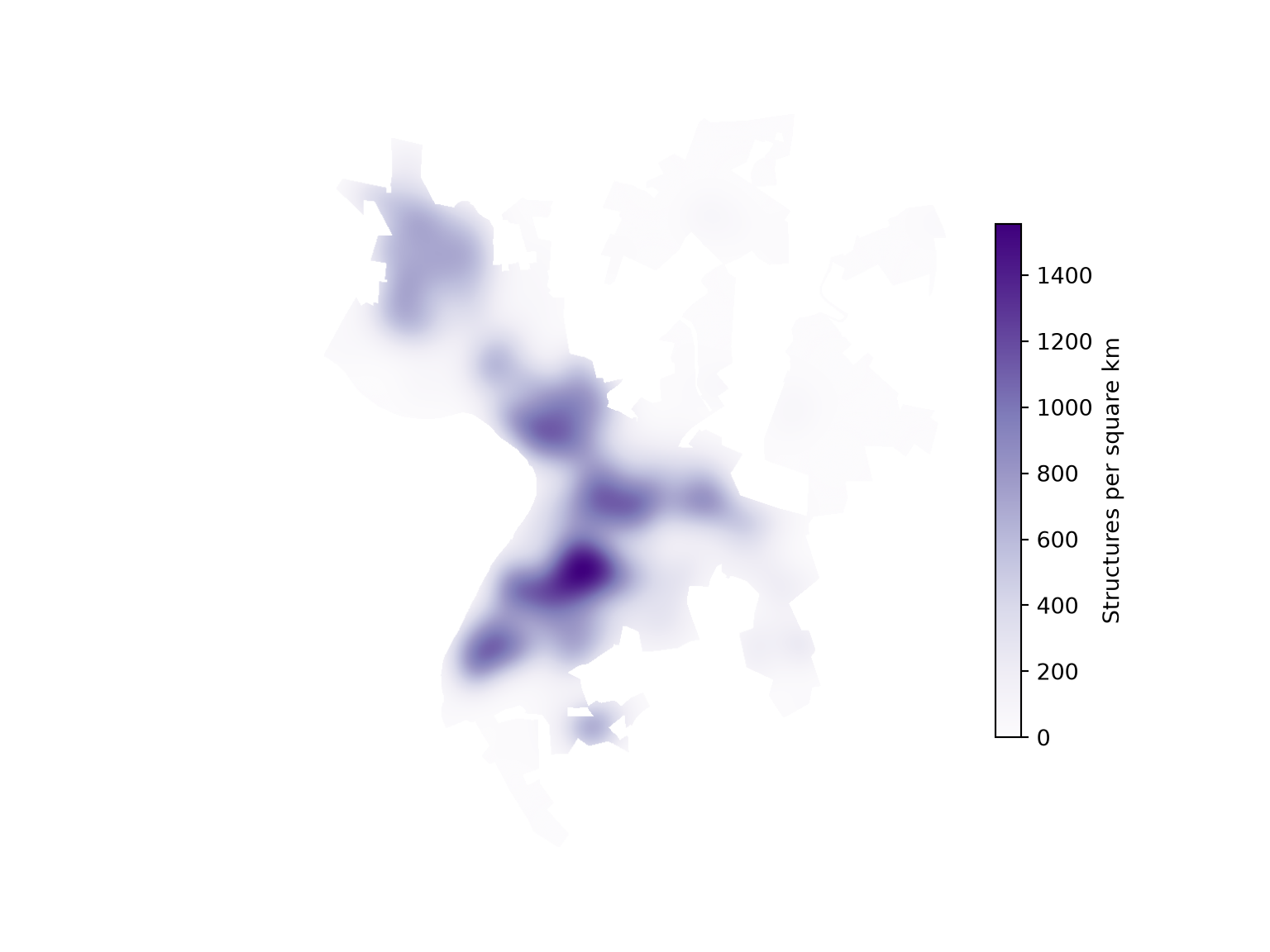
The KernelDensity class from scikit-learn and the gaussian_kde() function from SciPy evaluate the kernels exactly at any set of locations, as opposed to approximating the point locations by the cells that contain them. However, they are much slower when the density must be calculated for hundreds of thousands of cells.
10.9 Multispectral Imagery
We now explore means to create derived products from multispectral imagery. For our demonstrations, we use the Landsat 8 OLI scene from March of 2024 representing leaf-off conditions, which we read in above, and a Landsat 9 Operational Land Imager-2 (OLI-2) scene from September of 2024 representing leaf-on conditions. The images are visualized using different band combinations. Comparing the two images, differences in spectral reflectance between the leaf-on and leaf-off data are apparent.
lon_src = rasterio.open(fld + "ls9_9_11_2024_SR.tif")
lon = lon_src.read()

plot_rgb(loff, b["NIR"], b["Red"], b["Green"], loff_ext, "Leaf-off (NIR, Red, Green)")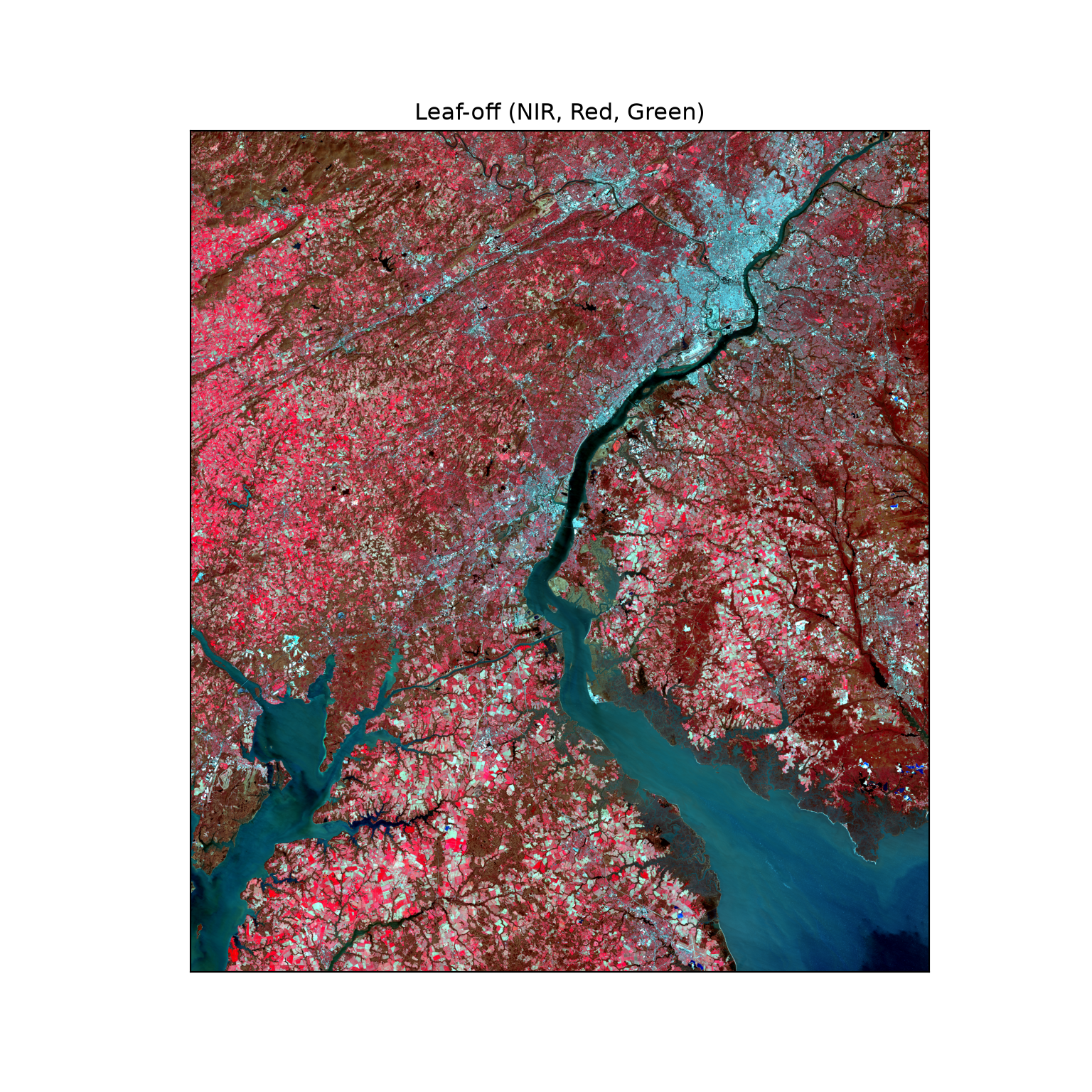
plot_rgb(lon, b["NIR"], b["Red"], b["Green"], loff_ext, "Leaf-on (NIR, Red, Green)")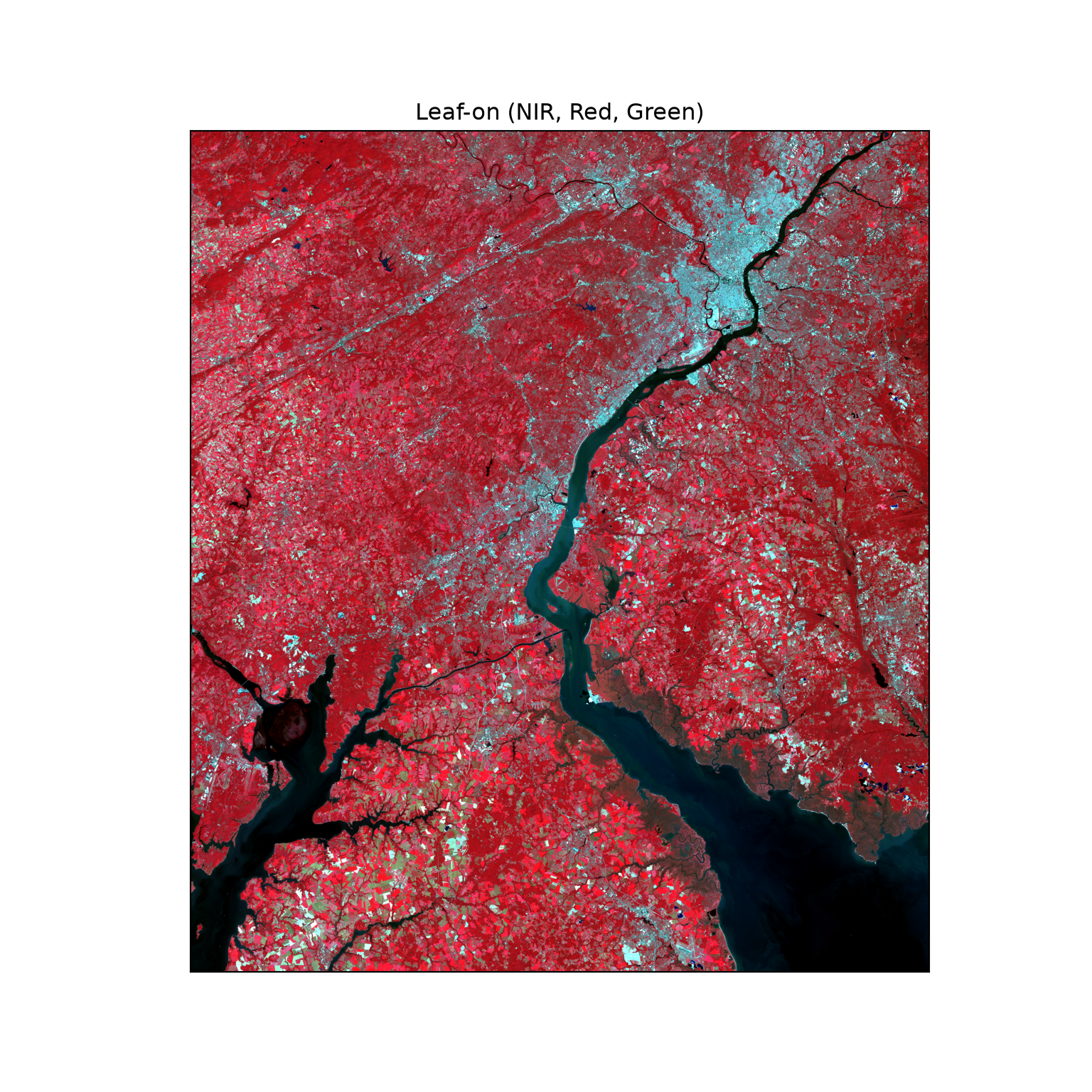
plot_rgb(loff, b["SWIR2"], b["NIR"], b["Green"], loff_ext, "Leaf-off (SWIR2, NIR, Green)")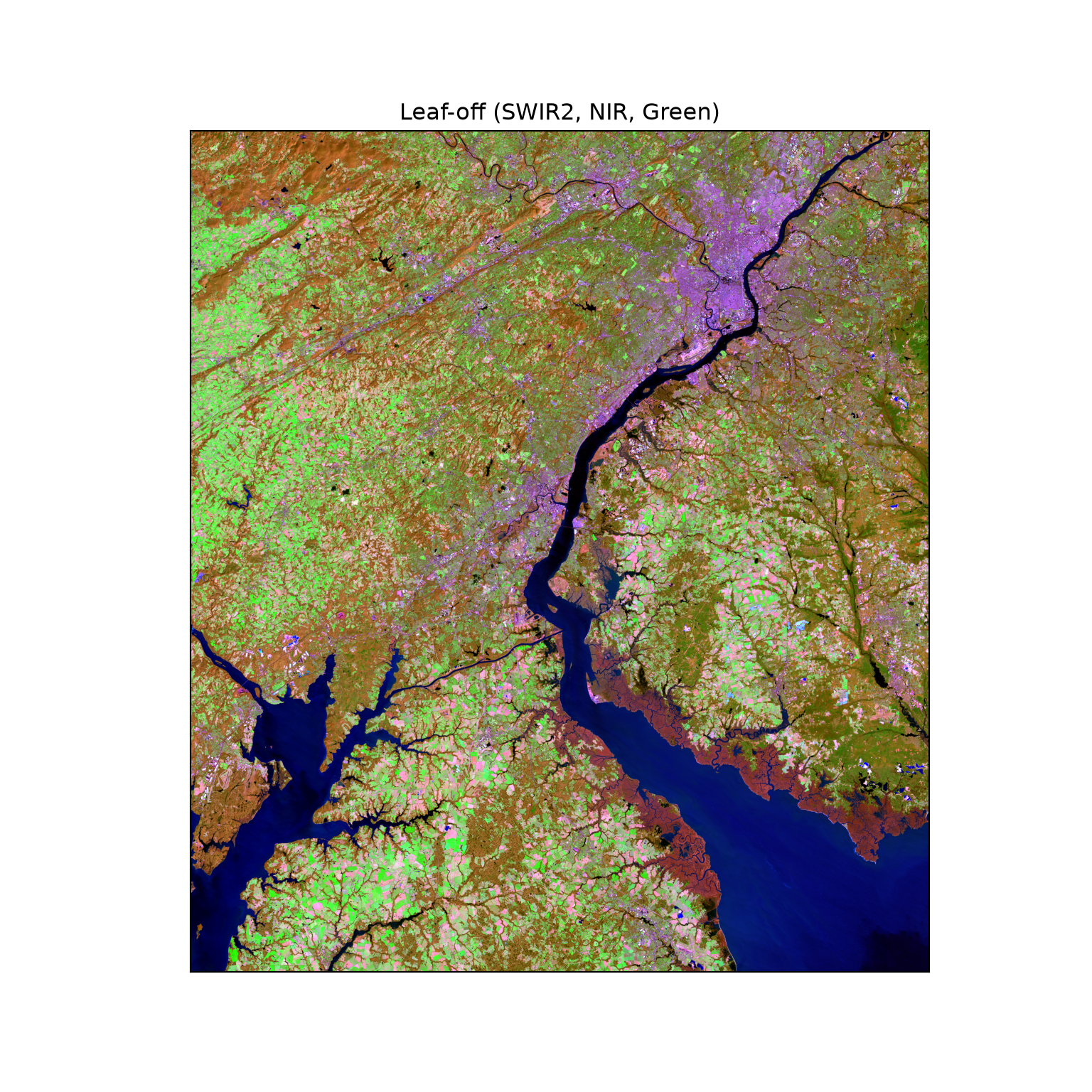
plot_rgb(lon, b["SWIR2"], b["NIR"], b["Green"], loff_ext, "Leaf-on (SWIR2, NIR, Green)")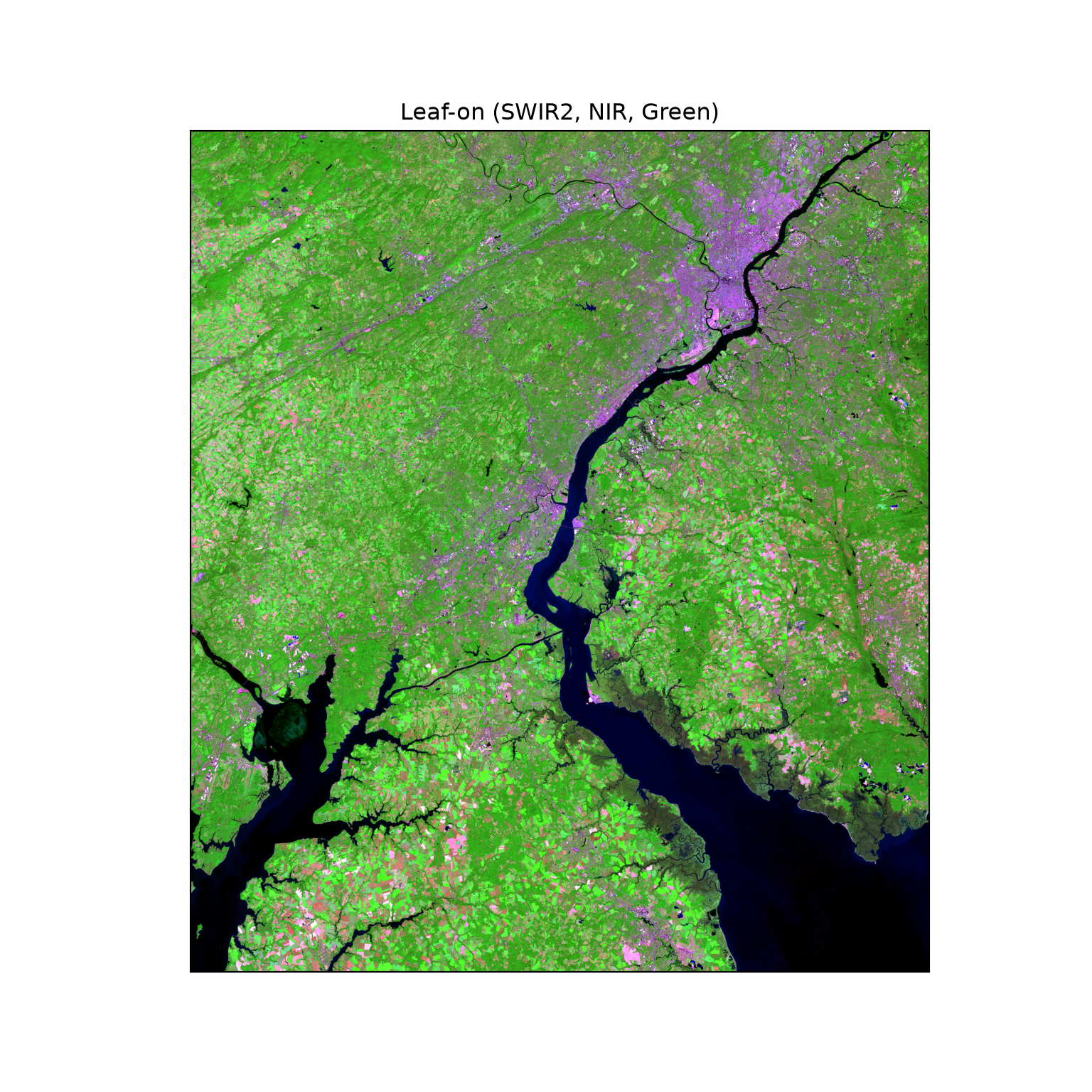
10.9.1 Band Ratios
Table 10.1 lists and describes some common band ratios calculated from multispectral satellite data, such as those from the Landsat and Sentinel-2 missions and associated sensors. In the following code blocks, we demonstrate calculating example ratios using array math. Since the bands are stored as 16-bit unsigned integers, we first convert them to floating point values; otherwise, subtraction could result in values that are not valid for this data type. A small value (0.001) is added to the denominator to avoid division by zero.
| Band Ratio | Equation | Use |
|---|---|---|
| Normalized Difference Vegetation Index (NDVI) | (NIR-Red)/(NIR+Red) | Vegetation occurrence and health |
| Normalized Difference Built-Up Index (NDBI) | (SWIR-NIR)/(SWIR+NIR) | Urbanized areas; built-up areas; impervious surface |
| Normalized Difference Snow Index (NDSI) | (Green-SWIR)/(Green+SWIR) | Presence of snow or ice |
| Normalized Difference Water Index (NDWI) after McFeeters | (Green-NIR)/(Green+NIR) | Presence of standing water |
| Normalized Difference Moisture Index (NDMI) | (NIR-SWIR)/(NIR+SWIR) | Vegetation water content |
The ratio could be added as a new band to the image array using np.concatenate(). Since the ratio is derived from the input multispectral data, it will align with the input data and have the same extent and number of rows and columns of cells.
It is generally preferred to calculate band ratios using surface reflectance as opposed to digital number (DN) values.
In our first example, we calculate NDVI for both the leaf-off and leaf-on data using the NIR and red channels. We write a function to calculate a normalized difference from two bands. We visualize the results using seven bins defined using the quantile method, in which the class breaks are calculated using np.quantile(), as discussed in Chapter 8.
def norm_diff(img, band1, band2):
    """Normalized difference of two bands: (band1 - band2) / (band1 + band2)."""
    x, y = img[b[band1]].astype("float32"), img[b[band2]].astype("float32")
    return (x - y) / (x + y + 0.001)

def quantile_map(arr, extent, cmap, title=None, k=7):
    """Display a single-band array using k quantile classes."""
    vals = np.ma.masked_invalid(arr).compressed()
    breaks = np.unique(np.quantile(vals, np.linspace(0, 1, k + 1)))
    show_raster(arr, extent, cmap=cmap, label=title,
                norm=BoundaryNorm(breaks, plt.get_cmap(cmap).N))

ndvi_loff = norm_diff(loff, "NIR", "Red")
ndvi_lon = norm_diff(lon, "NIR", "Red")
quantile_map(ndvi_loff, loff_ext, "Greens", "NDVI (leaf-off)")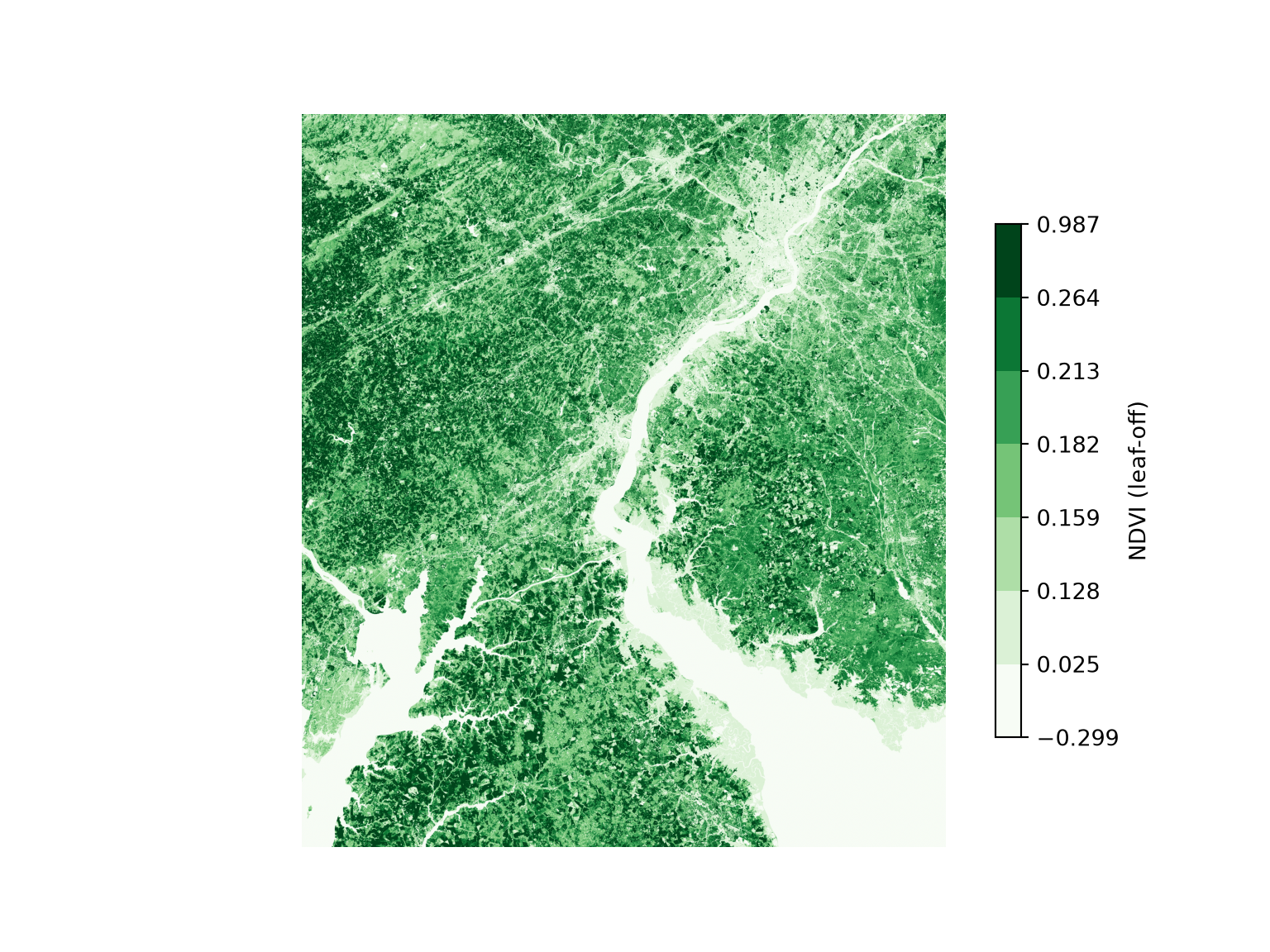
quantile_map(ndvi_lon, loff_ext, "Greens", "NDVI (leaf-on)")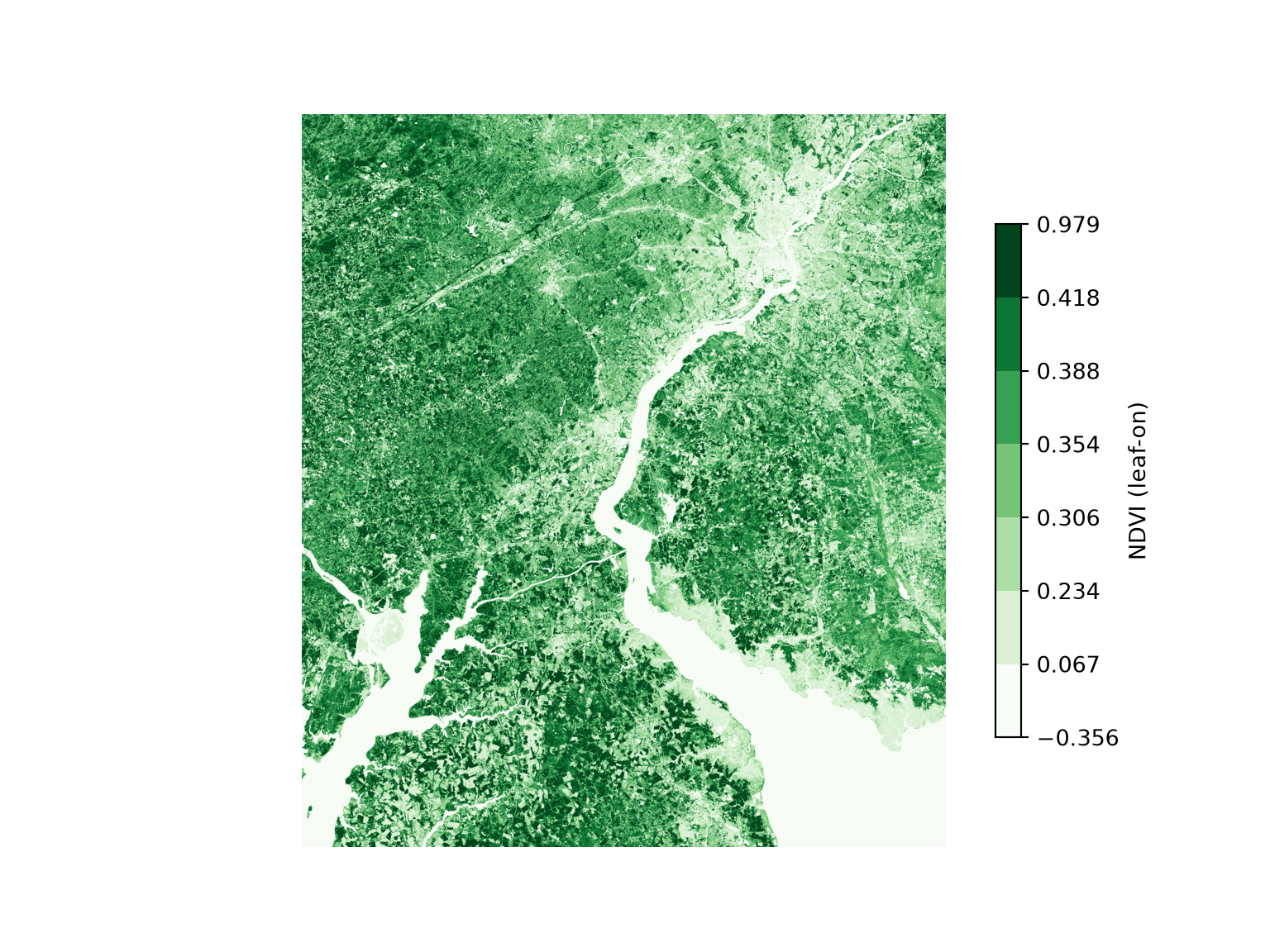
Other band ratios can be calculated using the same general method. In the next example, we calculate the normalized difference built-up index (NDBI) using the shortwave infrared 2 (SWIR2) and NIR bands. Next, we calculate a normalized difference water index (NDWI) using the green and NIR bands.
ndbi_loff = norm_diff(loff, "SWIR2", "NIR")
ndbi_lon = norm_diff(lon, "SWIR2", "NIR")
quantile_map(ndbi_loff, loff_ext, "Reds", "NDBI (leaf-off)")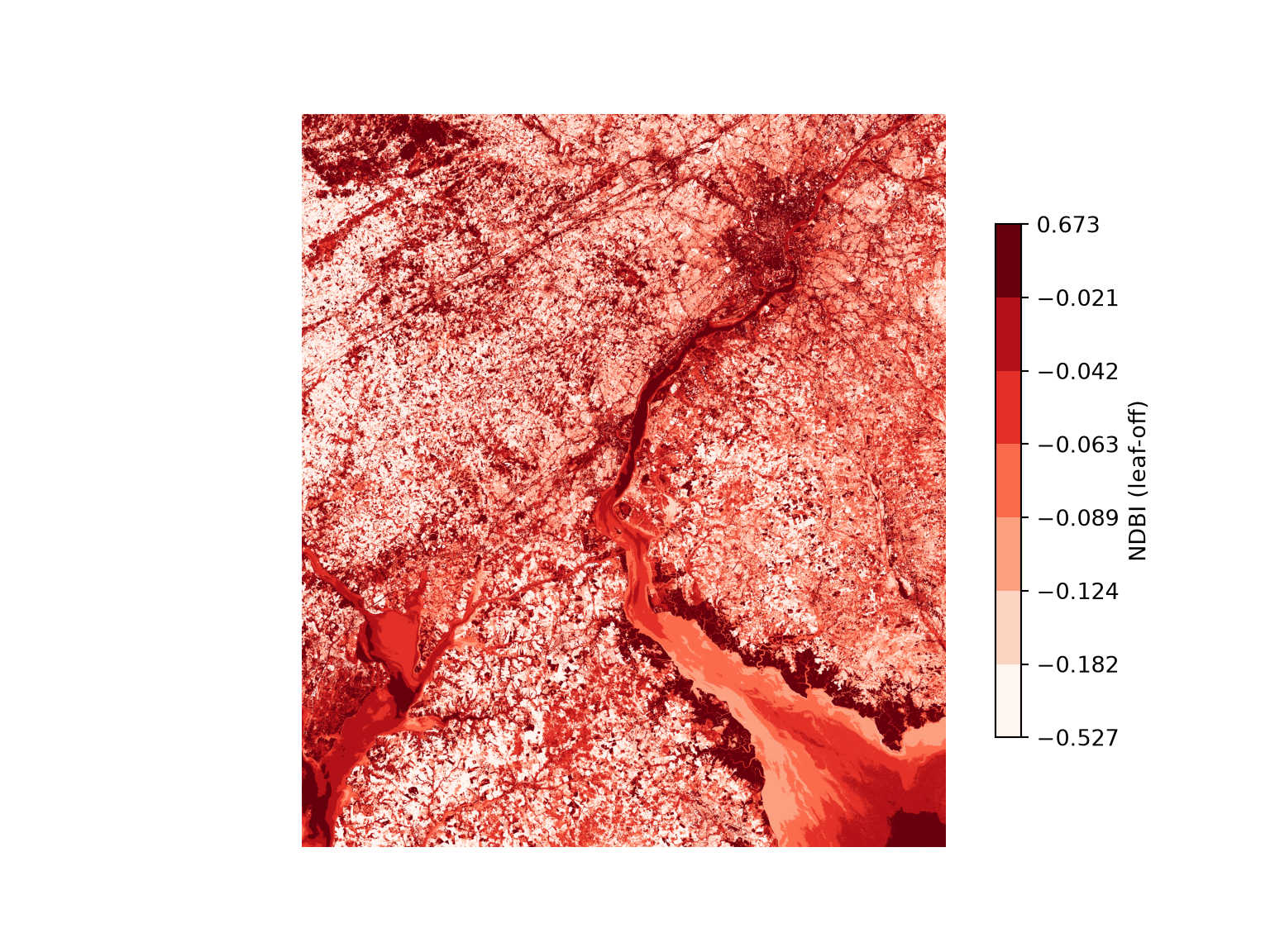
quantile_map(ndbi_lon, loff_ext, "Reds", "NDBI (leaf-on)")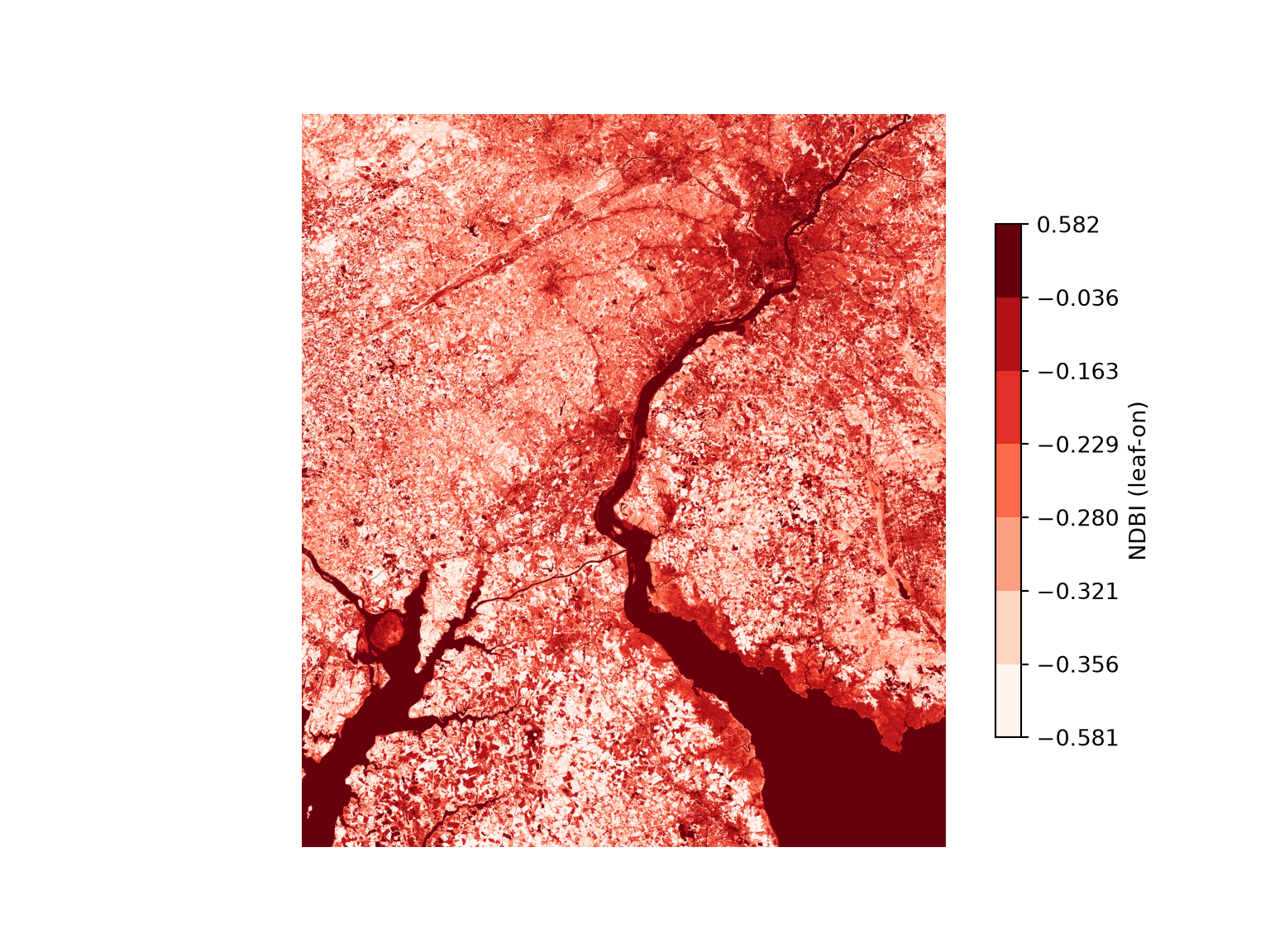
ndwi_loff = norm_diff(loff, "Green", "NIR")
ndwi_lon = norm_diff(lon, "Green", "NIR")
quantile_map(ndwi_loff, loff_ext, "Blues", "NDWI (leaf-off)")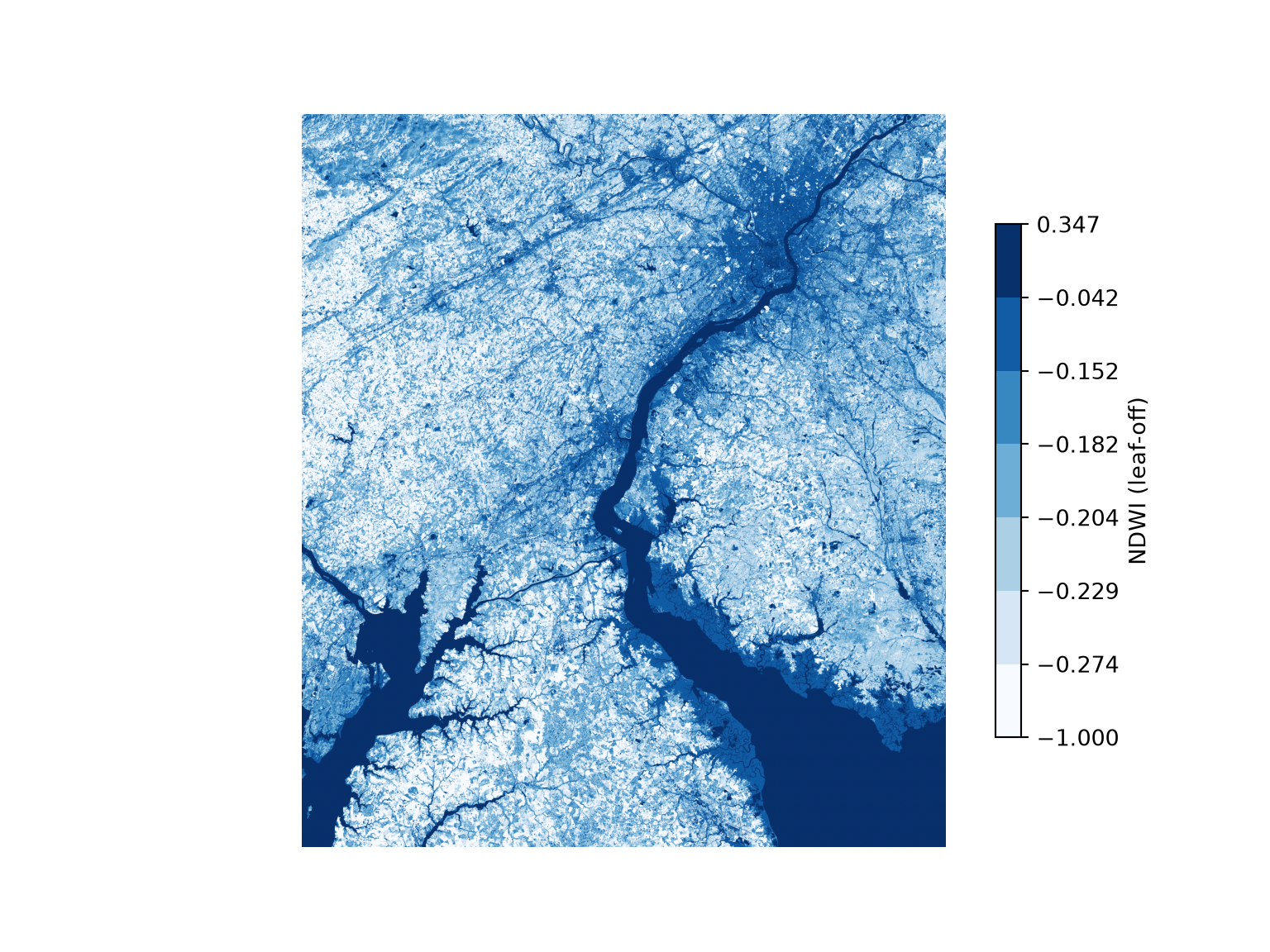
quantile_map(ndwi_lon, loff_ext, "Blues", "NDWI (leaf-on)")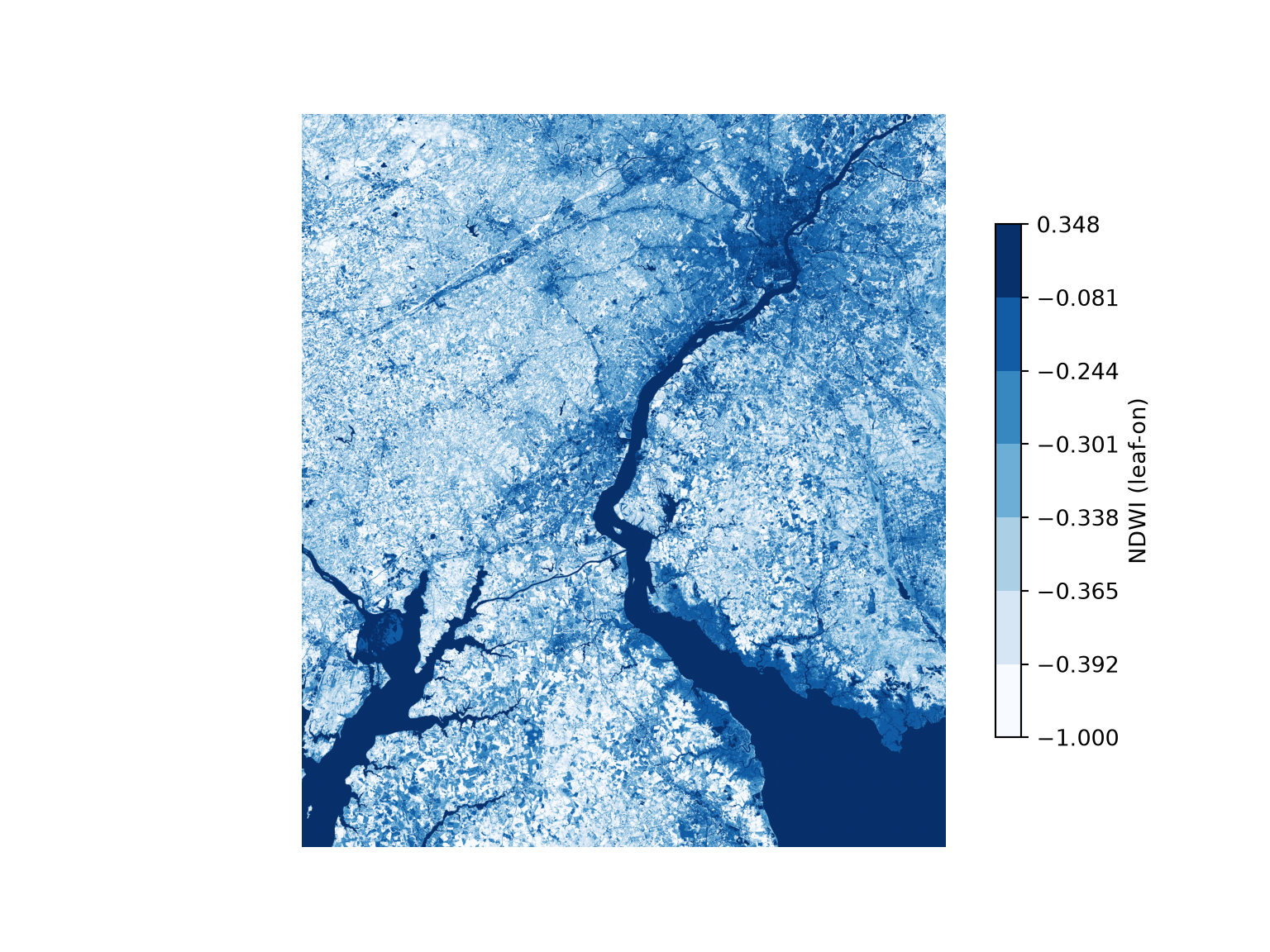
10.9.2 Tasseled Cap Transformation
The tasseled cap transformation is used to convert image bands into the following measures:
- Brightness: correlates with overall spectral brightness and soil brightness
- Greenness: correlates with the presence of photosynthetically active vegetation
- Wetness: correlates with the presence of standing water and water in soil and plant tissue
These measures are derived by multiplying the blue, green, red, NIR, SWIR1, and SWIR2 bands by pre-defined coefficients and summing the results. This transformation is commonly applied to Landsat Thematic Mapper (TM), Enhanced Thematic Mapper Plus (ETM+), OLI, or OLI-2 data. Coefficients have also been published for the Sentinel-2 Multispectral Instrument (MSI) sensor. The coefficients are generally meant to be applied to surface reflectance estimates as opposed to DN values.
Below, we use the published coefficients for the OLI and OLI-2 sensors to generate brightness, greenness, and wetness grids. The coefficients are stored as a 3-by-6 array, with one row for each measure and one column for each band. The calculation is then a matrix multiplication, performed using np.tensordot(), which multiplies each band by its coefficient and sums the results for each measure. We then display the results as a false color composite. Areas with water generally show up as blue since wetness is mapped to the blue channel. Spectrally bright areas, such as impervious surfaces and bare soil, show up as red.
tc_coef = np.array([
    [0.3029, 0.2786, 0.4733, 0.5599, 0.5080, 0.1887],      # brightness
    [-0.2951, -0.2430, -0.5424, 0.7276, 0.0713, -0.1608],  # greenness
    [0.1511, 0.1973, 0.3283, 0.3407, -0.7117, -0.4559]])   # wetness
tc_bands = [b[n] for n in ["Blue", "Green", "Red", "NIR", "SWIR1", "SWIR2"]]

def tasseled_cap(img):
    return np.tensordot(tc_coef, img[tc_bands].astype("float32"), axes=1)

tc_off = tasseled_cap(loff)
plot_rgb(tc_off, 0, 1, 2, loff_ext, "Tasseled cap, leaf-off (brightness, greenness, wetness)")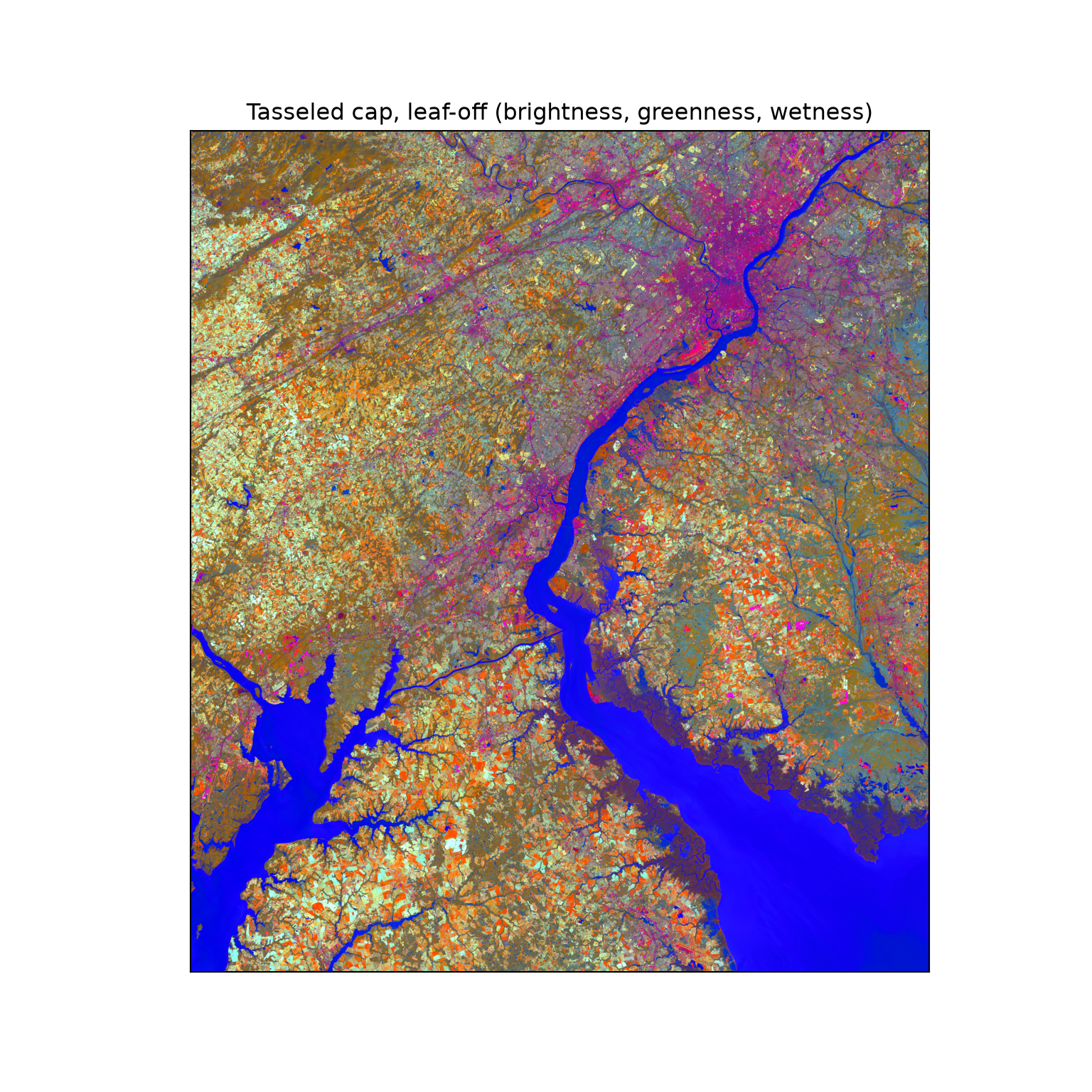
tc_on = tasseled_cap(lon)
plot_rgb(tc_on, 0, 1, 2, loff_ext, "Tasseled cap, leaf-on (brightness, greenness, wetness)")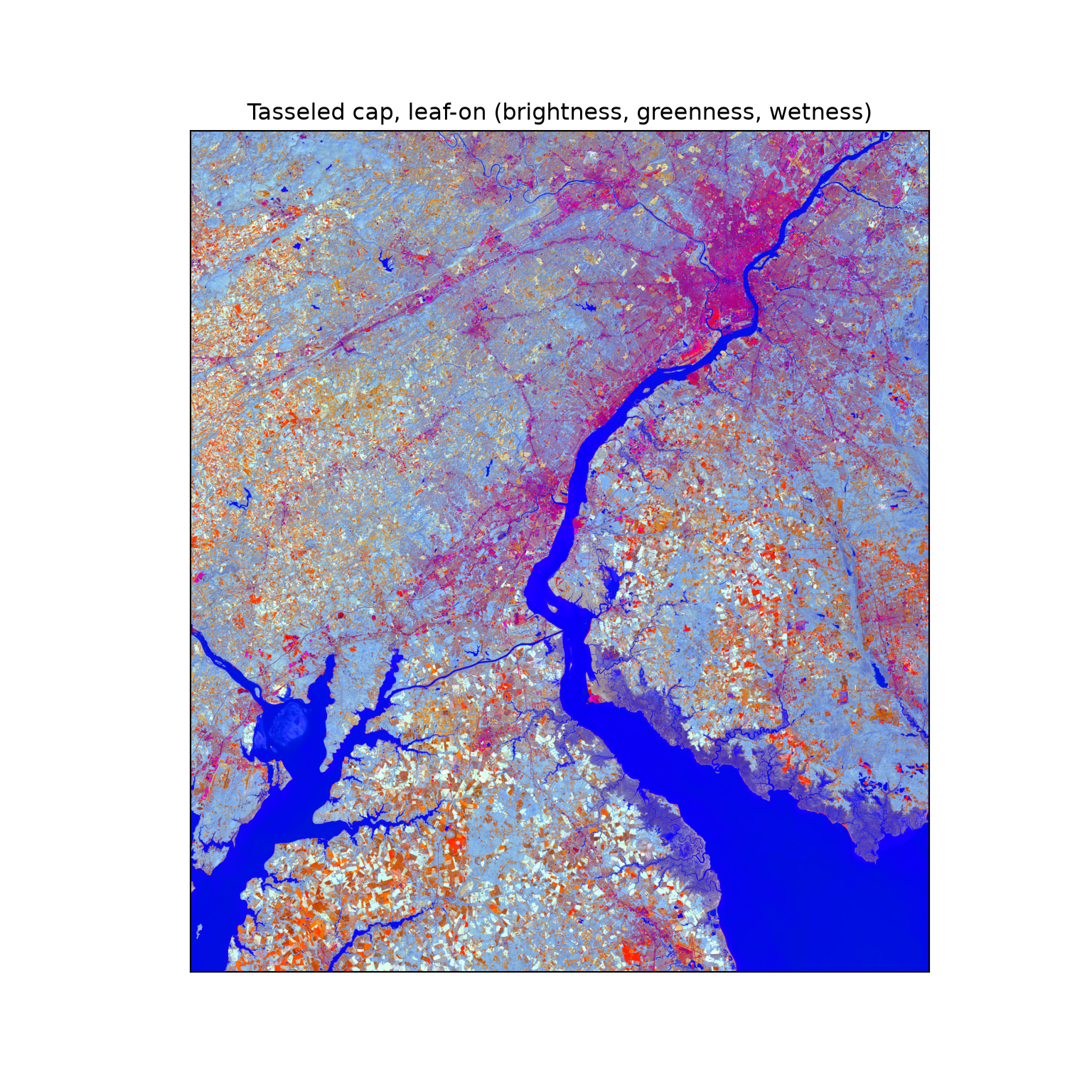
10.9.3 Principal Component Analysis
Principal component analysis (PCA) is commonly applied to tabulated data. Here, it is applied to multiband raster data using the PCA class from scikit-learn. We first stack the leaf-off and leaf-on images into a single 14-band array. Remember that the goal of PCA is to create linearly decorrelated data from the original, correlated image bands. The underlying idea is that variance equals information, so capturing the variance in the input data using a smaller number of bands results in feature reduction while maintaining the information content in the original image bands.
scikit-learn expects a table in which each row is an observation and each column is a variable. So, we reshape the (bands, rows, columns) array into a (pixels, bands) table. The image has more than 14 million pixels. To reduce the memory and processing time required, we estimate the principal components from a random sample of 200,000 pixels. The fitted model is then used to transform every pixel. Since we only display the first three components, only those are retained. The result is reshaped back into a (bands, rows, columns) array. By default, the data are centered but not scaled to unit variance prior to the PCA, so bands with more variance have more influence.
all_bands = np.concatenate([loff, lon], axis=0)
pixels = all_bands.reshape(all_bands.shape[0], -1).T

rng = np.random.default_rng(42)
pca = PCA(n_components=14).fit(pixels[rng.choice(len(pixels), 200000, replace=False)])

pc3 = np.vstack([pca.transform(chunk)[:, :3] for chunk in np.array_split(pixels, 20)])
pca_img = pc3.T.reshape(3, *all_bands.shape[1:])
Once the PCA data are generated, we can visualize the result as a false color composite. In our example, we use the first three principal components.
plot_rgb(pca_img, 0, 1, 2, loff_ext, "First three principal components")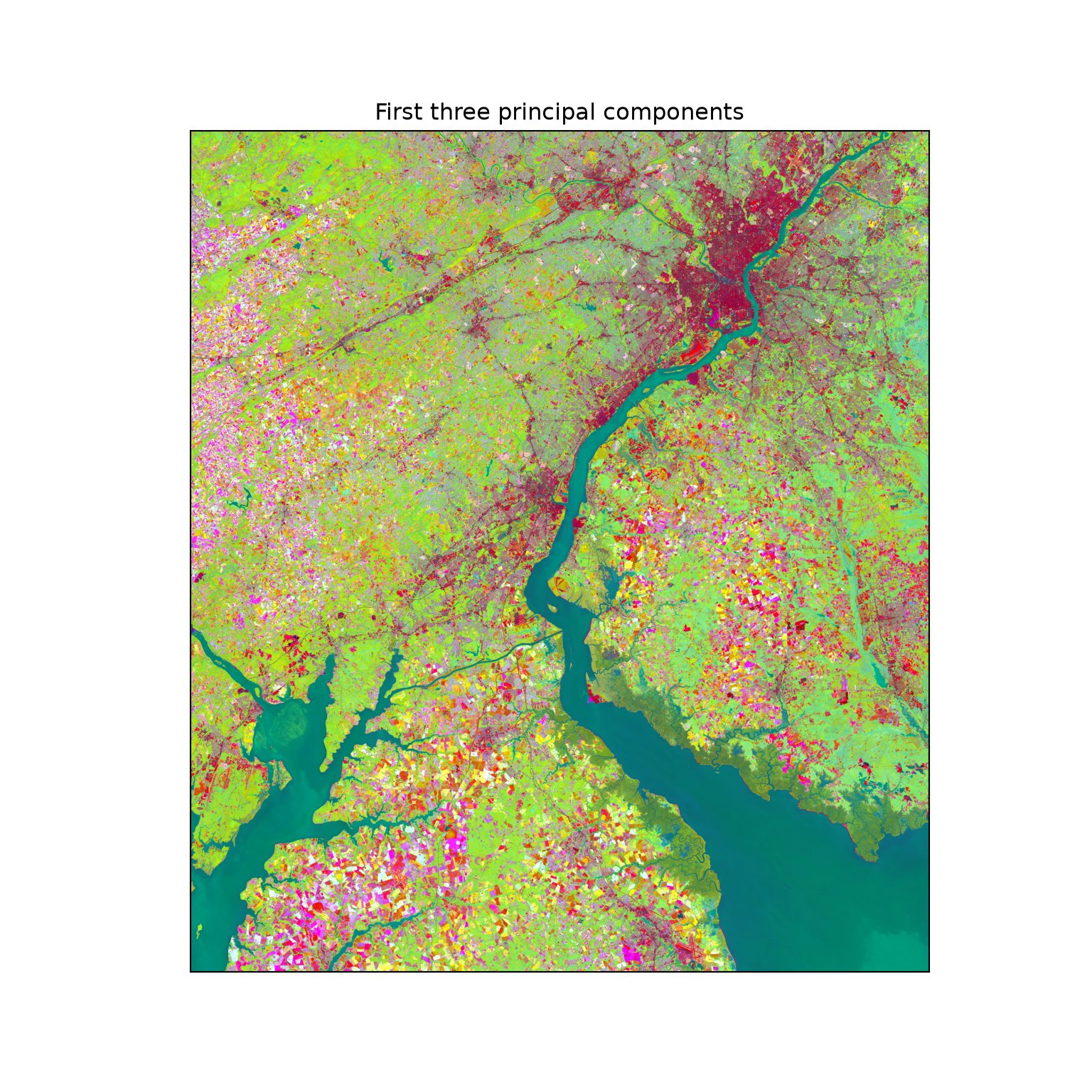
The eigenvalues are stored in the explained_variance_ property of the fitted model. Larger values indicate more variance explained. By dividing the eigenvalue for a specific principal component by the sum of all eigenvalues, we can obtain the proportion of variance explained by that component, which is provided directly by the explained_variance_ratio_ property. The cumulative sum indicates the proportion of the variance captured by the first n components.
var_table = pd.DataFrame({"eigenvalue": pca.explained_variance_,
                          "prop_var": pca.explained_variance_ratio_,
                          "cum_prop_var": np.cumsum(pca.explained_variance_ratio_)},
                         index=[f"PC{i + 1}" for i in range(14)])
print(var_table.round(4))
eigenvalue prop_var cum_prop_var
PC1 5.060510e+07 0.7118 0.7118
PC2 1.074923e+07 0.1512 0.8630
PC3 4.072921e+06 0.0573 0.9203
PC4 2.541029e+06 0.0357 0.9560
PC5 2.259780e+06 0.0318 0.9878
PC6 3.938430e+05 0.0055 0.9934
PC7 1.980109e+05 0.0028 0.9961
PC8 1.329822e+05 0.0019 0.9980
PC9 6.535235e+04 0.0009 0.9989
PC10 3.447860e+04 0.0005 0.9994
PC11 2.199020e+04 0.0003 0.9997
PC12 1.180780e+04 0.0002 0.9999
PC13 4.841344e+03 0.0001 1.0000
PC14 2.944097e+03 0.0000 1.0000The loadings or eigenvectors are the coefficients that each band must be multiplied by in order to obtain each principal component. They are stored in the components_ property. There are unique eigenvectors for each component and band combination. Eigenvectors serve a similar purpose as the coefficients used in the tasseled cap transformation demonstrated above: they allow for transforming the original bands into the new principal component bands.
loadings = pd.DataFrame(pca.components_.T,
                        index=[f"off_{n}" for n in band_names] + [f"on_{n}" for n in band_names],
                        columns=[f"PC{i + 1}" for i in range(14)])
print(loadings.iloc[:, :6].round(3))
PC1 PC2 PC3 PC4 PC5 PC6
off_Edge 0.031 -0.178 -0.154 -0.259 -0.010 0.117
off_Blue 0.037 -0.213 -0.165 -0.284 0.009 0.168
off_Green 0.064 -0.260 -0.125 -0.323 0.085 0.315
off_Red 0.083 -0.282 -0.259 -0.298 0.095 0.392
off_NIR 0.445 -0.007 0.576 -0.301 0.581 -0.147
off_SWIR1 0.391 0.015 -0.482 0.210 0.345 -0.279
off_SWIR2 0.248 -0.056 -0.459 0.240 0.201 -0.121
on_Edge 0.065 -0.184 -0.011 -0.124 -0.204 -0.390
on_Blue 0.066 -0.234 0.001 -0.135 -0.212 -0.367
on_Green 0.091 -0.282 0.028 -0.138 -0.230 -0.251
on_Red 0.109 -0.389 0.065 -0.039 -0.248 -0.267
on_NIR 0.582 0.547 -0.080 -0.280 -0.489 0.111
on_SWIR1 0.396 -0.218 0.206 0.414 -0.174 0.314
on_SWIR2 0.222 -0.326 0.191 0.404 -0.125 0.24410.9.4 Convolution
As opposed to the above image processing routines, which are all forms of spectral enhancement, convolution is a form of spatial enhancement. For example, a low pass filter can be used to reduce local differences in pixel values and often entails smoothing or averaging values. In contrast, high pass filters are used to enhance differences. An example is an edge detection filter.
Convolution operations are applied by passing a local moving window or kernel of values over a raster grid. The values stored in the filter are configured to obtain a desired result. For example, the Sobel filters demonstrated in the code are used to detect or enhance vertical and horizontal edges in the image. Filters can be defined as NumPy arrays and then applied to image data using correlate() from the ndimage module of SciPy. At each cell location, each value in the moving window is multiplied by the corresponding filter value, and the results are summed. Strictly speaking, convolution flips the filter before applying it while correlation does not; using correlate() applies the filter exactly as it is defined.
Convolution operations can result in edge effects since edge rows and columns do not have a full set of neighbors over which to perform the convolution. By default, correlate() fills in the missing neighbors by reflecting the values near the edge. Due to such issues, we recommend using input data that cover an extent larger than the study area of interest.
gy = np.array([[2, 2, 4, 2, 2],
               [1, 1, 2, 1, 1],
               [0, 0, 0, 0, 0],
               [-1, -1, -2, -1, -1],
               [-2, -2, -4, -2, -2]])
gx = gy.T
print(gx)
[[ 2 1 0 -1 -2]
[ 2 1 0 -1 -2]
[ 4 2 0 -2 -4]
[ 2 1 0 -1 -2]
[ 2 1 0 -1 -2]]print(gy)[[ 2 2 4 2 2]
[ 1 1 2 1 1]
[ 0 0 0 0 0]
[-1 -1 -2 -1 -1]
[-2 -2 -4 -2 -2]]
nir = loff[b["NIR"]].astype("float32")
nir_edgex = ndimage.correlate(nir, gx)
nir_edgey = ndimage.correlate(nir, gy)
quantile_map(nir_edgex, loff_ext, "Greys", "Sobel x")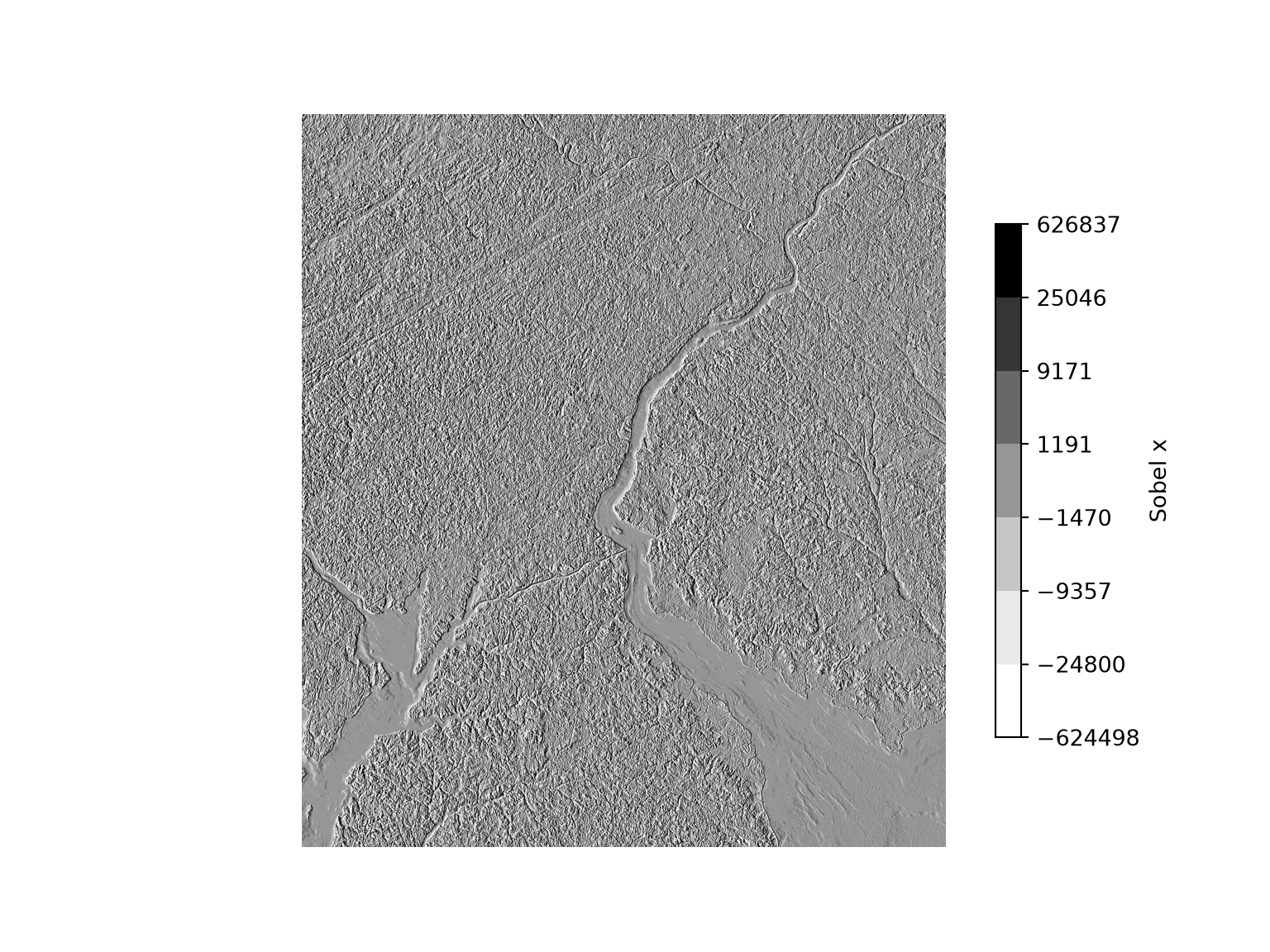
quantile_map(nir_edgey, loff_ext, "Greys", "Sobel y")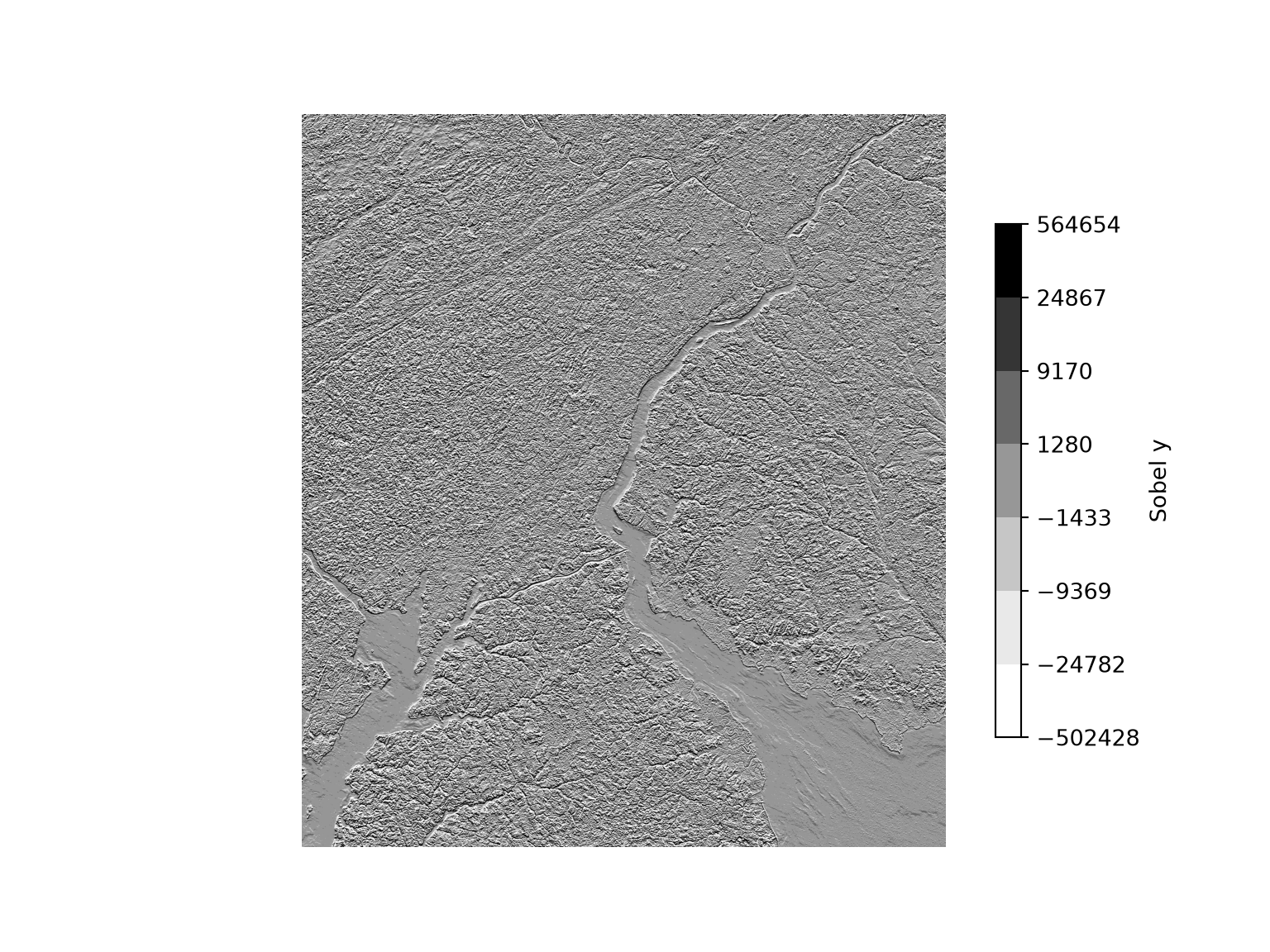
10.10 Digital Terrain Analysis
In this last section of the chapter, we explore variables that can be derived from a DTM. These surfaces are commonly termed digital terrain variables or land surface parameters (LSPs). We use the 5 m DTM read in at the beginning of the chapter. Since many of the calculations below use neighboring cells, we fill the few NoData cells with the mean elevation to avoid spreading NoData values, and we keep the original mask so that it can be reapplied to the outputs.
dem = dtm.filled(dtm.mean()).astype("float64")
dem_mask = np.ma.getmaskarray(dtm)

def remask(arr):
    """Reapply the DTM NoData mask to a derived grid."""
    return np.ma.masked_array(arr, mask=dem_mask | ~np.isfinite(arr))

show_raster(dtm, dtm_ext, cmap="Greys_r", label="Elevation (m)")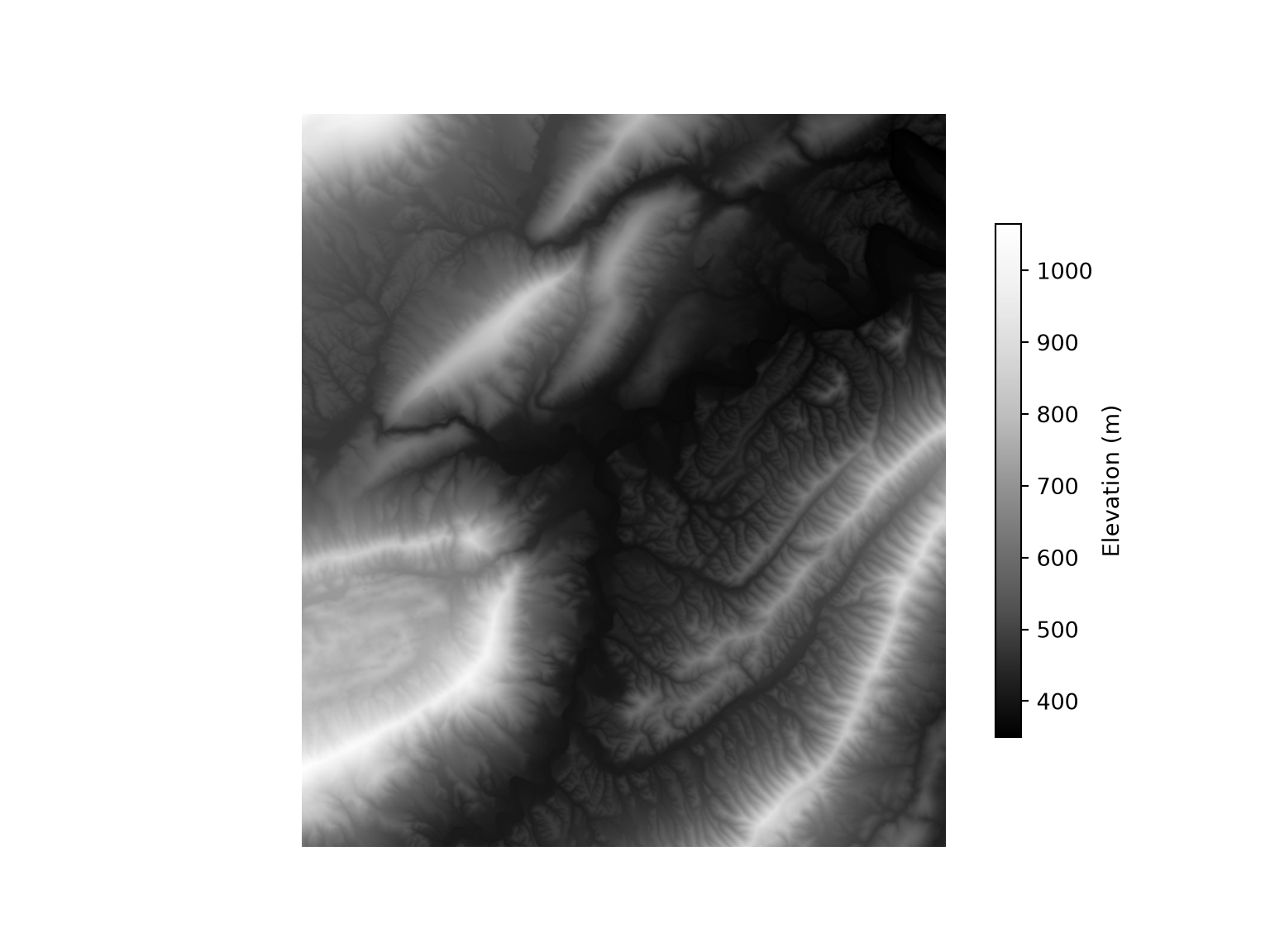
10.10.1 Common Land Surface Parameters
Table 10.2 summarizes some LSPs that can be calculated using NumPy and SciPy moving window operations, which are demonstrated below. If you are interested in reading more about the use of LSPs in remote sensing and spatial predictive modeling, we recommend the following papers:
Franklin, S.E., 2020. “Interpretation and use of geomorphometry in remote sensing: a guide and review of integrated applications.” International Journal of Remote Sensing, 41(19), pp.7700-7733.
Maxwell, A.E. and Shobe, C.M., 2022. “Land-surface parameters for spatial predictive mapping and modeling.” Earth-Science Reviews, 226, p.103944.
| Land Surface Parameter | Description | Calculation in this chapter |
|---|---|---|
| Topographic Slope | Steepness | Horn’s 3 × 3 finite differences with ndimage.correlate()
|
| Topographic Aspect | Slope orientation | Horn’s 3 × 3 finite differences with ndimage.correlate()
|
| Hillshade | Shaded relief surface | Calculated from slope, aspect, and sun position |
| Total Curvature | Sum of curvature in two orthogonal directions | Second derivatives with ndimage.correlate()
|
| Topographic Position Index (TPI) | (Elev - Mean); relative topographic position | Focal mean using a circular or custom window |
| Topographic Dissection Index (TDI) | (Elev - Min)/(Max - Min); measure of incision |
ndimage.minimum_filter() and ndimage.maximum_filter()
|
| Surface Area Ratio (SAR) | Surface area / planimetric area; transform of steepness | 1 / cos(slope) |
| Surface Relief Ratio (SRR) | (Mean - Min)/(Max - Min); measure of rugosity |
ndimage.uniform_filter(), minimum_filter(), and maximum_filter()
|
| Heat Load Index (HLI) | Relative potential heat load based on aspect, slope, and latitude | McCune and Keon (2002) equation |
| Topographic Radiation Aspect Index (TRASP) | (1 - cos((pi/180)(aspect - 30)))/2; aspect transformation | Calculated from aspect |
WhiteboxTools, which is discussed in Chapter 12, provides a large number of additional LSPs. The xarray-spatial library also provides functions for calculating slope, aspect, hillshades, and curvature from Xarray data.
Topographic slope and aspect are calculated from the rate of change in elevation in the east-west (\(\partial z / \partial x\)) and north-south (\(\partial z / \partial y\)) directions. We use Horn’s method, which estimates these rates of change using a weighted combination of the eight neighbors in a 3 × 3 moving window. Slope is the arctangent of the magnitude of the gradient, and aspect is the direction of steepest descent measured clockwise from north. Both are returned in radians.
A hillshade is calculated from the slope, aspect, and the position of the sun. We specifically calculate the hillshade using a sun altitude of 45 degrees and a sun azimuth or direction of 315 degrees (i.e., northwest). Cells facing directly away from the sun receive no direct illumination, so negative values are set to 0.
def slope_aspect(z, res):
    """Slope and aspect (radians) using Horn's method."""
    kx = np.array([[-1, 0, 1], [-2, 0, 2], [-1, 0, 1]]) / (8 * res)
    ky = np.array([[1, 2, 1], [0, 0, 0], [-1, -2, -1]]) / (8 * res)
    dzdx = ndimage.correlate(z, kx, mode="nearest")  # positive when elevation increases east
    dzdy = ndimage.correlate(z, ky, mode="nearest")  # positive when elevation increases north
    slope = np.arctan(np.hypot(dzdx, dzdy))
    aspect = np.arctan2(-dzdx, -dzdy) % (2 * np.pi)
    return slope, aspect

def hillshade(slope, aspect, altitude=45, azimuth=315):
    """Hillshade (0-1) from slope and aspect in radians and sun position in degrees."""
    zenith, az = np.radians(90 - altitude), np.radians(azimuth)
    hs = np.cos(zenith) * np.cos(slope) + np.sin(zenith) * np.sin(slope) * np.cos(az - aspect)
    return np.clip(hs, 0, 1)

slp, asp = slope_aspect(dem, dtm_res)
hs = hillshade(slp, asp, altitude=45, azimuth=315)

show_raster(remask(hs), dtm_ext, cmap="Greys_r", label="Hillshade")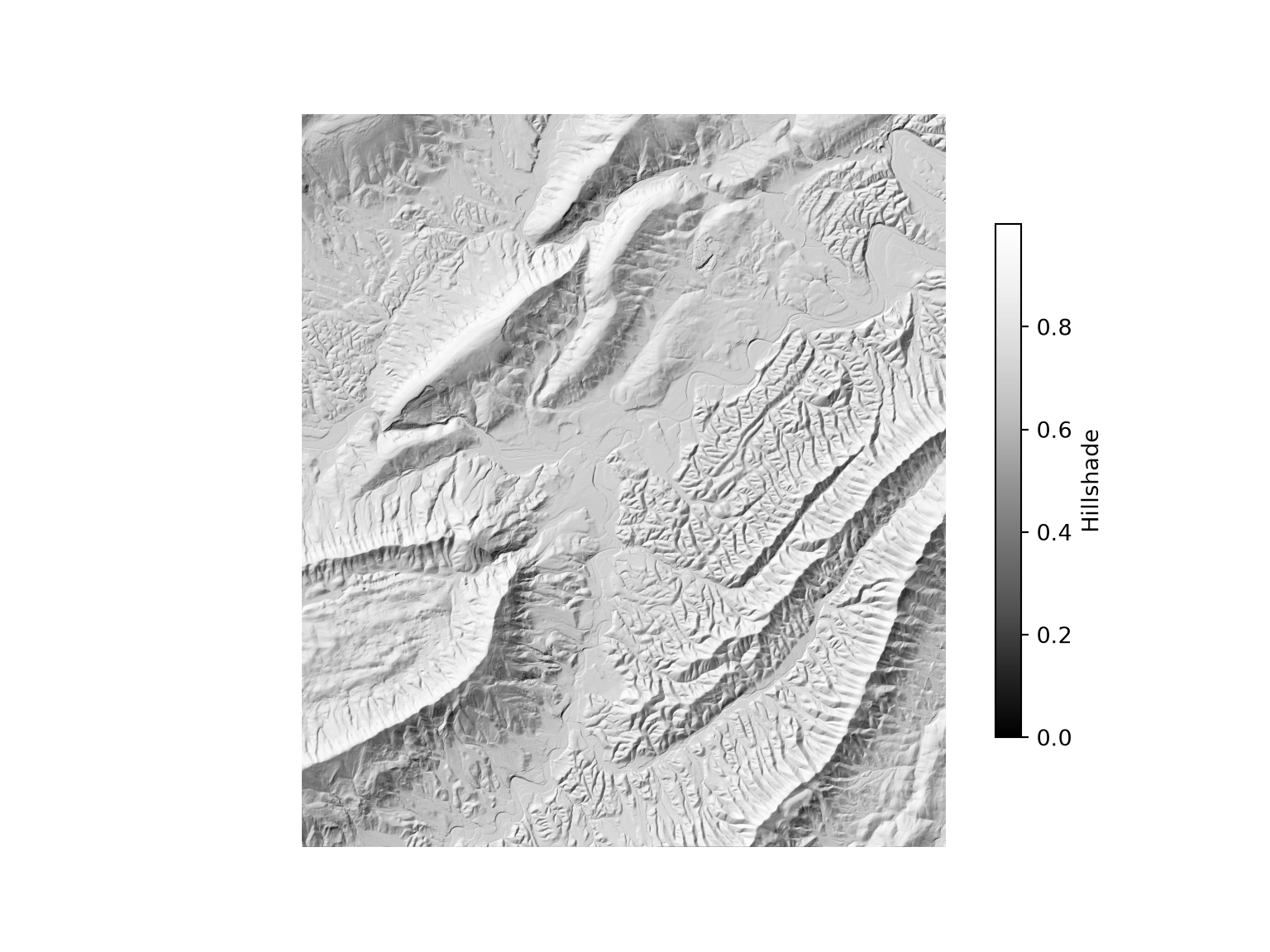
A multidirectional hillshade can be calculated by averaging hillshades created using multiple sun positions. In our example, we create hillshades using north, northwest, west, and southeast illuminations. We then average these but with double weighting applied to the northwest illumination.
hs_n = hillshade(slp, asp, 45, 0)
hs_nw = hillshade(slp, asp, 45, 315)
hs_w = hillshade(slp, asp, 45, 270)
hs_se = hillshade(slp, asp, 45, 135)

hs_md = (hs_n + 2 * hs_nw + hs_w + hs_se) / 5

show_raster(remask(hs_md), dtm_ext, cmap="Greys_r", label="Multidirectional Hillshade")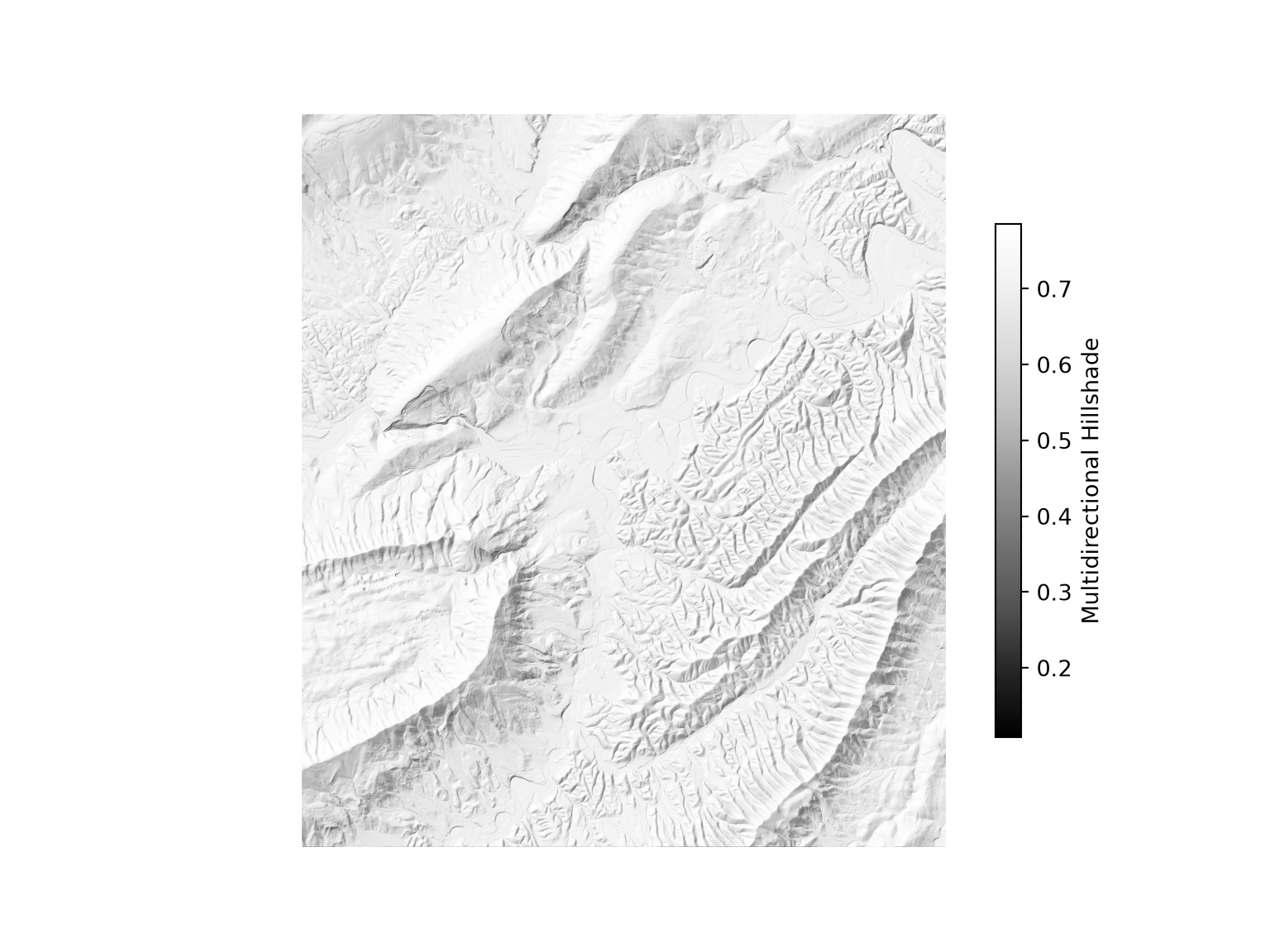
10.10.2 Other Land Surface Parameters
We now calculate additional LSPs, including total curvature, the topographic dissection index (TDI), the heat load index (HLI), the surface area ratio (SAR), the surface relief ratio (SRR), the topographic position index (TPI), and the topographic radiation aspect index after Roberts and Cooper (1989) (TRASP). Some of the measures allow for defining the size of the moving window. Larger windows generally yield more generalized results.
Total curvature is calculated from the second derivatives of the surface in the east-west and north-south directions, after Zevenbergen and Thorne (1987). Positive values indicate convex surfaces, such as ridges, while negative values indicate concave surfaces, such as valleys. The values are multiplied by 100, a common convention.
def total_curvature(z, res):
    d2x = ndimage.correlate(z, np.array([[0, 0, 0], [1, -2, 1], [0, 0, 0]]) / res**2, mode="nearest")
    d2y = ndimage.correlate(z, np.array([[0, 1, 0], [0, -2, 0], [0, 1, 0]]) / res**2, mode="nearest")
    return -(d2x + d2y) * 100

crv_t = total_curvature(dem, dtm_res)
quantile_map(remask(crv_t), dtm_ext, "Greys_r", "Total Curvature")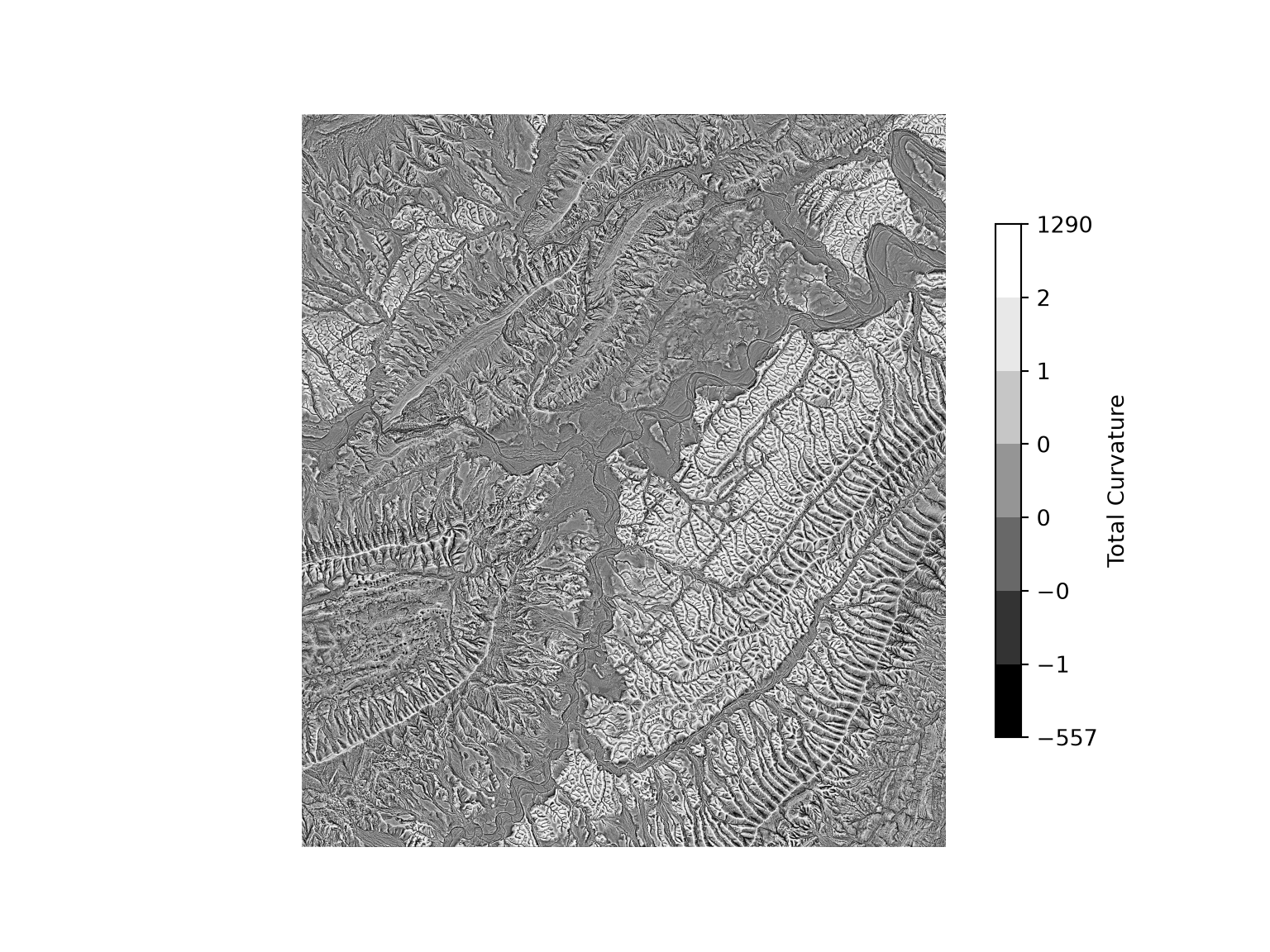
The TDI and SRR are calculated from the minimum, maximum, and mean elevation within a moving window, which are obtained using the minimum_filter(), maximum_filter(), and uniform_filter() functions from the ndimage module of SciPy. Here, we use a 7 × 7 cell window. In flat neighborhoods, the maximum equals the minimum, which results in division by zero. The resulting infinite or undefined values are masked by our remask() function.
z_min = ndimage.minimum_filter(dem, size=7)
z_max = ndimage.maximum_filter(dem, size=7)
z_mean = ndimage.uniform_filter(dem, size=7)

with np.errstate(divide="ignore", invalid="ignore"):
    tdi = (dem - z_min) / (z_max - z_min)
    srr = (z_mean - z_min) / (z_max - z_min)

show_raster(remask(tdi), dtm_ext, cmap="Greys_r", label="TDI")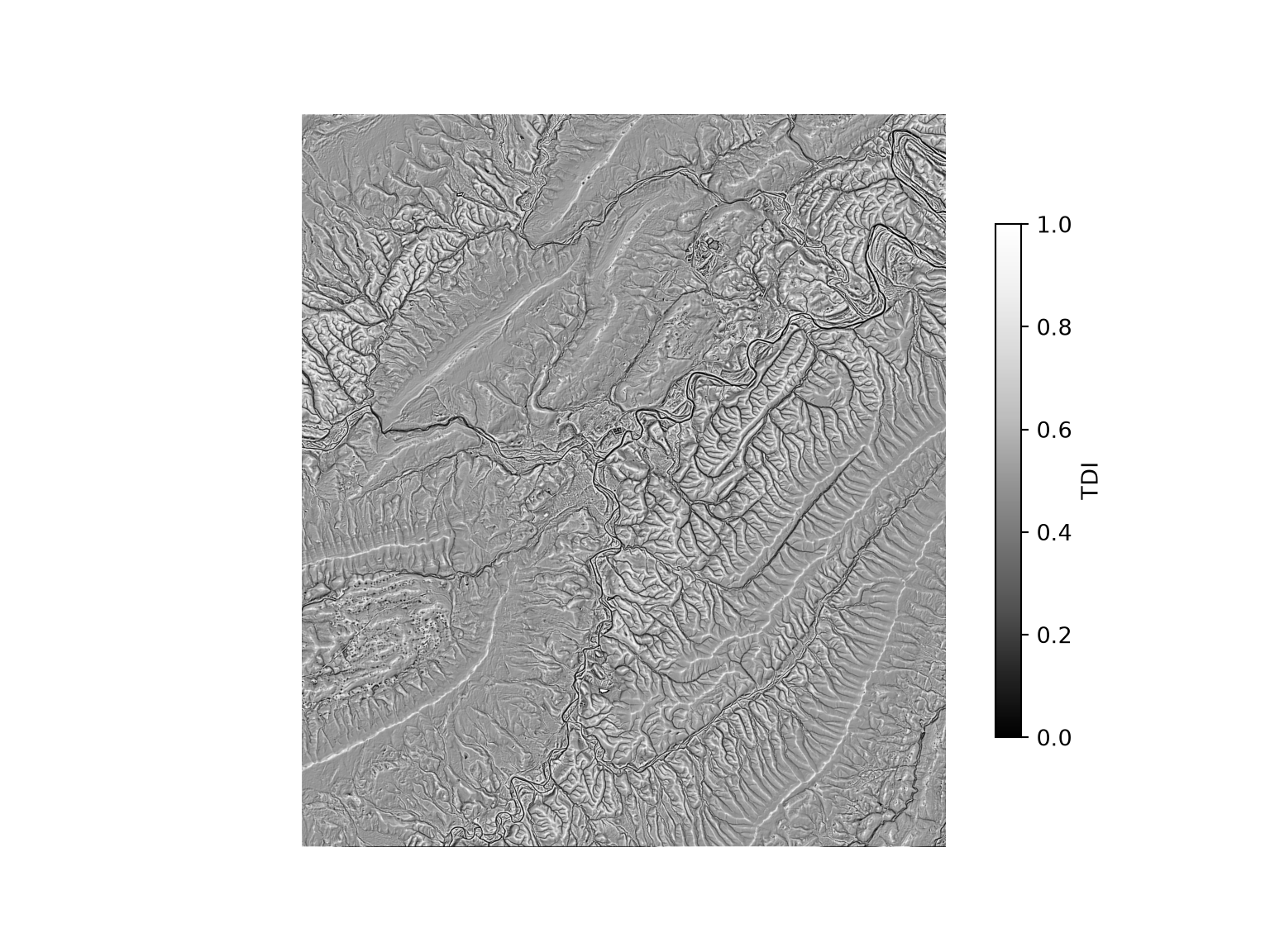
The HLI after McCune and Keon (2002) estimates the potential direct incident radiation based on slope, aspect, and latitude. Aspect is “folded” about the northeast-southwest axis so that southwest-facing slopes, which are generally the warmest, receive the highest values. The latitude of the center of the DTM is obtained by converting its coordinates to longitude and latitude using a Transformer from pyproj.
center_x = (dtm_ext[0] + dtm_ext[1]) / 2
center_y = (dtm_ext[2] + dtm_ext[3]) / 2
lon_c, lat_c = Transformer.from_crs(dtm_profile["crs"], "EPSG:4326",
                                    always_xy=True).transform(center_x, center_y)
lat = np.radians(lat_c)
print(lat_c)37.498800082505745folded = np.radians(np.abs(180 - np.abs(np.degrees(asp) - 225)))
hli = np.exp(-1.467 + 1.582 * np.cos(lat) * np.cos(slp)
- 1.5 * np.cos(folded) * np.sin(slp) * np.sin(lat)
- 0.262 * np.sin(lat) * np.sin(slp)
+ 0.607 * np.sin(folded) * np.sin(slp))
quantile_map(remask(hli), dtm_ext, "Greys_r", "HLI")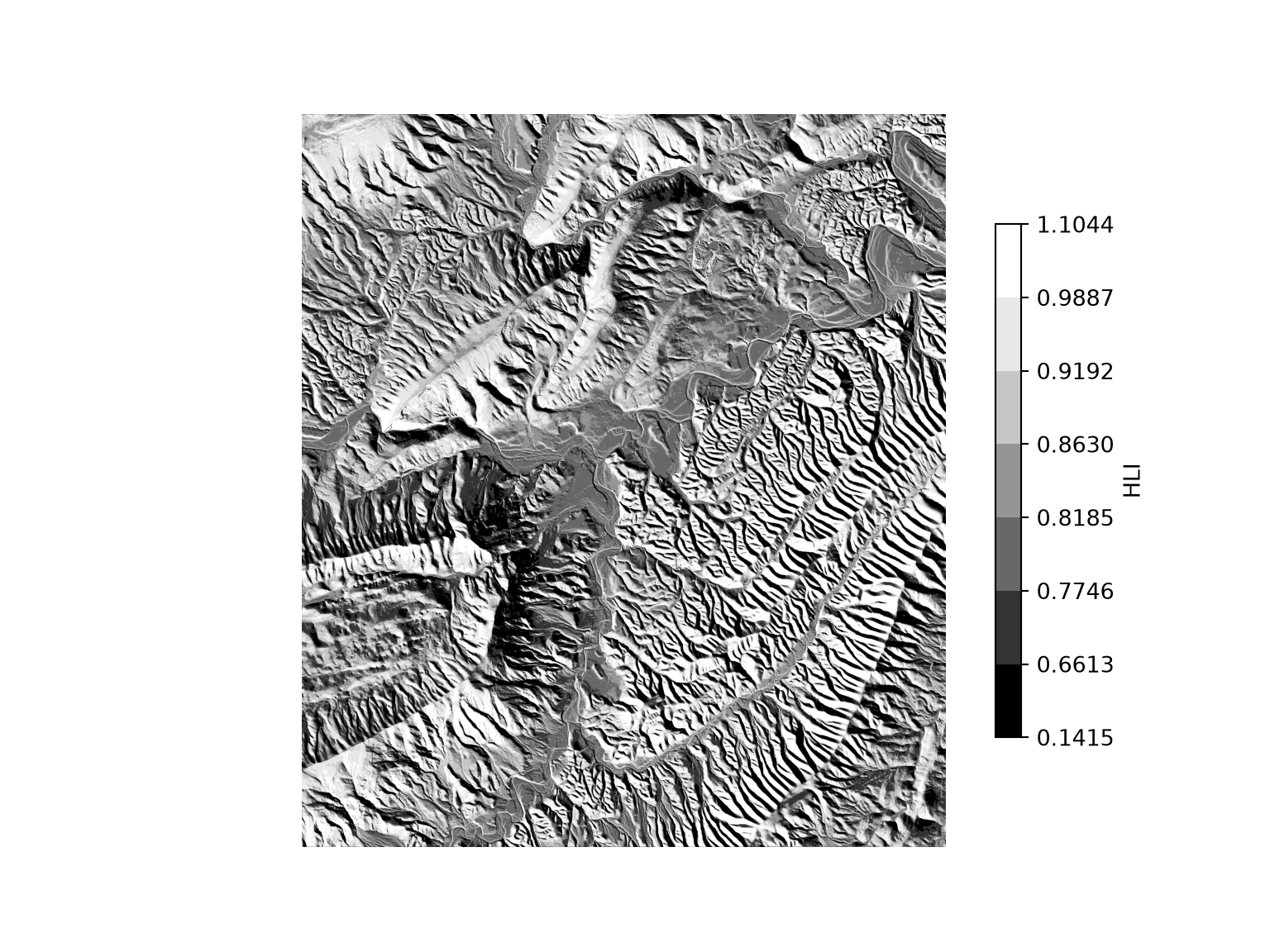
The SAR is the ratio of the surface area of a cell to its planimetric (flat) area, which can be approximated as \(1/\cos(\text{slope})\).
sar = 1 / np.cos(slp)
quantile_map(remask(sar), dtm_ext, "Greys_r", "SAR")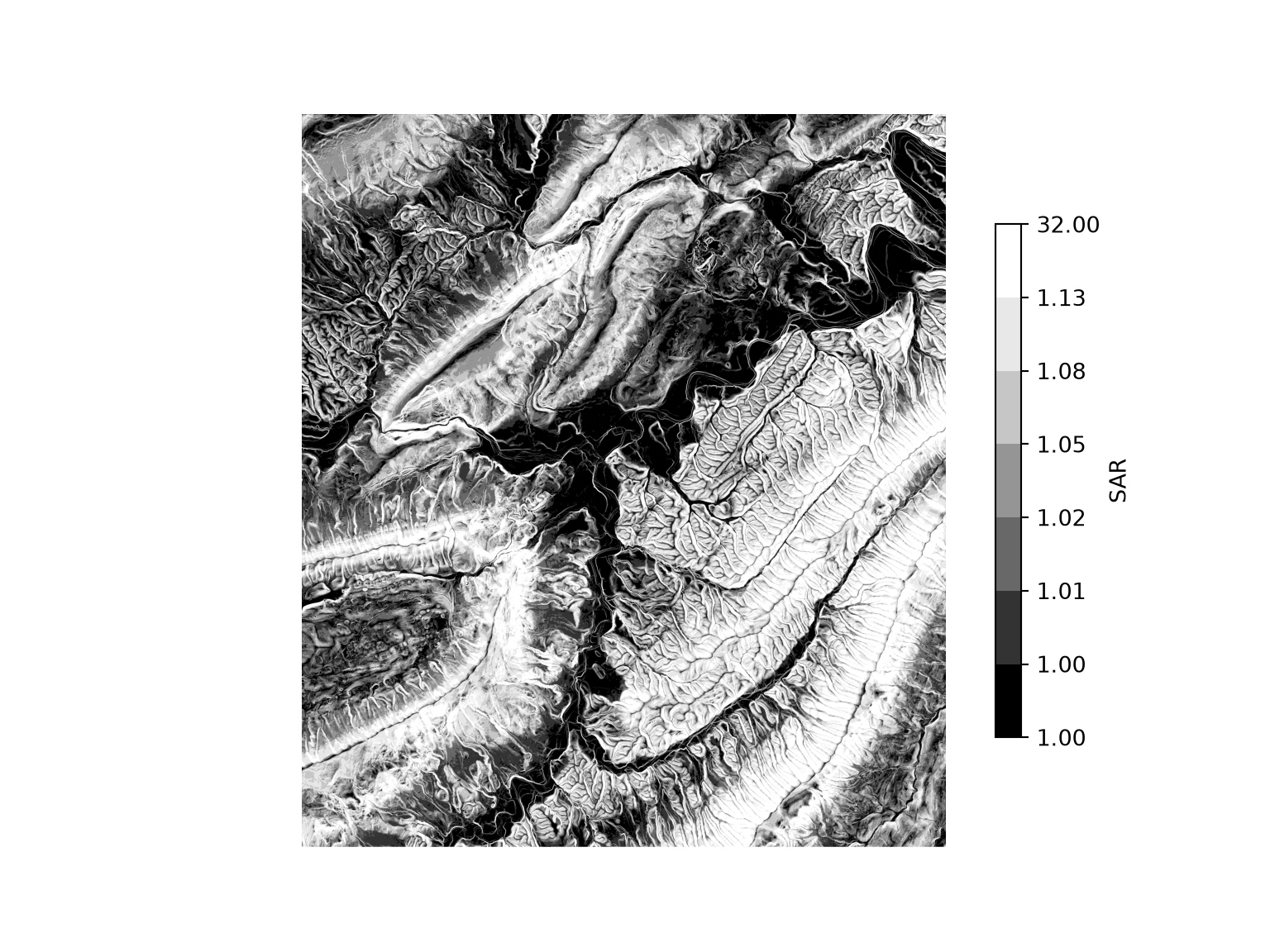
show_raster(remask(srr), dtm_ext, cmap="Greys_r", label="SRR")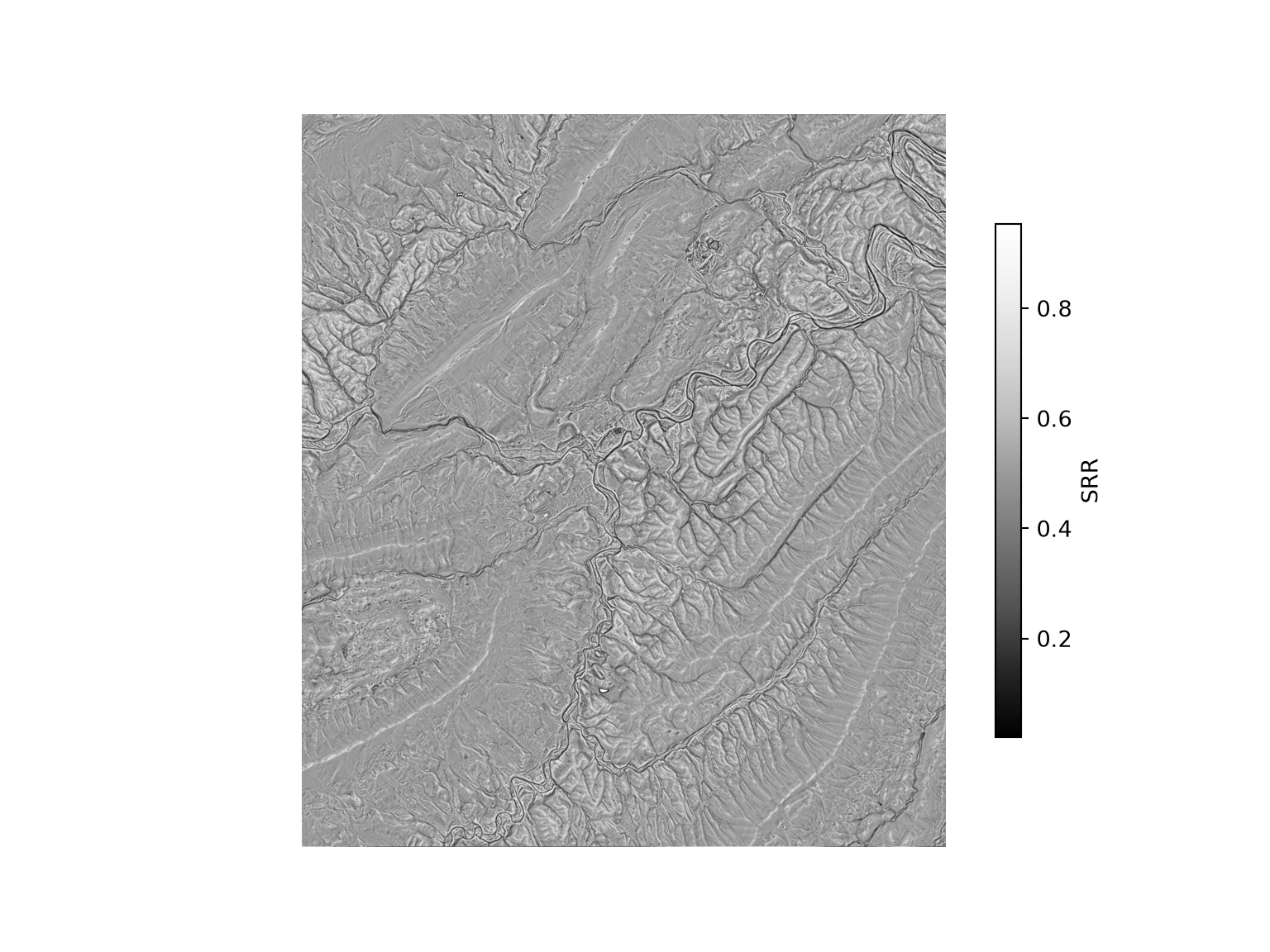
The TPI is the difference between the elevation of a cell and the mean elevation within a neighborhood. Positive values indicate cells that are higher than their surroundings, such as ridges and hilltops, while negative values indicate cells that are lower, such as valleys. We use a circular window with a diameter of 35 cells. With large windows, calculating the mean is much faster using fftconvolve() from the signal module of SciPy, which uses the fast Fourier transform. We write a function that calculates the focal mean for any window, or footprint, defined as an array of 0s and 1s.
def focal_mean(z, footprint):
    """Mean of the cells within a footprint (array of 0s and 1s) centered on each cell."""
    kernel = footprint / footprint.sum()
    return signal.fftconvolve(z, kernel, mode="same") / signal.fftconvolve(
        np.ones_like(z), kernel, mode="same")

def circle_window(radius):
    """Circular footprint with a radius in cells."""
    yy, xx = np.mgrid[-radius:radius + 1, -radius:radius + 1]
    return (np.hypot(xx, yy) <= radius).astype(float)

tpi = dem - focal_mean(dem, circle_window(17))
show_raster(remask(tpi), dtm_ext, cmap="Greys_r", label="TPI")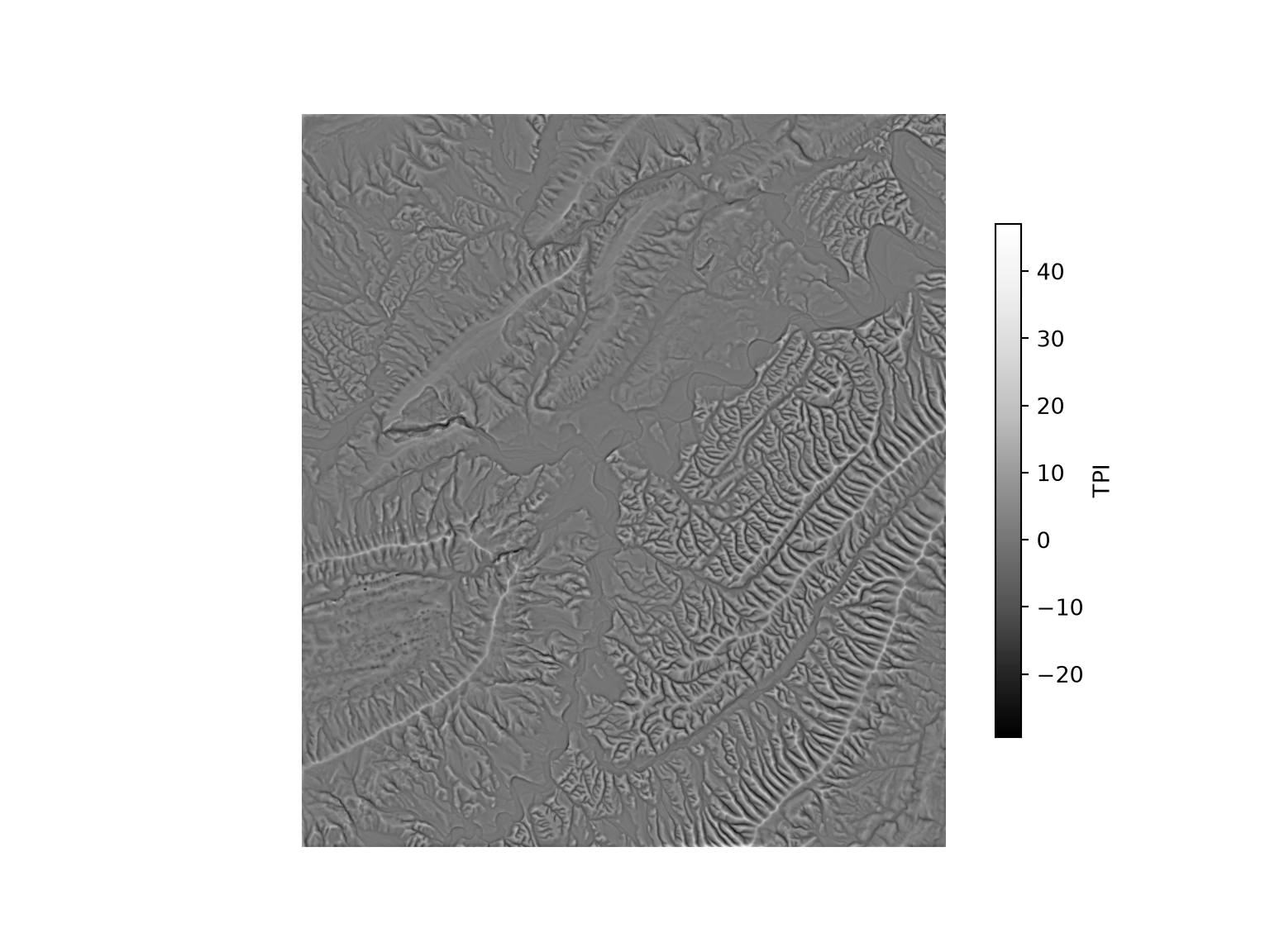
TRASP transforms aspect into a value from 0 to 1, where 0 represents north-northeast-facing slopes, which are generally the coolest and wettest, and 1 represents south-southwest-facing slopes, which are generally the hottest and driest.
trasp = (1 - np.cos(asp - np.radians(30))) / 2
show_raster(remask(trasp), dtm_ext, cmap="Greys_r", label="TRASP")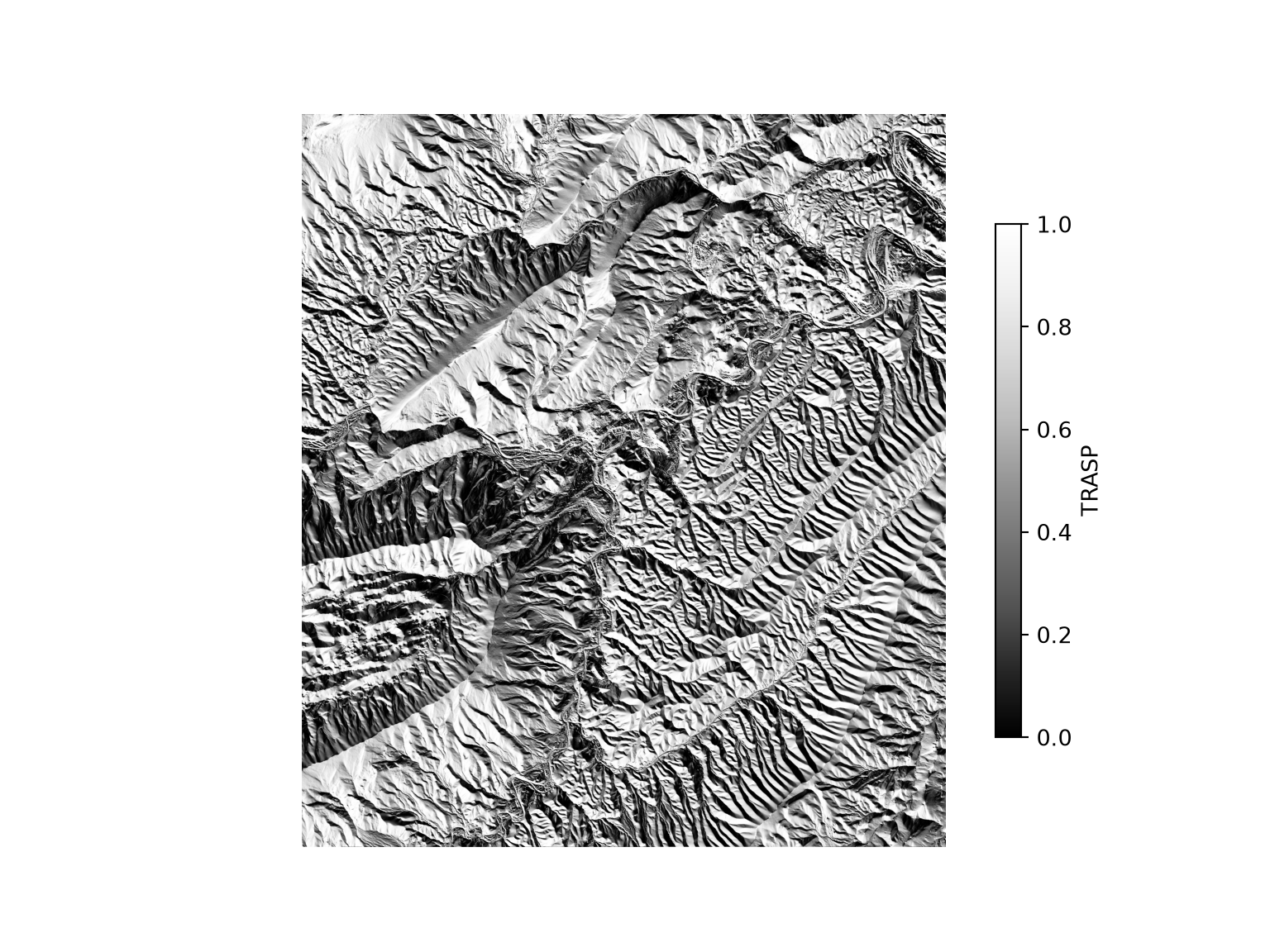
As an aside, you may be interested in removing extreme values from the generated LSPs or truncating the range of values maintained in the output. This can be accomplished using np.clip(). In the example below, we truncate the range of TPI values to be between -10 and 10.
tpi2 = np.clip(tpi, -10, 10)
show_raster(remask(tpi2), dtm_ext, cmap="Greys_r", label="TPI")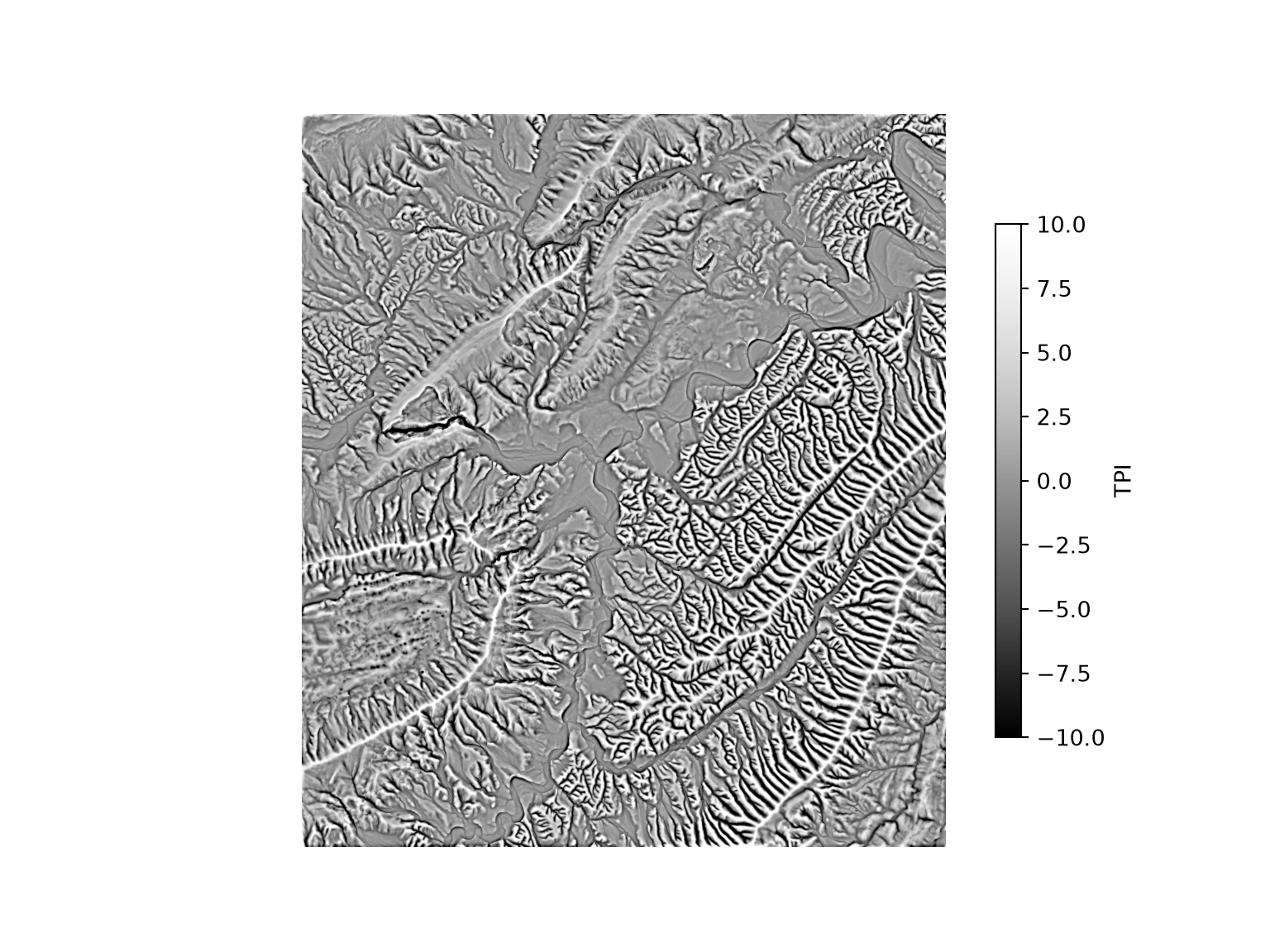
10.10.3 Customizing Moving Windows
Since a moving window is simply an array of 0s and 1s, windows with varying sizes and shapes are easy to define. In the final example below, we create an annulus moving window with a 10 m inner radius and a 25 m outer radius at a 5 m spatial resolution to match the input DTM data. The distance from the center of the window to each cell is calculated in map units, and cells between the two radii are coded to 1. We then manually calculate the TPI using this custom moving window: the mean of the cells in the moving window is subtracted from the center cell value. Next, we clip the range from -10 to 10 and rescale the TPI to values between 0 and 1.
def annulus_window(inner, outer, res):
    """Annulus footprint with inner and outer radii in map units."""
    n = int(outer // res)
    yy, xx = np.mgrid[-n:n + 1, -n:n + 1] * res
    d = np.hypot(xx, yy)
    return ((d >= inner) & (d <= outer)).astype(float)

f_annulus = annulus_window(10, 25, dtm_res)
print(f_annulus.astype(int))
[[0 0 0 0 0 1 0 0 0 0 0]
[0 0 1 1 1 1 1 1 1 0 0]
[0 1 1 1 1 1 1 1 1 1 0]
[0 1 1 1 1 1 1 1 1 1 0]
[0 1 1 1 0 0 0 1 1 1 0]
[1 1 1 1 0 0 0 1 1 1 1]
[0 1 1 1 0 0 0 1 1 1 0]
[0 1 1 1 1 1 1 1 1 1 0]
[0 1 1 1 1 1 1 1 1 1 0]
[0 0 1 1 1 1 1 1 1 0 0]
[0 0 0 0 0 1 0 0 0 0 0]]tpi_a = dem - focal_mean(dem, f_annulus)
tpi_a2 = np.clip(tpi_a, -10, 10)
tpi_a3 = (tpi_a2 - (-10)) / (10 - (-10))
show_raster(remask(tpi_a3), dtm_ext, cmap="Greys_r", label="TPI (annulus)")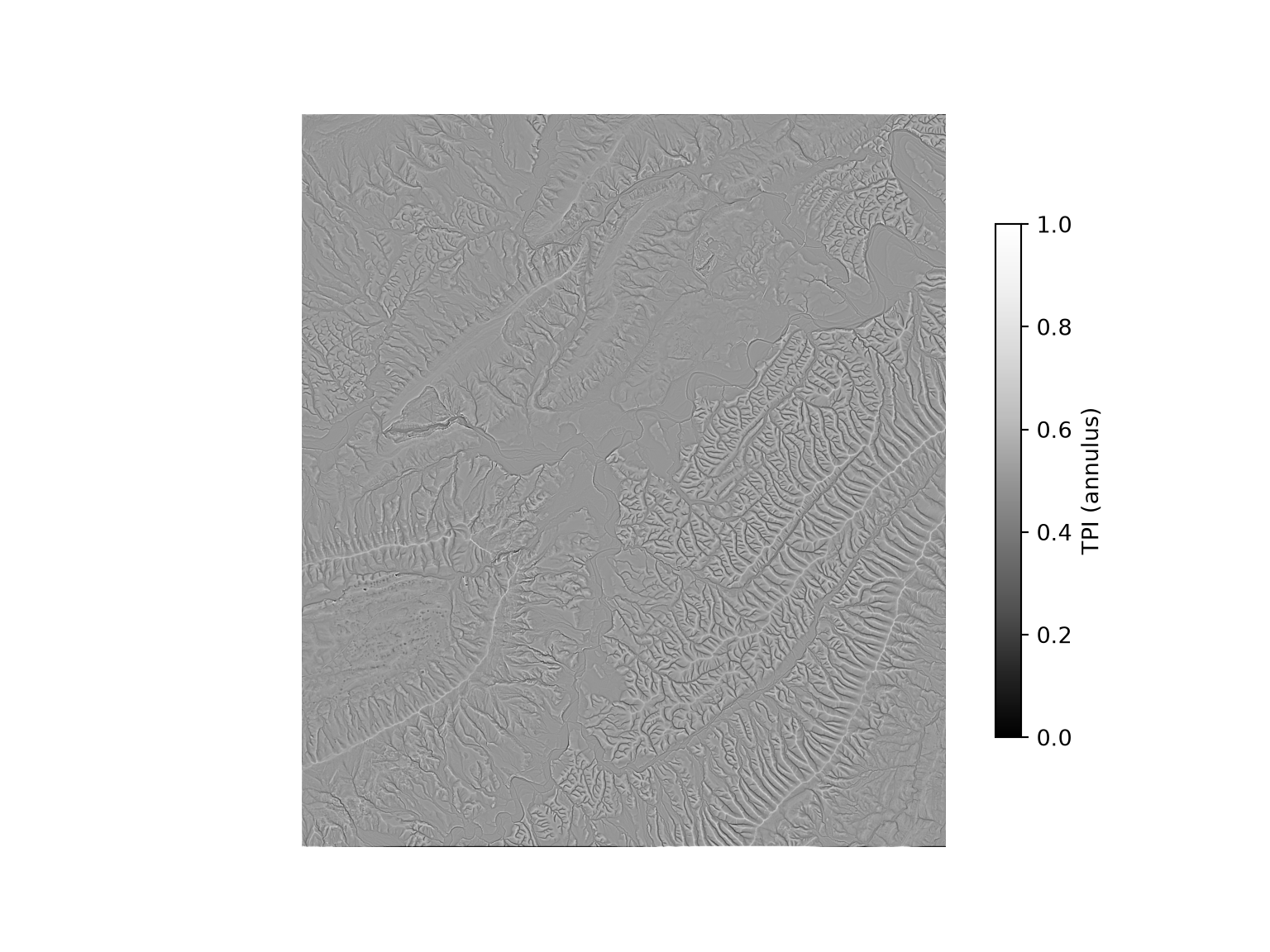
10.10.4 Writing Raster Data
Lastly, derived grids can be written to disk. A file is opened in write mode ("w") using rasterio.open(), and the metadata, including the driver, data type, number of bands, shape, coordinate reference system, transform, and NoData value, are provided as a dictionary. Here, we start from the profile of the DTM, update it as needed using update(), and write the slope (converted to degrees) and TPI as a two-band GeoTIFF. Each band is written using write(), which accepts the array and the band number. The bands are also given descriptions.
out_profile = dtm_profile.copy()
out_profile.update(count=2, dtype="float32", nodata=-9999, compress="lzw")

with rasterio.open("output/terrain_lsps.tif", "w", **out_profile) as dst:
    dst.write(remask(np.degrees(slp)).filled(-9999).astype("float32"), 1)
    dst.write(remask(tpi).filled(-9999).astype("float32"), 2)
    dst.set_band_description(1, "slope_degrees")
    dst.set_band_description(2, "tpi_circle35")

with rasterio.open("output/terrain_lsps.tif") as check:
    print(check.count, check.descriptions)
2 ('slope_degrees', 'tpi_circle35')10.11 Concluding Remarks
The goal of this chapter was to introduce you to general raster processing in Python with a focus on Rasterio, NumPy, and SciPy. This is important since many geospatial datasets, including remotely sensed imagery and digital terrain data, are represented as raster grids. Further, we find that we spend a lot of time obtaining and preprocessing raster data. In other words, this is an important skill set for geospatial scientists and modelers. Rasterio has a variety of functions available, and we only discussed a small percentage of them here. Please consult its documentation for further exploration. In the next chapter, we explore means to download Earth observation and digital terrain data within Python.
10.12 Questions
- Explain the difference between cropping and masking a raster grid.
- Explain the difference between raster aggregation and raster resampling.
- Why are bilinear interpolation and cubic convolution not appropriate resampling methods for categorical raster data?
- Using Rasterio, explain a method that can be used to force two raster grids to align and have the same number of rows and columns of cells.
- Explain the purpose of the
rightparameter ofnp.digitize()when reclassifying a continuous grid. - Explain the purpose of the
all_touchedparameter ofrasterize(). - Based on the spectral reflectance properties of vegetation, explain why the normalized difference vegetation index (NDVI) is valuable for assessing the presence of vegetation and vegetation health.
- Based on the spectral reflectance properties of snow, explain why the normalized difference snow index (NDSI) is valuable for assessing the presence of snow.
- When performing a principal component analysis (PCA), explain the difference between eigenvalues and eigenvectors.
- Explain why principal component analysis is a linear transformation of the original variables.
- Explain the difference between profile and planform curvature.
- Explain how topographic slope is calculated from a digital terrain model (DTM) using a 3x3 cell moving window.
- Topographic aspect in radian units can be converted to a measure of “northwardness” as the cosine of the aspect and to a measure of “eastwardness” as the sine of the aspect. Mathematically, explain why the sine and cosine transformations accomplish these desired transformations.
- Explain the equation used to calculate a hillshade from slope and aspect surfaces.
10.13 Exercises
Exercise 10.1: Raster Suitability Modeling
Introduction
You have been provided with a set of files that need to be processed to generate a conservative suitability model and a liberal suitability model using the raster processing methods demonstrated in Chapter 10. The files are provided in the datasets/gisData/raster/exercise folder and include:
- suitability.gpkg/extent: study area extent as a polygon feature
- suitability.gpkg/watersheds: watershed boundaries within the study area extent
- slp.tif: raster grid of topographic slope in degrees
- dtm.tif: raster grid of elevation in meters
- lc2.tif: land cover classes from the National Land Cover Database (NLCD)
- strmD.tif: distance from streams in meters
All data are projected to NAD83 UTM Zone 17N. All raster grids have a resolution of 30 m.
Deliverables
- Jupyter Notebook or Quarto document with all code and maps embedded. Answers to questions should be provided in Markdown cells or text.
Questions and Tasks
Preprocessing
Perform the following preprocessing tasks.
- Read in all the data layers.
- Crop and mask the elevation data relative to the extent polygon.
- Align the topographic slope, land cover, and stream distance grids with the cropped and masked elevation grid using
reproject(). Use nearest neighbor resampling for the land cover and cubic convolution for the slope and stream distance grids. - Create map layouts of all four raster grids and display them in a single figure using subplots.
Conservative Model
- Generate the following binary grids:
- Mixed or deciduous land cover = 1; all other cover types = 0 (the NLCD legend can be found here)
- Elevations > 900 m = 1; elevations <= 900 m = 0
- Topographic slope < 30 degrees = 1; topographic slope >= 30 degrees = 0
- Distance from stream < 150 m = 1; distance from stream >= 150 m = 0
- Find all cells that meet all four criteria in the study area extent (suitable = 1; not suitable = 0).
- Create a map layout of your result.
- For each watershed in the extent, calculate the total area suitable in hectares and the percent of suitable area.
- Create a map layout of your result.
Liberal Model
- Create grids linearly scaled between 0 and 1 such that the most suitable value is coded to 1 and the least suitable value is coded to 0:
- Higher elevations most suitable
- Lower topographic slopes most suitable
- Closer to stream most suitable
- Recode the land cover data as follows:
- Deciduous forest = 0.5
- Evergreen forest = 1.0
- Mixed forest = 0.75
- Woody wetland = 0.25
- All other types = 0
- Multiply all four results to obtain a combined suitability.
- Re-scale the output from 0 to 1.
- Make a map layout of the results.
- Summarize the mean suitability for each watershed.
- Make a map layout of the watershed-scale mean suitability.
Exercise 10.2: Imagery and Terrain Predictor Variables
Introduction
In this exercise, you will prepare a stack of image- and terrain-derived predictor variables and extract their values at plot locations using the methods demonstrated in Chapter 10. You have been provided with the following files in the datasets/gisData/raster/exercise folder. All layers are projected to WGS84 UTM Zone 18N.
- loff.tif: Sentinel-2 Multispectral Instrument (MSI) leaf-off image for a portion of central Pennsylvania (6 bands: blue, green, red, NIR, SWIR1, and SWIR2)
- lon.tif: Sentinel-2 Multispectral Instrument (MSI) leaf-on image for a portion of central Pennsylvania (same 6 bands)
- dtm2.tif: digital terrain model (DTM) with elevation in meters and a 10 m spatial resolution
- imagery.gpkg/extent2: study area extent in central Pennsylvania
- imagery.gpkg/pnts2: plot locations
Note that the two images have a cell size close to, but not exactly, 10 m and do not share the same grid as the DTM.
Deliverables
- Jupyter Notebook or Quarto document with all code and maps embedded, along with the saved point layer.
Questions and Tasks
- Read in all of the files.
- Make a map to display the extent and point features.
- Store the names of the leaf-off image bands as follows: “offBlue”, “offGreen”, “offRed”, “offNIR”, “offSWIR1”, “offSWIR2”.
- Store the names of the leaf-on image bands as follows: “onBlue”, “onGreen”, “onRed”, “onNIR”, “onSWIR1”, “onSWIR2”.
- Visualize the two images as false color composites.
- Visualize the DTM data.
- Align the two images to the DTM grid using cubic convolution and
reproject(). - Calculate the normalized difference vegetation index (NDVI) separately for both images.
- From the DTM, calculate topographic slope.
- Stack the leaf-off image bands, leaf-on image bands, leaf-off NDVI, leaf-on NDVI, elevation, and slope into a single array.
- Make sure all bands have meaningful names (e.g., store them in a list and use them as band descriptions if you write the stack to a file).
- Extract all the band values at the point locations.
- Save a copy of the point layer to disk with all of the raster layer values included in the attribute table.